Localizing Custom Search and Filtering
Some of the tabular displays are used to present the specific information, such as Equipments contained in a specific Substation or ACLineSegments above 220 kV. Such information can be displayed by executing a formulated MQL query during object searching or object filtering. However, if these specific displays are frequently called, it will be desirable to store the formulated query string in a configuration file and call these displays by invoking a context menu from the model navigation tree. Through add-on configuration, the frequently-used custom search and filtering become part of the Tool.
The custom searching and filtering information, defined by users, are specified in a user-maintained configuration file called AddonConfig.xml under folder \CIMSpy\config\ui. This configuration file is dedicated to define the plug-in functions and add-on displays. It is intended to be maintained by users. When users upgrade the tool to a new version, this configuration shall replace the empty AddonConfig.xml file that comes with the installation kit. This makes it extremely convenient to carry over the customizations to a new version of the tool.
To illustrate how to localize the custom search and filtering, we will use the MQL examples based on a test model that comes with the installation package. The test model is called test.xml under the \TestModels folder. For tutorial purpose, a sample AddonConfig.xml file was created. It includes the custom search and filtering defined using the MQL examples. Users are encouraged to load test model file into the tool and try each example to gain some hand-on experience. To do so, you need
- Copy the sample AddonConfig.xml from \TestCases\customization to \CIMSpy\config\ui. (please make a copy of the original AddonConfig.xml if you have changed it.)
- Load the test.xml under the \TestModels folder into the tool
Note
the custom search and filtering covered in this article is relatively simple. The filtered or searched displays show the data as it is. To build more complicated custom reports, please refer to Building Custom Reports.
Building Filtered Tabular Displays
Users can define the filtered tabular displays using the CustomFilteredObjectDisplay element in the AddonConfig.xml, as illustrated below. Two attributes must be specified:
- title: Name of the defined custom tabular display, required.
- query: MQL query string used to filter the objects, required.
- comment: test description of the defined custom tabular display, optionally.

At run time, the tool will add each title of the defined custom displays to the Display sub-menu associated with the model tree item. When users select a custom display, the corresponding query will be executed and a tabular display will be created.
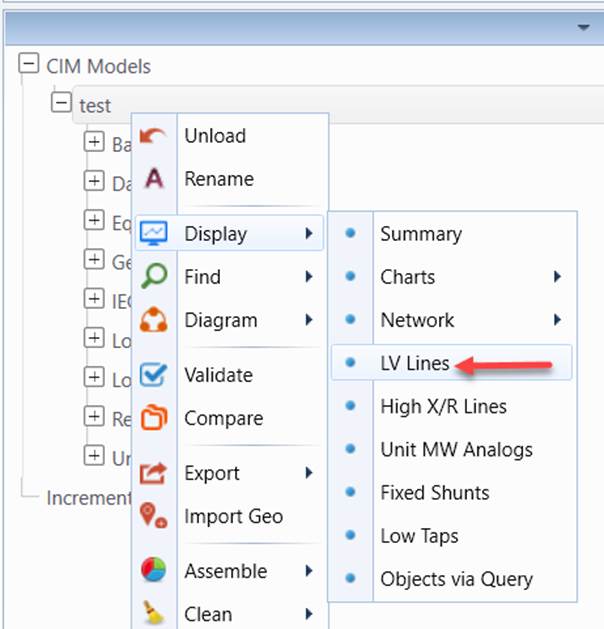
In the above example, for example, if users select Display→LV Lines, the following query will be executed:
ACLineSegment/[BaseVoltage->nominalVoltage]<=138
Note
in the custom tabular display query, wild card can’t be used for specifying class name. This is because tabular displays are designed to present objects of the same type. You may notice that the corresponding query string defined in the AddonConfig.xml is a little different, where the ‘less than’ operator(<) is replaced by ‘\<’. This is because character ‘<’ is a reserved for internal use in XML and need to be replaced with character references in the XML file. The following table lists five commonly used XML reserved characters and the corresponding character references. Note: not all of these XML reserved characters have to be encoded. For example, navigation operator (->) doesn’t have to be encoded, even though it contains an XML reserved character >. XML has some rules to determine whether a reserved character shall be encoded. If you are not sure, you shall encode any XML reserved characters in your MQL query string.
| Character | Reference |
|---|---|
| < | \< |
| > | \> |
| & | \& |
| ' | \' |
| " | \" |
Defining Custom Searches
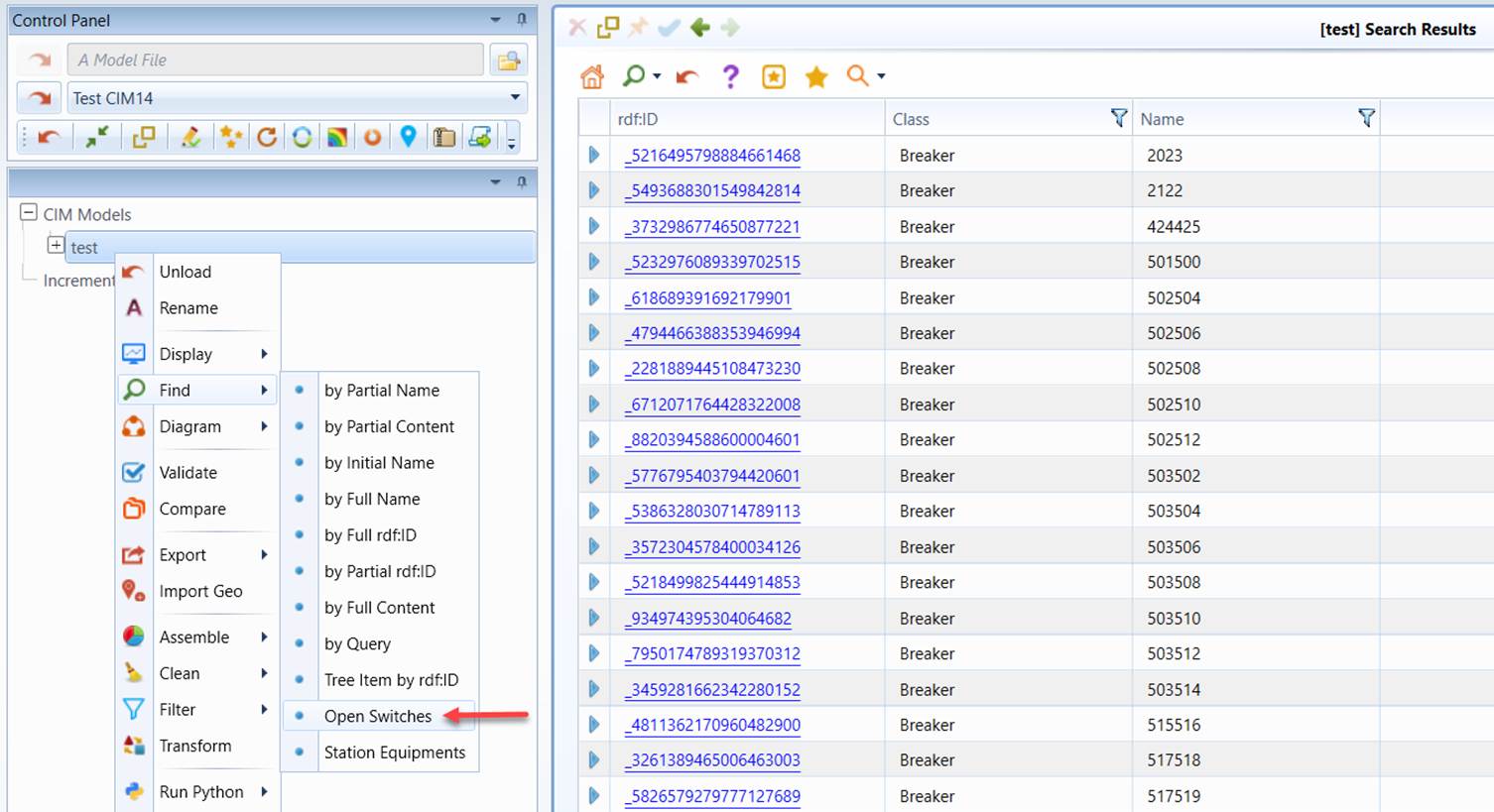
Similarly, users can define the custom search using the CustomSearch element in the AddonConfig.xml, as illustrated below. Attribute title and query must be provided for each custom search. Note: in the search query, wild card can be used to represent any classes. Also the XML reserved characters in the query string must be properly encoded. For example, in the “Open Switches” query string, “true” is encoded as \"true\". Please refer to the above section for more detailed information of encoding XML reserved characters in the MQL query string.

At run time, the tool will add each title of the defined custom search to the Find sub-menu associated with the model tree item. When users select a custom search, the corresponding query will be executed and all of the found objects will be listed.