Creating a Draft Version
Draft version must to be created when users plan to start a new branch or make model changes from a labeled version. The Modelspace allows multiple draft versions to be created, but each must server as leaf version in the corresponding version branch.
Create a Draft Version
Starting from the “parent” labeled version or Base version, a draft version can be created in three different ways:
- Navigate to Model Admin Page.
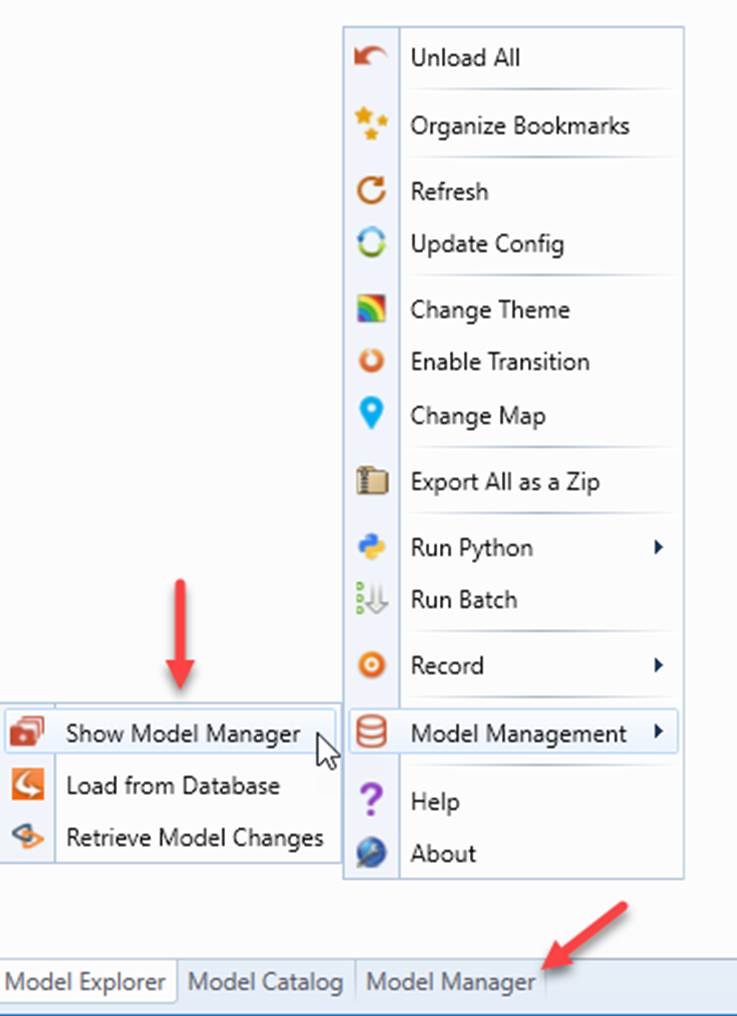
- Right click the labeled version in version tree view of Model Admin Page and select Create New Draft Version from the context menu.
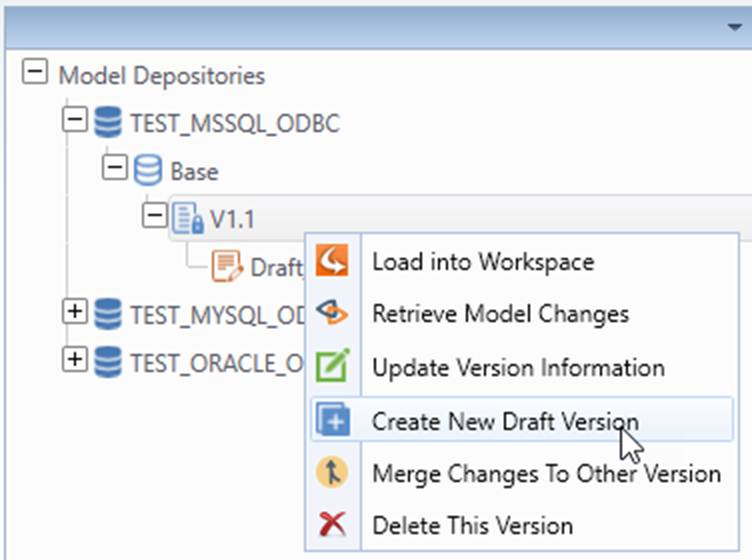
A draft version, derived from Base version, is created.
Verify Created Draft Version
Users can verify the created draft version by checking the version tree and version detail in Model Admin Page. Draft version should be listed under its parent version.
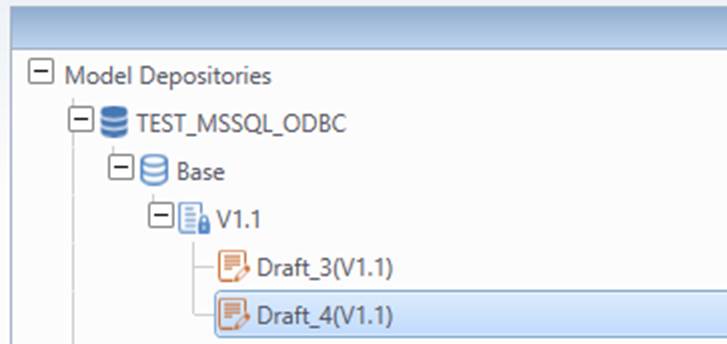
Newly created draft version is identical to the parent labeled version. This can be verified that by extracting version changes between the two or by loading both of them into work space and doing a model comparison.
Draft version name is auto generated and follows a naming convention. It starts with “Draft” and an internally maintained version ID. The name of the parent version is appended inside the parenthesis. Users can rename the draft version to a more user friendly one by update Version Information.
Next Step
Once the draft version is created, users should load it into workspace and start maintaining it using the model editing feature of the Tool.