Importing Zipped CIM/XML Files
CIM/XML files are typically zipped for two purposes:
- A reality-based CIM/XML file is large in size. A zipped CIM/XML, however, is of only 5-10% of the original size, thus convenient for exchanging and storing.
- Related CIM/XML files are normally archived as a single zipped file to facilitate model management. These CIM/XML files are normally dependent on each other.
The Tool provides native support for loading a zipped CIM/XML file. The Tool will detect any of the CIM/XML files, full or incremental, in the zip file and load them sequentially. If the zip file contains any other types of files, the tool will simply ignore them.
The following steps should be followed to load a zipped CIM file:
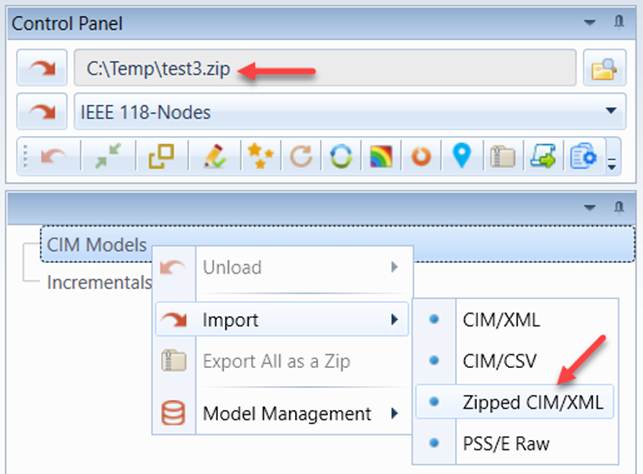
- Right-mouse click the CIM Models tree item in the Model Explorer navigation tree. Then Select Import Zipped CIM/XML in the context menu. Alternatively, users can load the zipped model files using the shortcut in the control panel. Simply click the file browser button to select the CIM/XML file, and then click the Load button to complete the process. Note the model loading function in the control panel works for both raw CIM/XML files and zipped CIM/XML files. It relies on naming convention to determine the type of the file to be loaded. If the extension name of the input file is “zip” (case insensitive), for example “model.zip”, the input file will be treated as zipped file. Otherwise it will be treated as raw CIM/XML file. If your input files don’t follow this naming convention, you should use the corresponding menu items to load the model files.
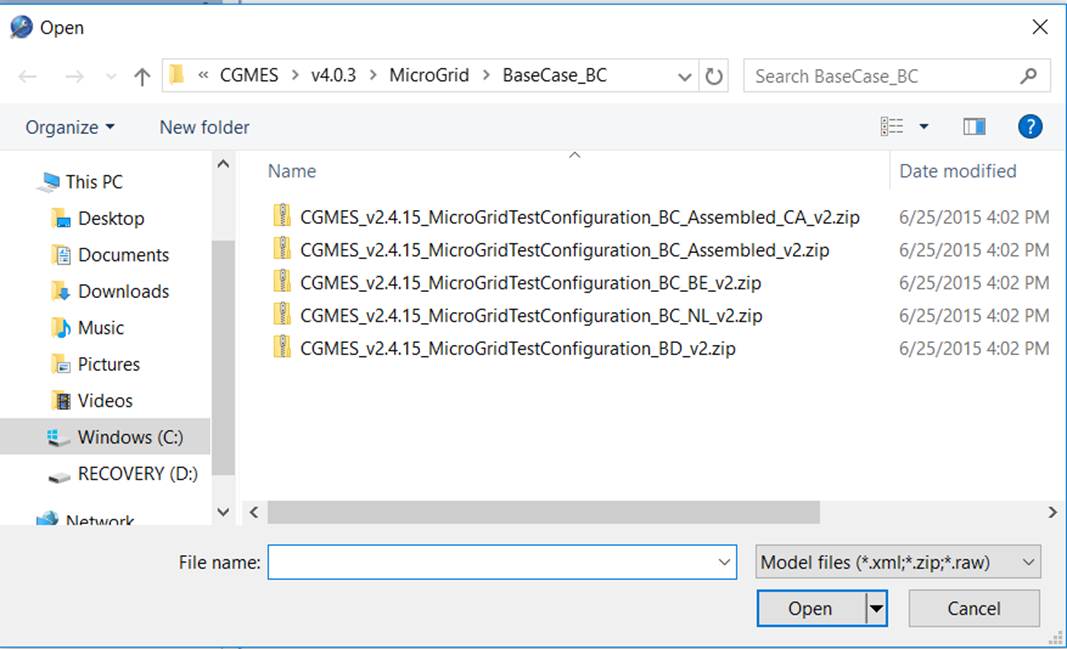
- A dialog will pop up for file selection. Browse to the directory to select the zip file.
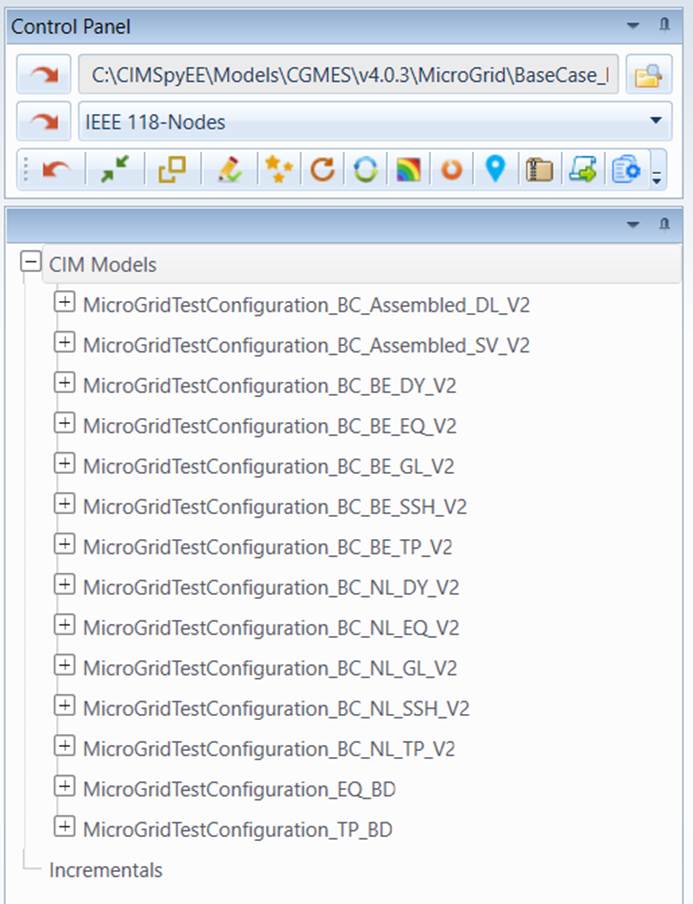
- While the loading process starts, the UI will be locked from any other activities. Once the loading process is completed, all of the model files archived in the zip file will be listed in the model navigation trees
Note: Due the additional unzipping process, loading a zipped CIM/XML file that contains a single CIM/XML file takes a little long than loading the raw CIM/XML file.