Comparing Two Models
Before comparing two models, you must ensure two models are comparable, i.e. the same reality-based modeling entity must maintain the same Master Resource Identifier (MRID) in the form of rdf:ID in CIM/XML file. The Tool relies on MRIDs for identifying the same modeling entities in the models to be compared.
Full Model Comparison
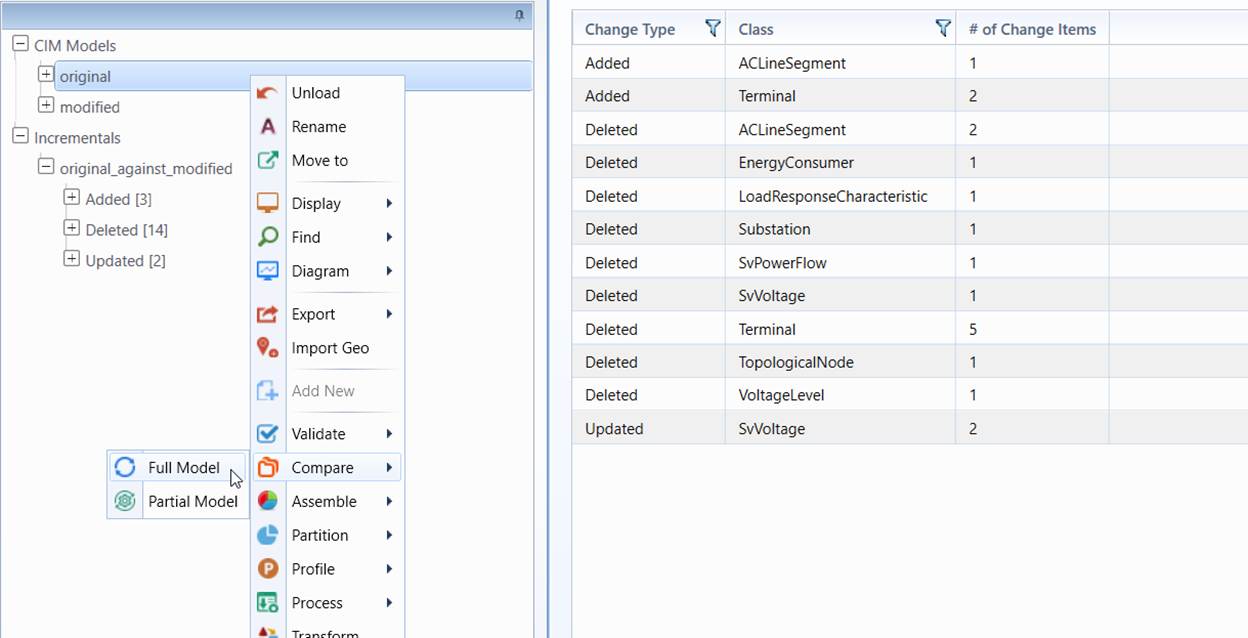
Full model comparison function can be invoked from the model context menu associated with the selected model as illustrated in the following screenshot.. Once invoked, a model selection wizard will pop up, prompting users to select the qualified base model to compare with. Only the same type of models can be selected as a base for model comparison. If the difference between two models is detected, a CIM incremental model will be generated to describe the difference between two models. The generated CIM incremental model will be shown under the Incrementals model tree item and highlighted in red as shown in the following screenshot. Users can browse the generated CIM incremental model to find out the detected difference. The identified model difference can also be saved as a CIM incremental file. This can be accomplished by right-mouse clicking the generated CIM incremental model and then selecting Export as CIM Incremental.
In most cases, only one incremental model is generated as result of model comparison. However, if it is detected that the class of the same object has changed, two incremental models will be generated, as illustrated below.
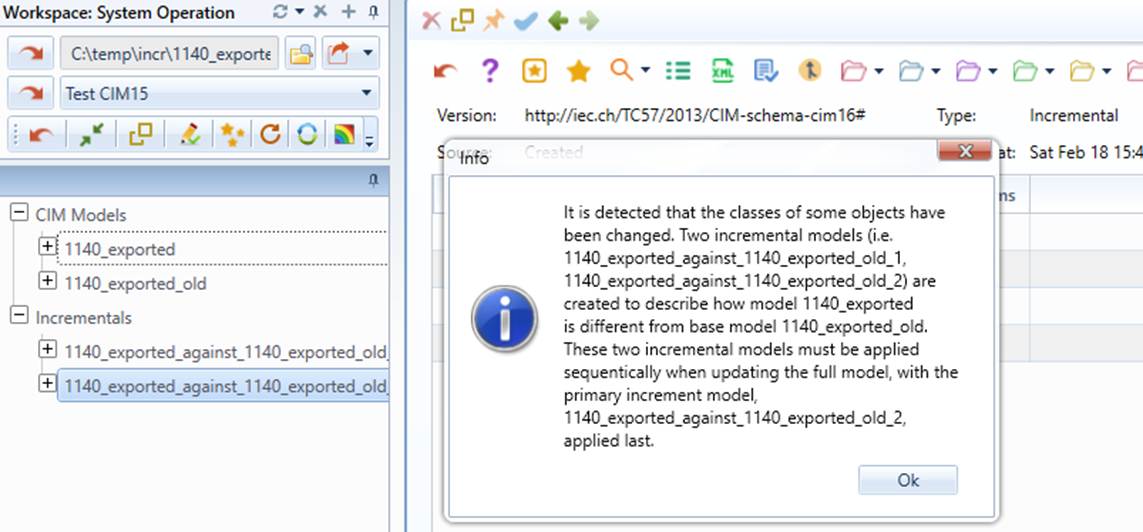
Class change is not permitted, but it happens in reality, such as Breaker→Disconnector, GeneratingUnit→ThermalGeneratingUnit, etc. CIM incremental model standard was not designed to describe the case of class change. As a workaround, the Tool generates two CIM incremental files:
- Pre-process Incremental: this incremental model simply deletes the objects of the old classes and updates the corresponding references.
- Primary Incremental: this incremental model adds the object of the new classes and contains all of the other model changes.
It is important to note that when updating the full model with the above two incremental models, Pre-process Incremental must be applied first, and then followed by the Primary Incremental.
If it is not a desired behavior to split incremental model, one can change the configuration splitIncremental to “false” in configuration file \config\StandardConfig.xml, as illustrated below.

To inspect model comparison results, please refer to Model Change Reporting.
Partial Model Comparison
Partial model comparison allows users to compare part of the model, such as one or more specified GeographicalRegions. The Tool supports two kinds of partial model comparison:
- Object Comparison: allowing users to compare a selected object and it descendants;
- Custom Partial Comparison: allowing users to compare models based on the configuration which defines which part of the model shall be compared and what classes/properties shall be excluded during model comparison.
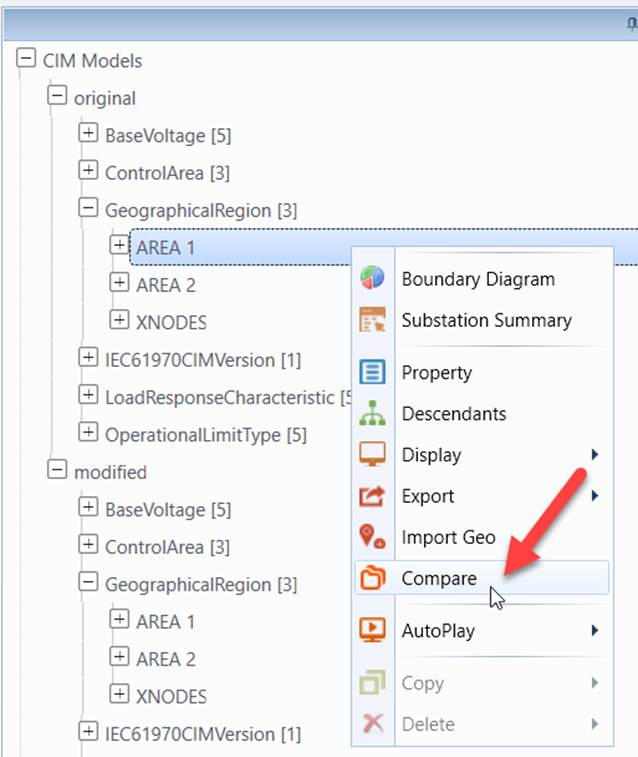
Object comparison can be invoked from the selected object, as illustrated below. Unlike full model comparison, object model comparison involves only the selected object and its descendant, a GeographicalRegion and its contained SunGeographicalRegion/Substation/VoltageLevel/….. Note: Descendants of an object is governed by the model restriction meta-data.
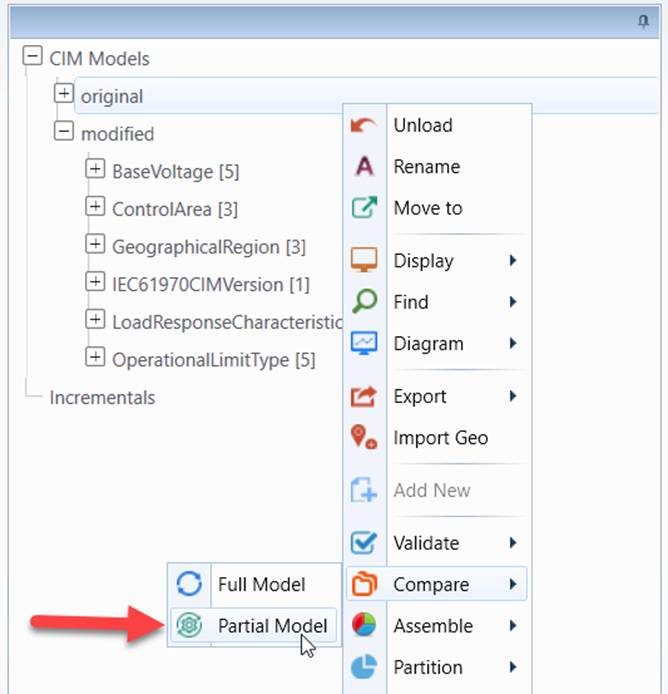
Custom partial model comparison can be invoked from the model context menu, as illustrated below. Users will then be prompted to provide a model comparison configuration file which defines customized model comparison, as described below.
Configuring Model Comparison
Users can customize the model comparison process by specifying which portion of the model shall be compared and what classes/properties shall be excluded during the model comparison. This achieved by providing a separate XML configuration file. A sample of model comparison custom configuration file can be found at \TestCases\comparison\customization\CustomCompareConfig.xml, and illustrated below:
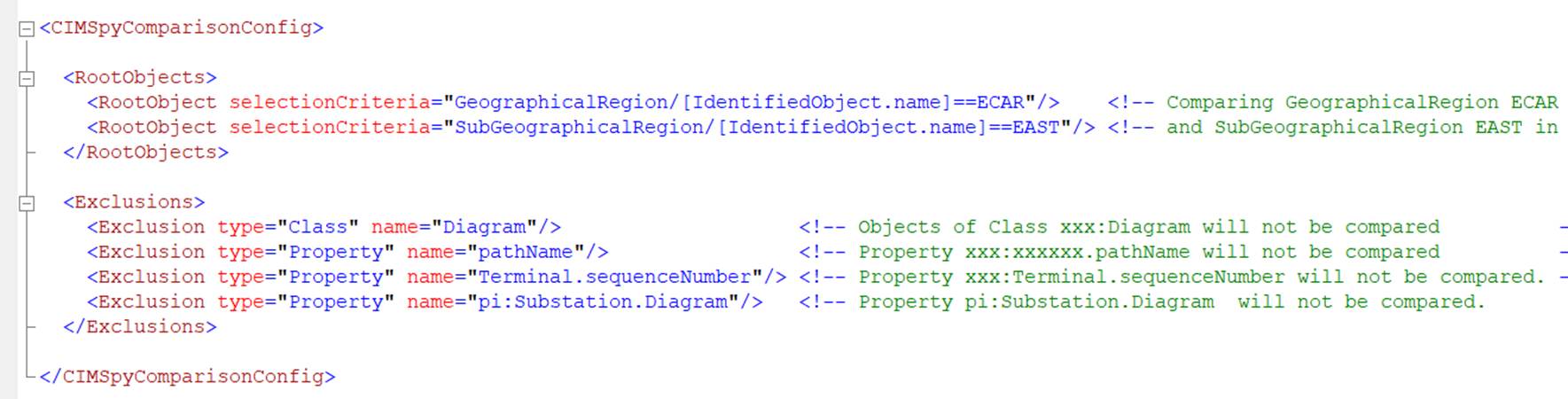
Model comparison custom configuration file contains two declarations:
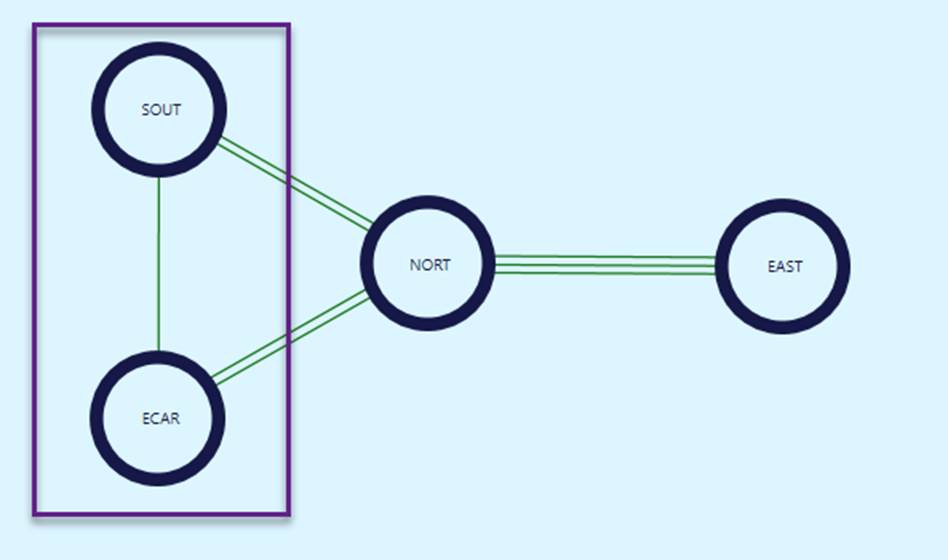
- RootObjects: declaring root objects which will be compared (via object comparison). RootObject is declared as selectionCriteria using MQL query. For example, the MQL query in the sample model comparison custom configuration defines mpdel comparison shall be restricted to GeographicalRegion ECAR and SubGeographicalRegion SOUT in GeographicalRegion NEPOOL, as illustrated below.
- Exclusions: listing all of the properties/classes that will be excluded during model comparison. To facilitate specification, the following naming rules are supported:
- If a shot name is specified, all of the properties that have the same short names will be excluded.
- If a long name is specified, only the properties that have the same long names will be excluded.
- If a full name is specified, only the properties that have the exact same full names will be excluded.
Examples:
- Short name example: pathName
- Long name example: Terminal.sequenceNumber
- Full name example: pi:Substation.Diagram
Model comparison custom configuration file can also be declared as part of model comparison configuration in server configuration file, as illustrated below. Once declared, the customized model comparison will be applied to any Full Model Comparison and Object Model Comparison.

Other configurations are summarized as below:
- maxDiff: Maximum number of difference items to be reported. Model compaison will abort once reaching the maximum number of difference items.
- maxRelativeErrorIgnorable: used to ignore the relative difference between two numerical values. If two numerical values are very close, no difference will be reported.
- maxAbsoluteErrorIgnorable: used to ignore the absolute difference between two numerical values. If two numerical values are very close, no difference will be reported.
- ignoreEmptyElement: if “true”, the empty elements (in CIM/XML) will be ignored.