Supporting PSS/E Raw
Siemens PTI’s PSS/E Raw is a proprietary model format widely used in the electrical power industry. It is in a plain text file in “free format”. It is difficult for users to find the related information, particularly the network topological information, from this legacy model file. The Tool provides native support for PSS/E Raw model format. Users can leverage many of the powerful features of the Tool to facilitate their modeling work. More specifically, users can load the PSS/E Raw model file for
- Browsing and navigation
- Searching and querying
- Most importantly, model visualization
- Model validation
- Model comparison
Additionally, a full sample is provided to support bi-directional model conversion between PSS/E Raw 33 to CIM 16:
There are many versions of PSS/E Raw files. The currently supported versions are Version 29 and Version 33. Other versions of PSS/E Raw can also be supported on demand.
Define a PSS/E Raw Version Profile
PSS/E raw data has evolved into many versions after years of development. In order to successfully load a PSS/E raw data file, a version specific profile, as displayed below, must be pre-defined. It includes all of the meta-knowledge about the specified version of PSS/E raw data, including modeling restrictions and validation rules. Once a profile is defined, the PSS/E model governed by it will behave just like other CIM models for model exploration, model comparison, and validation.
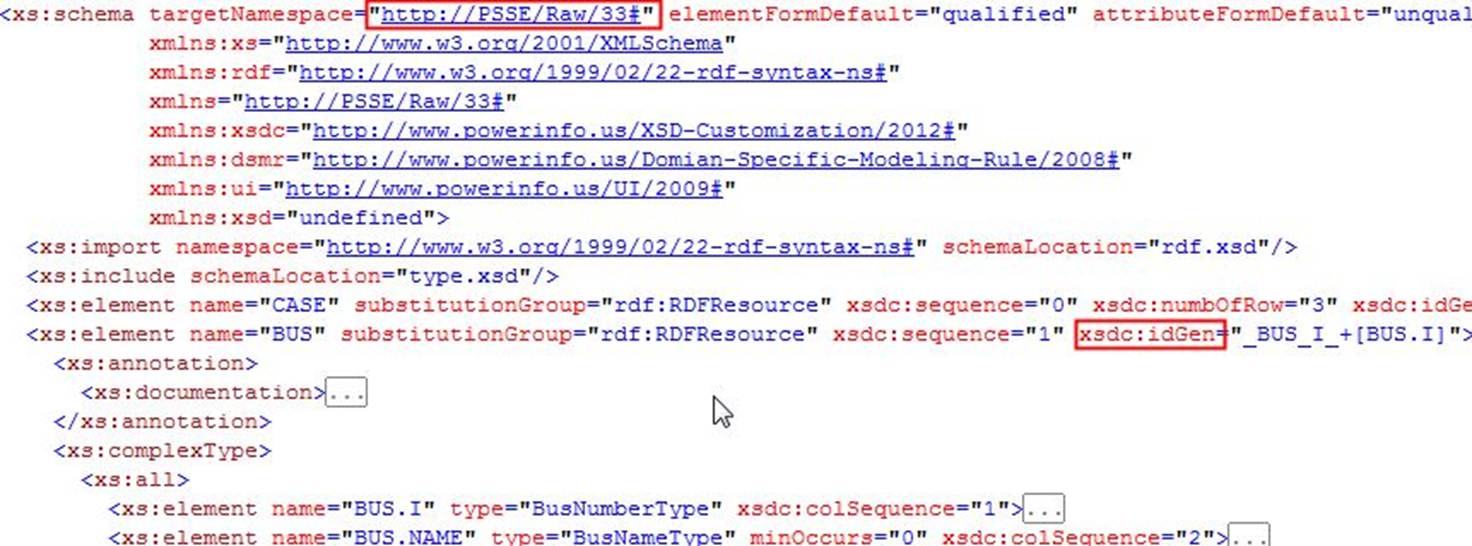
Included with this release, the Tool supports profiles for the two versions of PSS/E: version 29 and version 33.

Configure PSS/E Importing
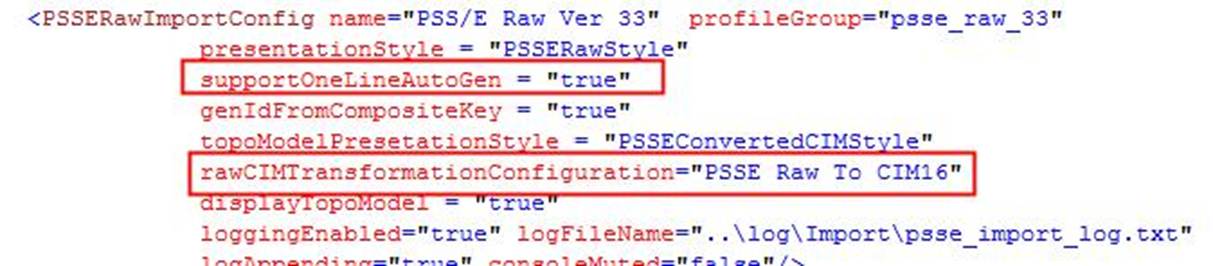
PSS/E Raw is a foreign model. Users must provide additional information for the supported version of PSS/E Raw. Such information is specified in the server configuration file. Optionally, users can configure the support of PSS/E Raw to enable CIM-based Model Visualization. This is accomplished by creating a topology-only CIM model for the loaded PSS/E Raw. The behind-the-scene CIM model is used to generate the diagram. More specifically, the related configuration information is defined in the PSSEIOConfig element, as shown below.
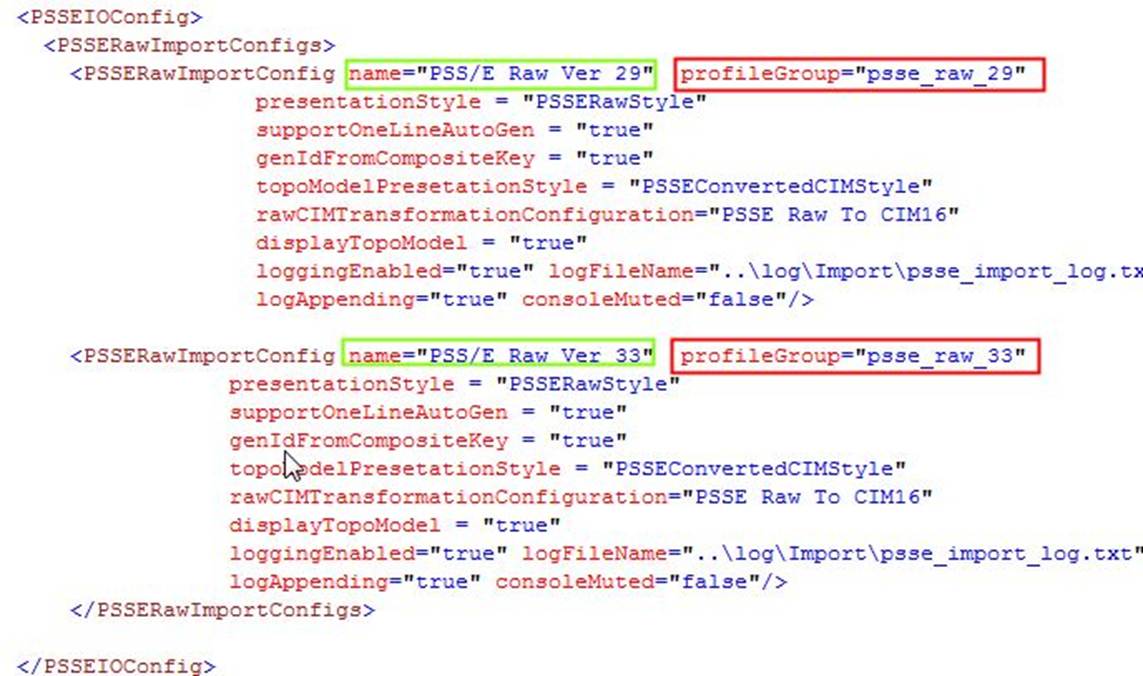
PSSEIOConfig contains a collection of PSSERawImportConfig. Each corresponds to a specific version of PSS/E raw data. Its configuration parameters are:
- Name: name of the import configuration, typically with PSS/E version information include. This is what users see at UI.
- profileGroup: the name of the profile group, which should be declared in StandardConfig.xml.
- genIdFromCompositeKey: when true, the ID for an object will be generated based on a MQL based composite key that is defined by “xsdc:idGen” for each class in profile. Otherwise, the Tool will generate a GUID to server as RDF ID. Because PSS/E Raw doesn’t contain persistent MRIDs, a composite key that characterizes a modeling entity will make it possible to enable Model Comparison.
- supportOneLineAutoGen: when true, PSS/E model will be automatically converted to CIM model to enable CIM-based Model Visualization, optionally and set to false if not specified.
- presentationStyle: the presentation style for PSS/E raw data model, optionally.
- topoModelPresentationStyle: the presentation style for the converted CIM model which is used to drive diagram generation. Optionally and ignored if supportOneLineAutoGen is ‘false’.
- rawCIMTransformationProfile: the name of ModelTransformationConfig that controls the PSS/E to CIM transformation, required if supportOneLineAutoGen is ‘true’.
- geoSource: If specified, the full path of the geo file that will be imported and merged with the CIM model used to drive diagram generation. Optionally and ignored if supportOneLineAutoGen is ‘false’. This configuration parameter will be overwritten by the same configuration parameter , if specified, in the data source configuration.
Import PSS/E Raw
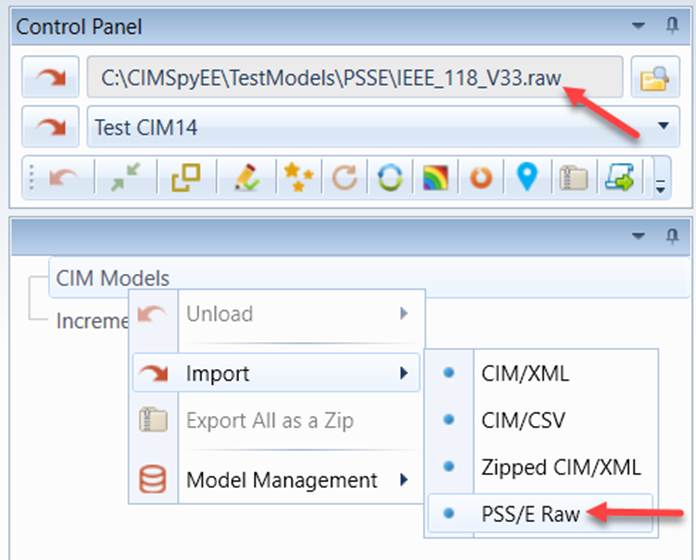
- Right-mouse click the CIM Models tree item in the Model Explorer navigation tree. Then Select Import →PSS/E Raw in the context menu. Alternatively, users can enter the path of the import file through the file browser. In this case, the entered file name must contain an extension name “raw”. The Tool relies on this naming convention for PSS/E Raw import.
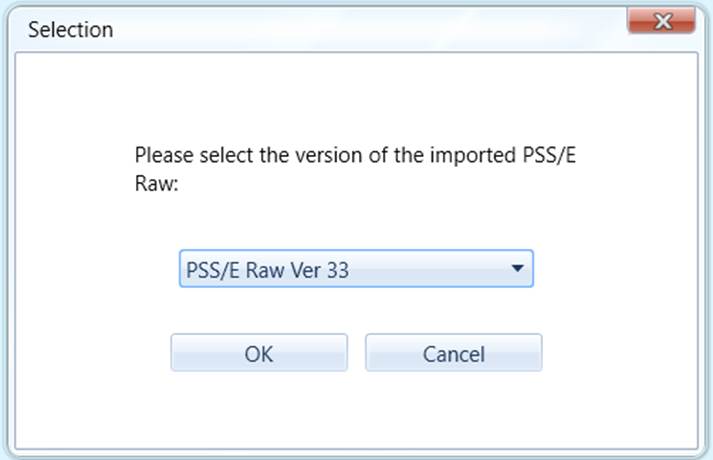
- When multiple versions of PSSERawImportConfig are defined in the configuration file, select from the drop down list of the version and click “OK” to continue.
- After PSS/E raw data file is successfully loaded, it will be added as a CIM Model tree item to the Model Explorer navigation tree.
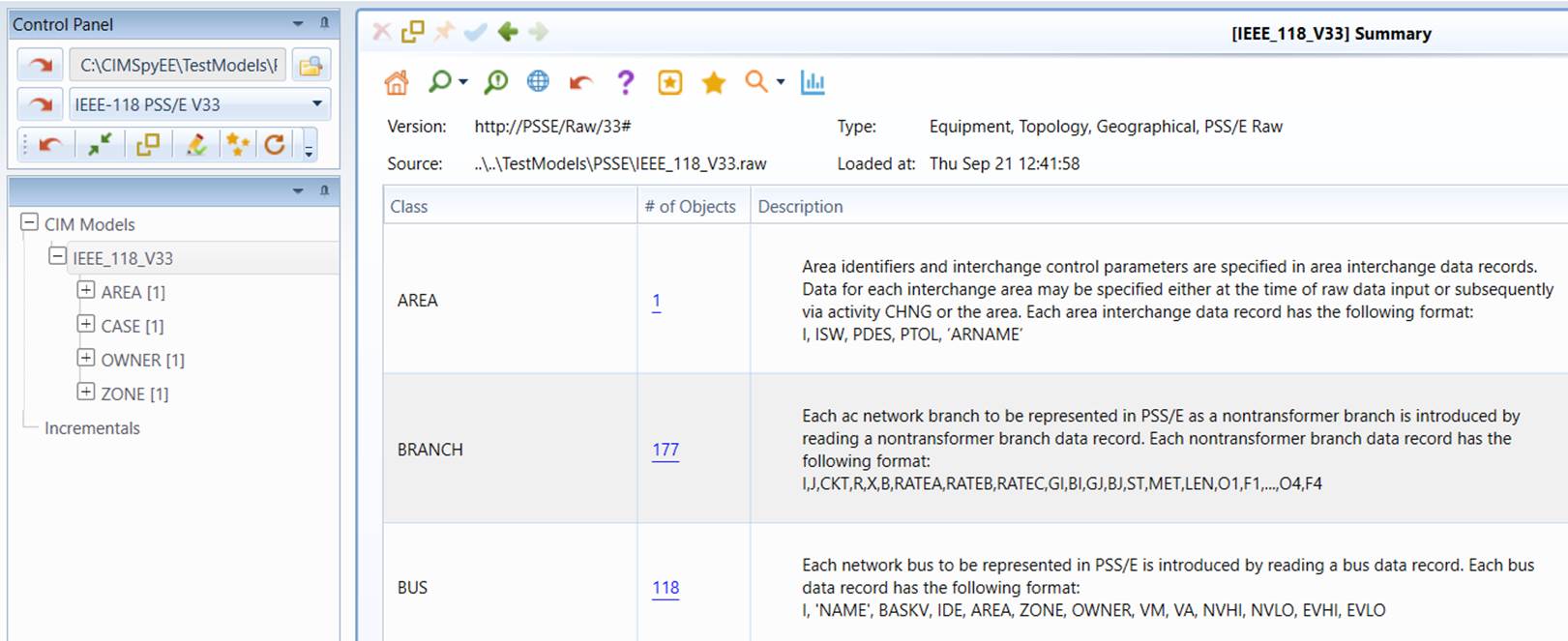
PSS/E Raw model file can also be imported by defining a data source to facilitate model loading. Users can also personalize the loaded model in this approach (Recommended).
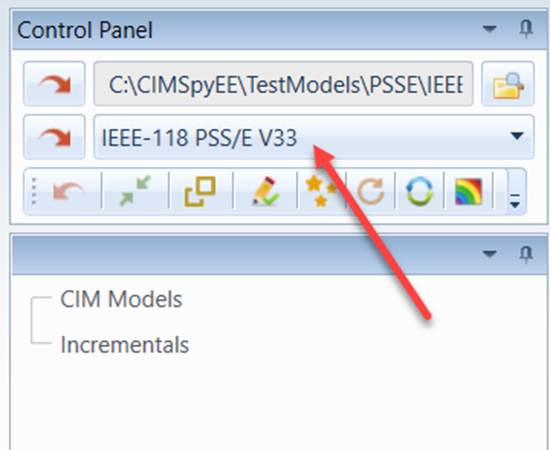
Export PSS/E Raw
The PSS/E Raw 33 model loaded in the workspace or converted from the CIM model can be exported as a PSS/E Raw 33 file. This function can be invoked from the context menu, as illustrated below.
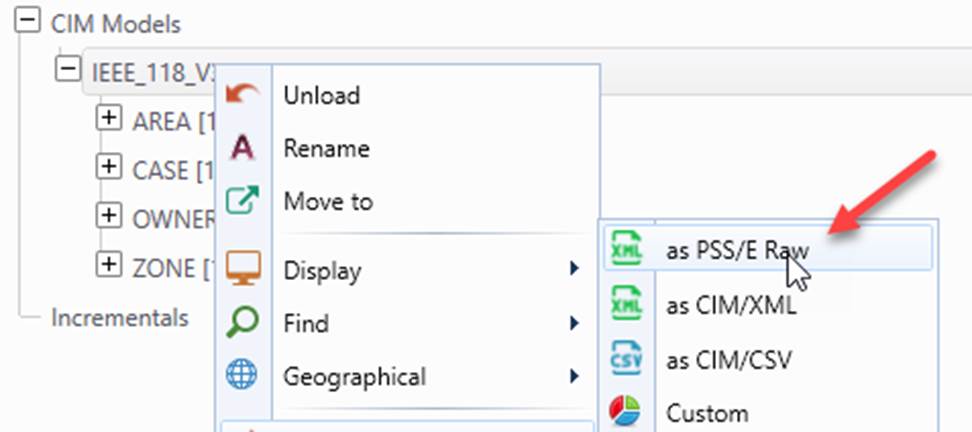
This function is meta-data driven. More specifically, the exported file is driven by
- PSS/E Raw Profile in XSD, which can be found in profile\psse\raw33\ psse_raw33.xsd
- PSS/E Raw Format in CSV, which can be found in config\style\psse\raw33\psse_raw33_export_config.csv
The PSS/E Raw Format must be specified for the supported PSS/E Raw version in \config\StandardConfig.xml, as illustrated below

The Format is specified in a CSV file, as shown below.
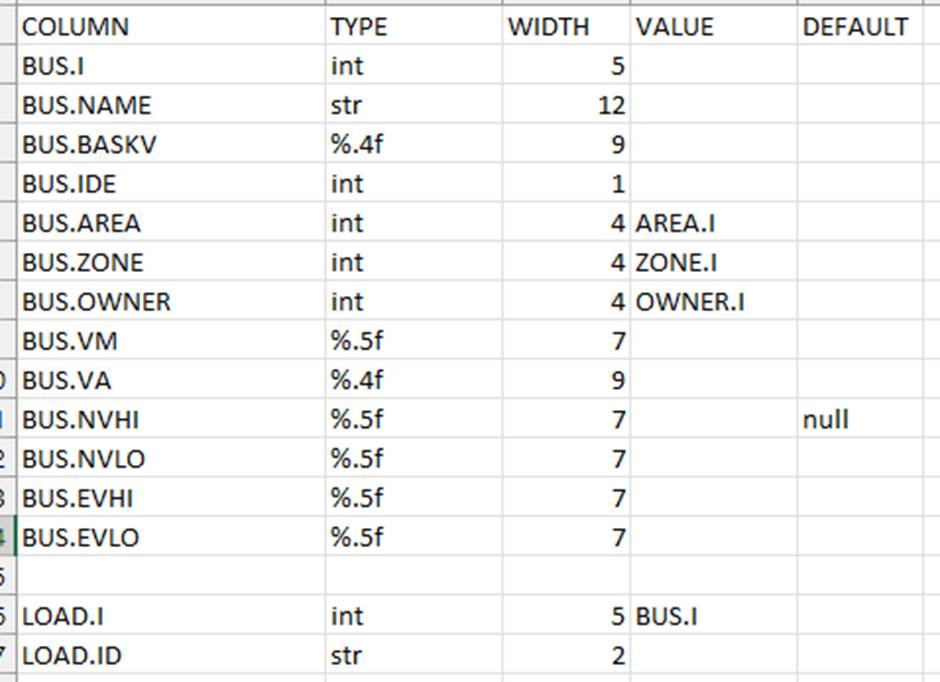
It contains the following:
- COLUMN (required): the corresponding property name from the profile.
- TYPE (required): type of the property, as listed below
- str: string value quoted with char ‘.
- Int: integer value
- %m.n: float value of the specified width (m) and precision (n). it is the same as format string of C function sprintf (https://www.w3resource.com/c-programming/stdio/c_library_method_sprintf.php).
- WIDTH: width of the column. String is left aligned, while int/float are right aligned.
- VALUE (required for association): the property value of the associated object to be exported for the column;
- DEFAULT (optional); the default value if missing. A null value means the remaining columns will be ignored if this column is missing.
The exported PSS/E Raw file strictly follow the format declaration, as shown below.
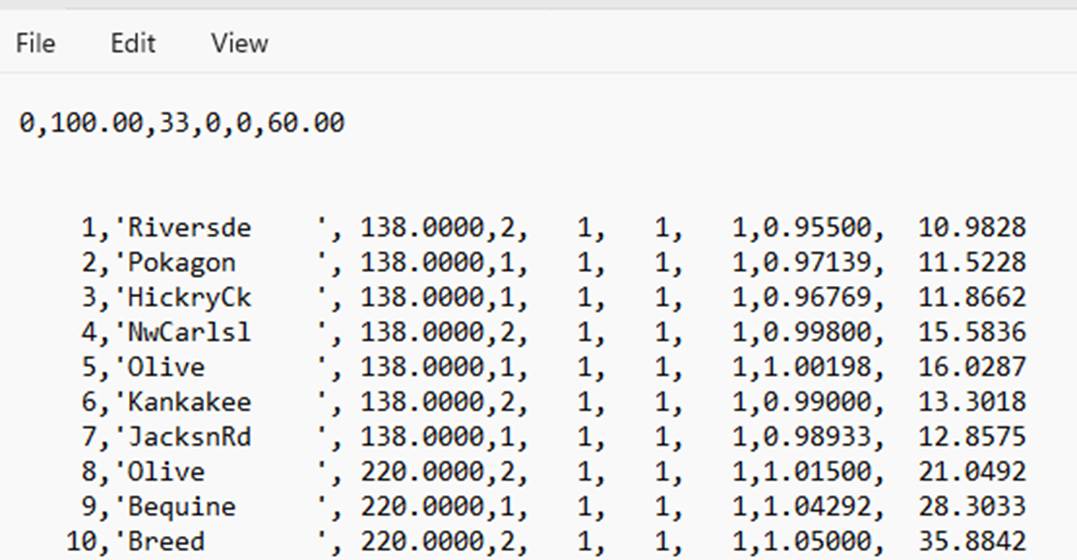
Browse, Explore, and Validate Loaded PSS/E Raw Model
Once PSS/E is loaded into the Tool, it can be browsed, explored, compared, and validated, just like a CIM-based model.
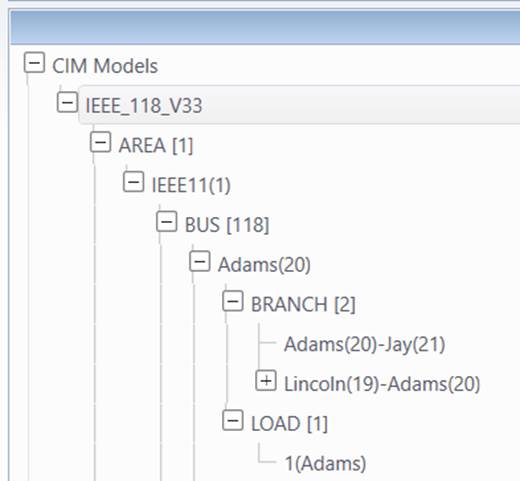
- Model browse and exploration through all kinds of displays: For example,
- Hierarchical display
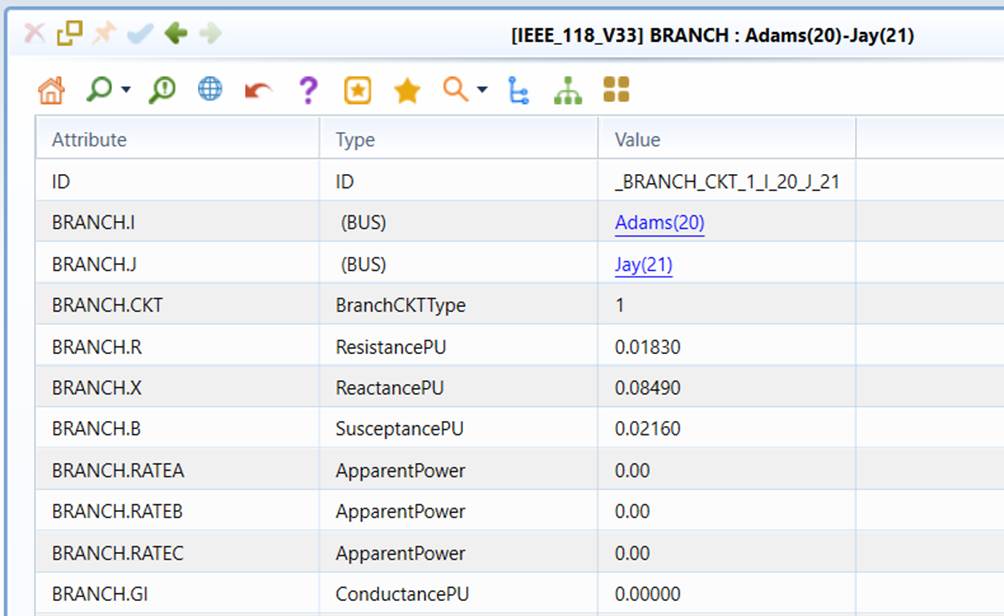
- Form display
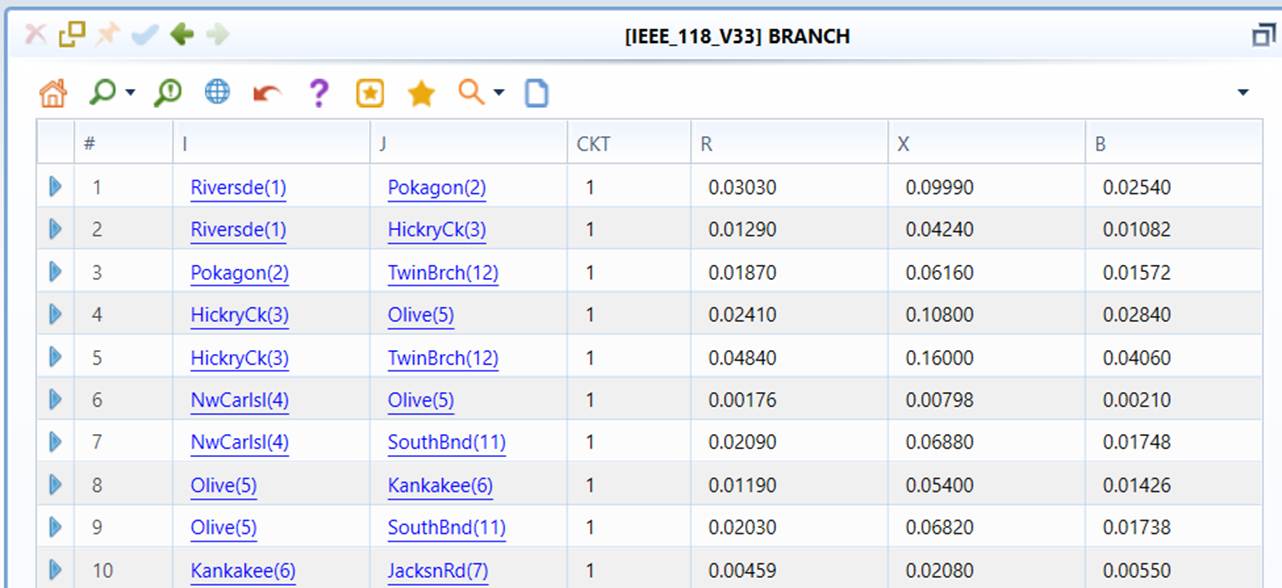
- Tabular display
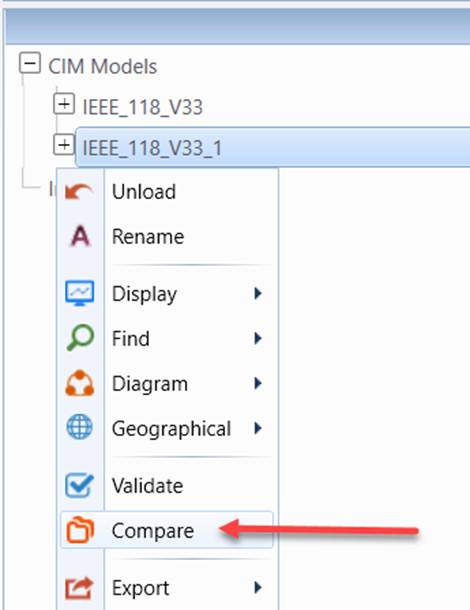
- Model comparison: PSS/E models are comparable as longs as their objects of the same class have same IDs. This is achieved by defining a unique composite key for each object and setting “genIdfromCompositeKey” to true in configuration file.
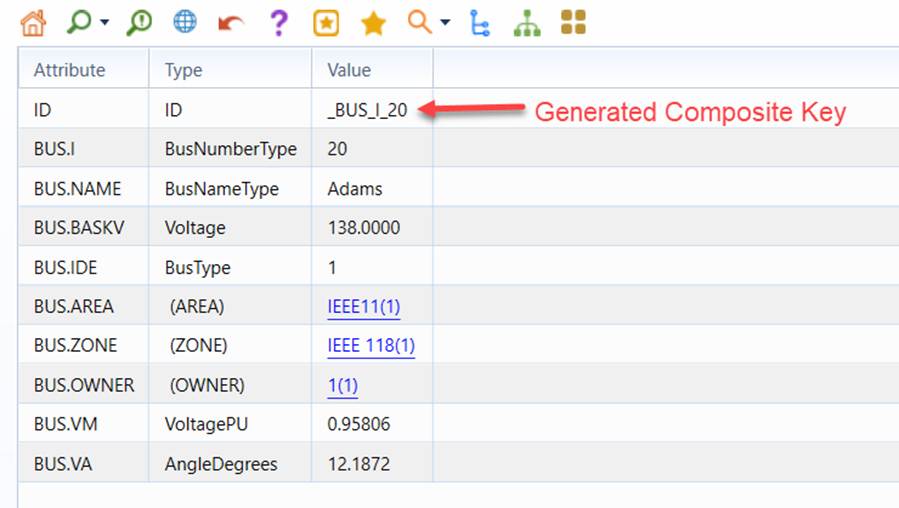

After that, PSS/E raw data from different versions or different sources can be compared.
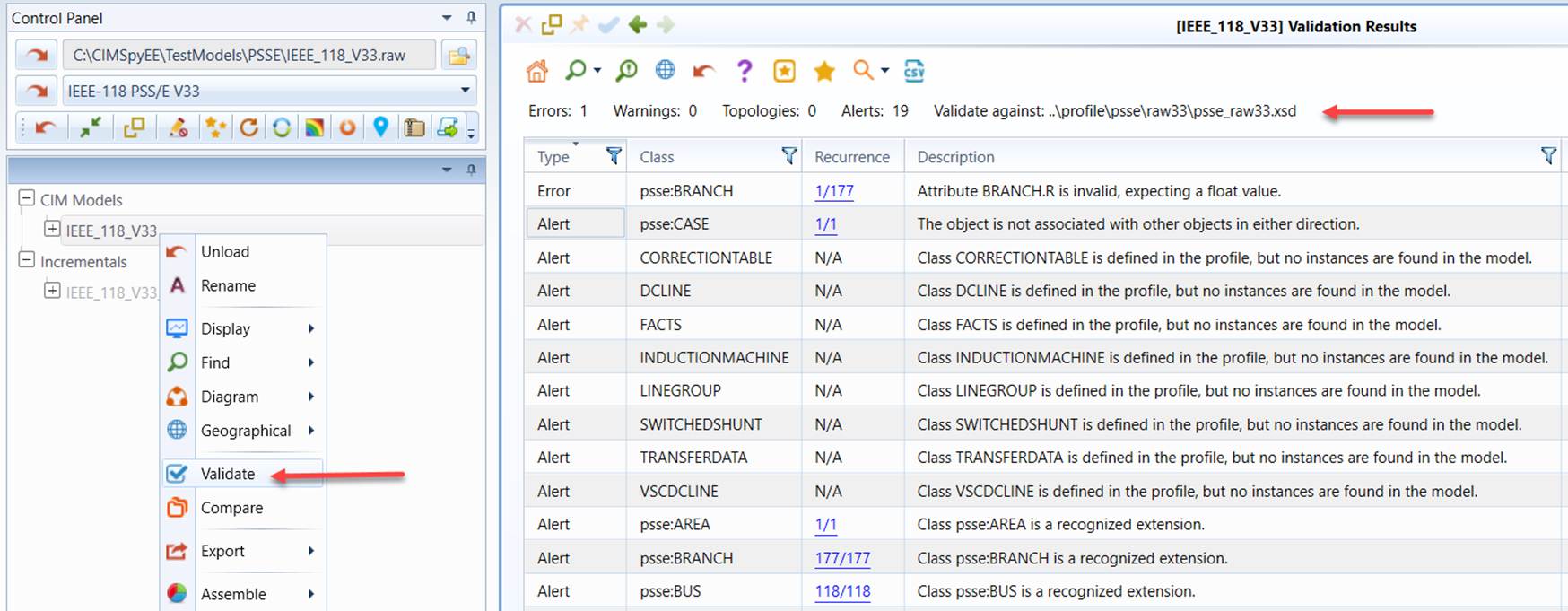
- Model validation: PSS/E model can be validated against its governing profile.
Searching
PSS/E Raw is made up of flat data sections. Finding information of interest is relatively challenging, because the modeling entities are not as hierarchically organized as in CIM. The Tool provides a variety of ways to help users find and visualize the loaded PSS/E Raw models.
Searching by Bus Number
PSS/E Raw is bus-based model. Most of the modeling entities are related to one or more bus numbers. Thus bus number is frequently used to search the related information. In addition to the common searching mechanisms, the Tool provides a special searching function enabling users to search all of the modeling entities related to a bus. This function can be invoked via a command icon or a context menu as illustrated below.
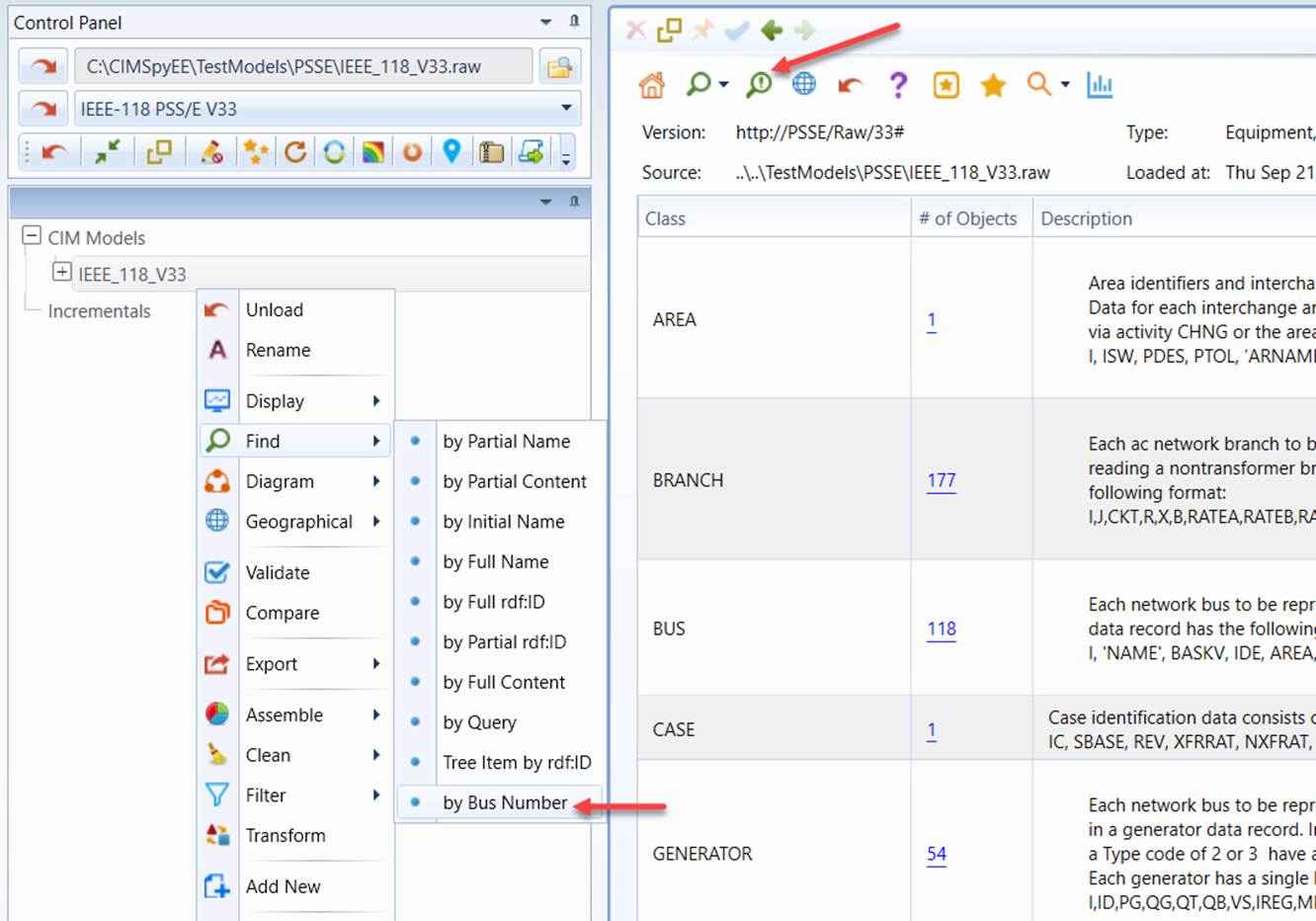
After invoking this function, users are prompted to enter a bus number. The Tool will then search all of the data sections and list all of the modeling entities that reference the identified bus, as illustrated below.
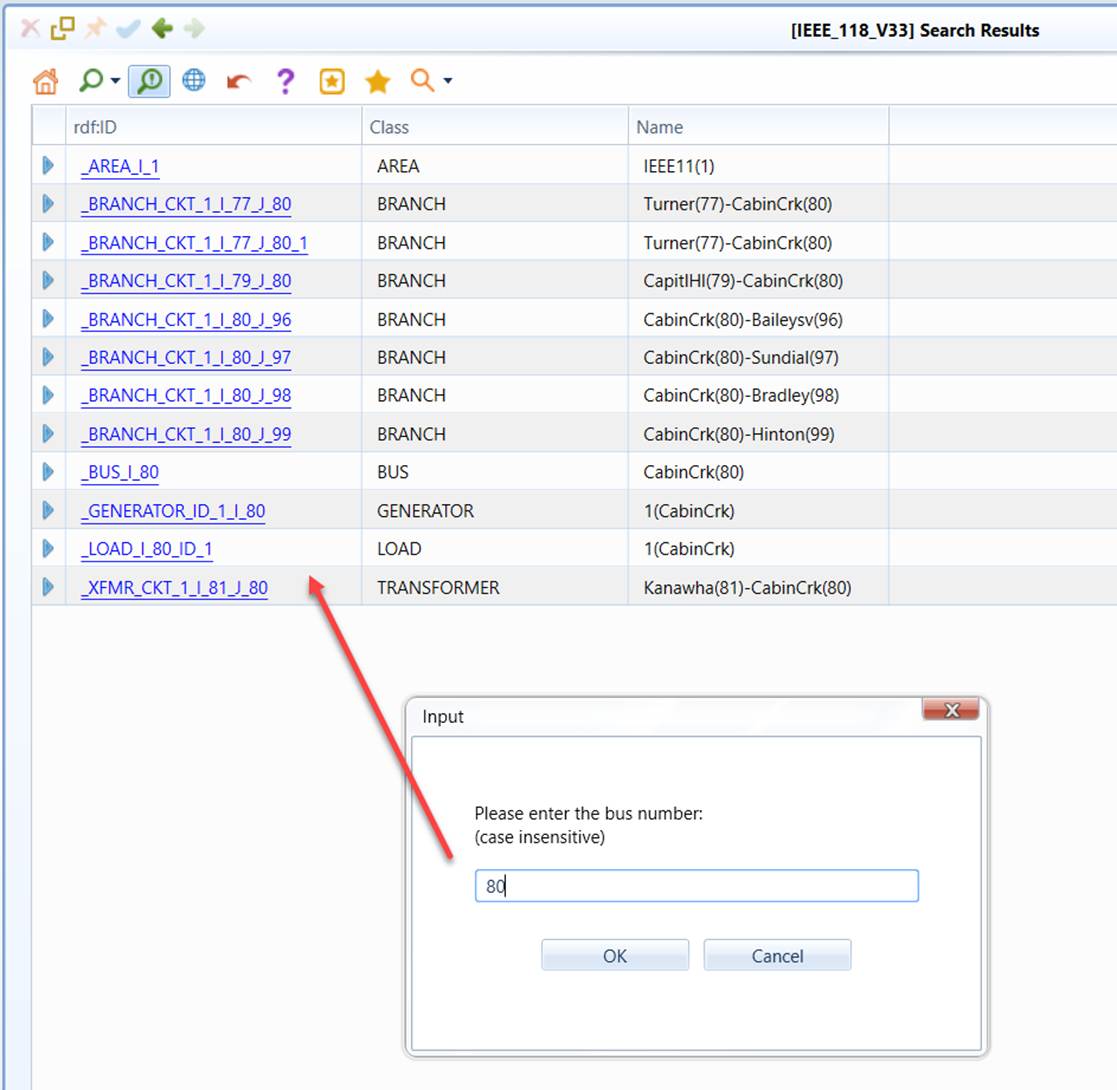
From the search results, users can navigate to the Form Display of the selected modeling entities, from which they can call the diagram to visualize all of the network components connected to the bus.
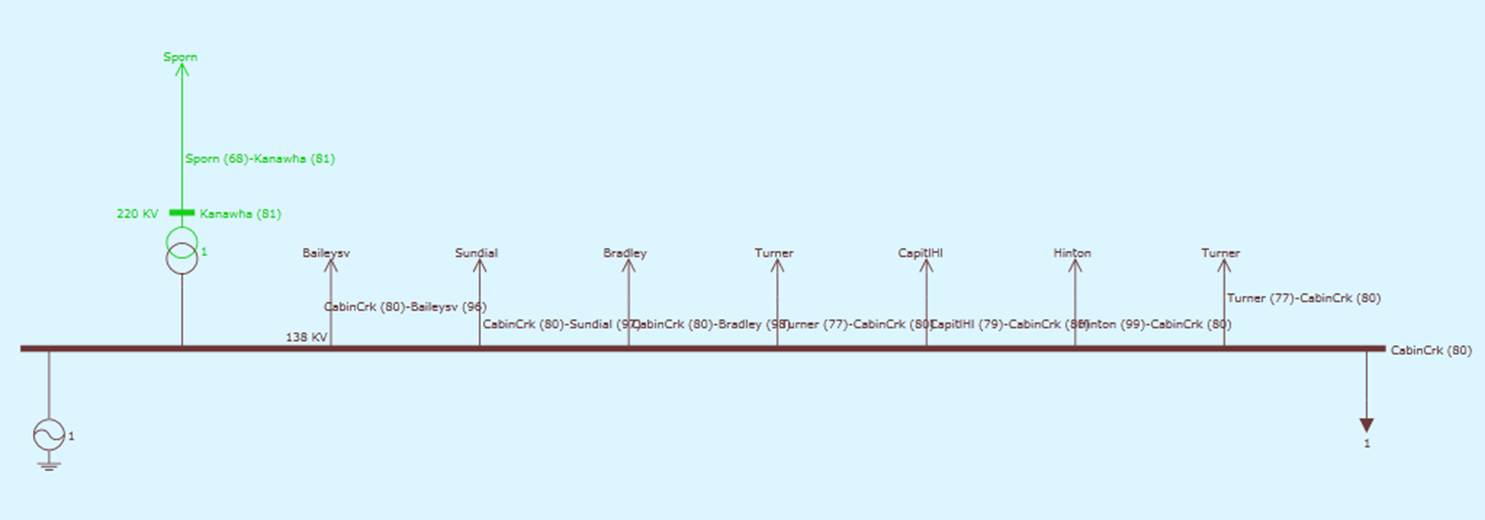
Searching by Name
Searching by names is another approach to find the information quickly in the loaded PSS/E Raw, as illustrated below. Note the Tool matches the entered name with the displayed names, rather than just the names of the modeling entities, since most of modeling entities in PSS/E Raw don’t have names.
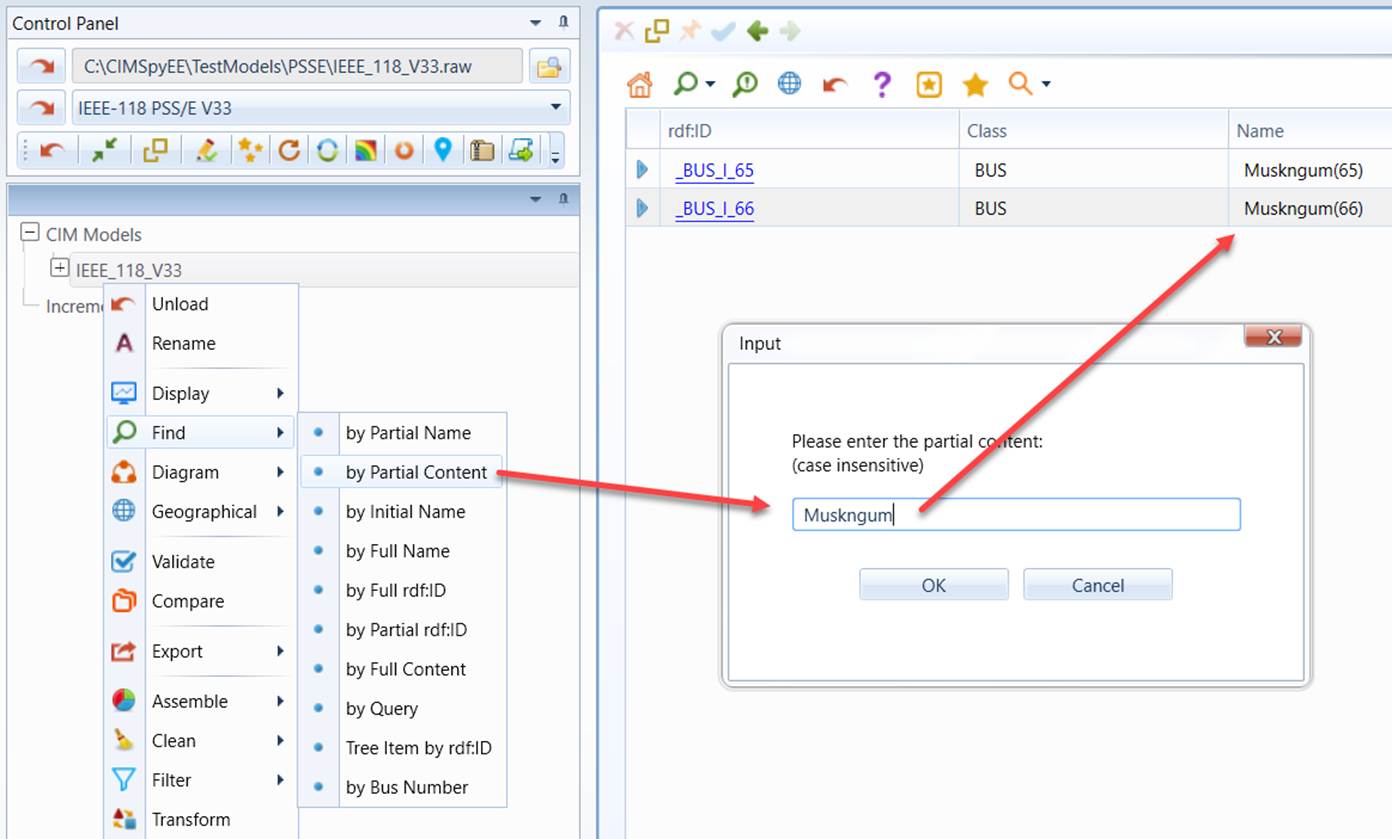
Searching through Content Matching
In case that the bus numbers or names are not available, the most effective way to search the information in PSS/E Raw is through content matching, which can be triggered as illustrated below.
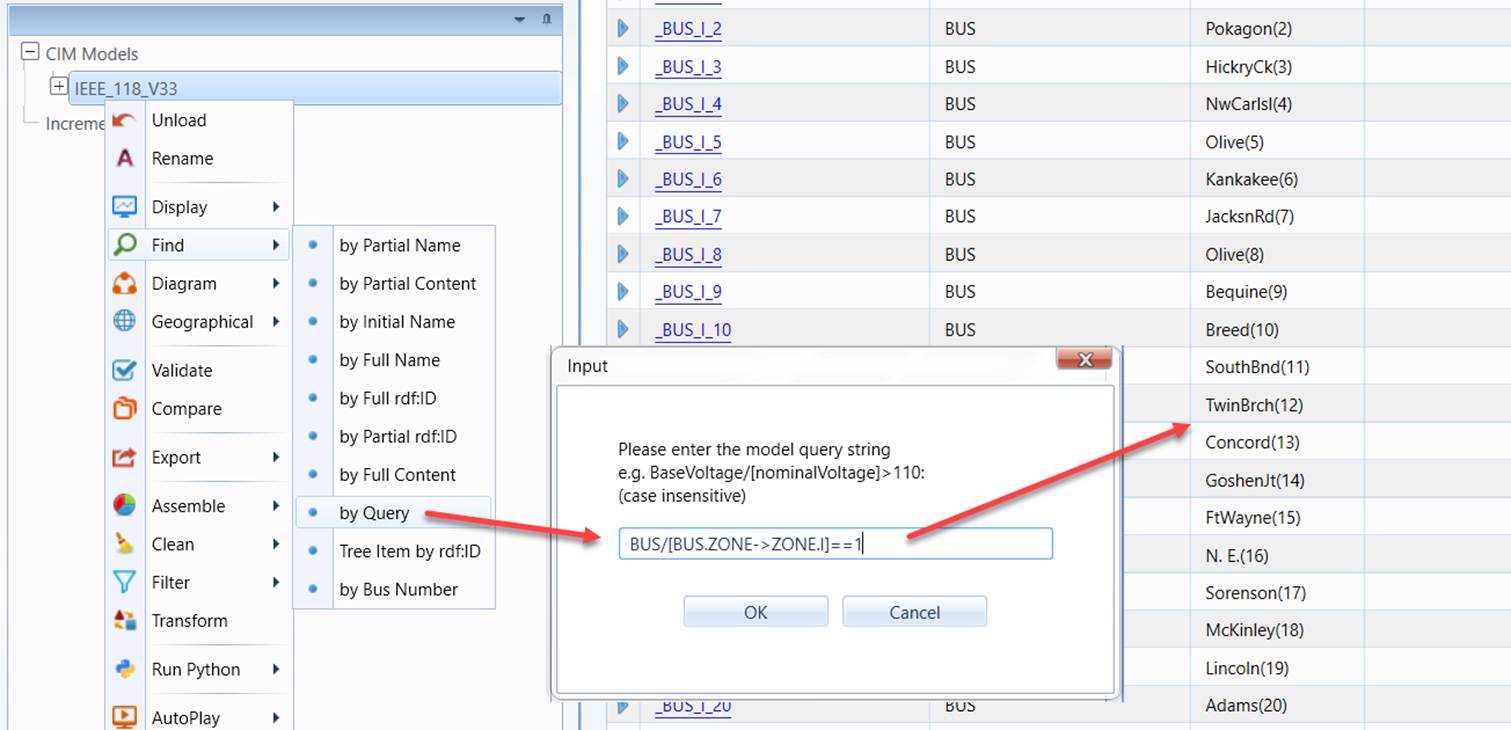
Searching via Query
For more intelligent information search, users shall rely on MQL query to find the information of interest. The following example shows how to find all of the buses belonging to ZONE 1.
Visualize PSS/E model
PSS/E to CIM Transformation
In order to visualize a PSS/E model, the model must be converted into a CIM model through the Tool’s powerful Model Transformation Framework. In order to do that, a transformation profile must be present that declares all the mappings between two models.
PSS/E model can be automatically converted to CIM after loading is complete. This is done by setting “SupportOneLineAutoGen” to true in configuration file and defining a model transformation configuration.
Aggregate Bus during Transformation
In CIM, equipments, except ACLineSegments/DCLineSegments are grouped by Substations, which typically correspond to physical stations. Substation is an important concept in the different types of diagrams generated by the Tool. However, PEE/S Raw data model is a bus branch model. It doesn’t have the Substation concept. When converted to CIM model, one substation is created from each PSS/E bus. Substations are connected by lines and Transformers, as shown below.
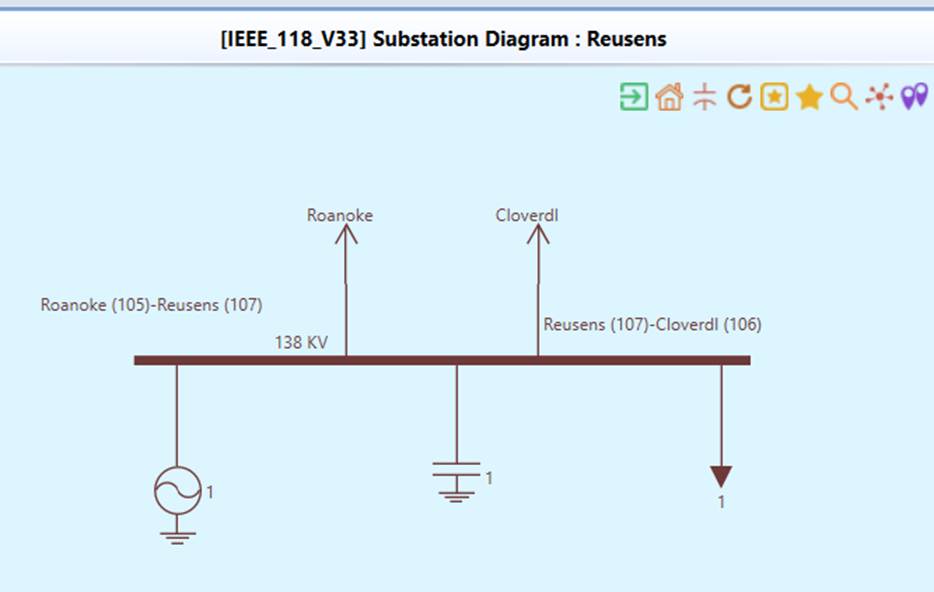
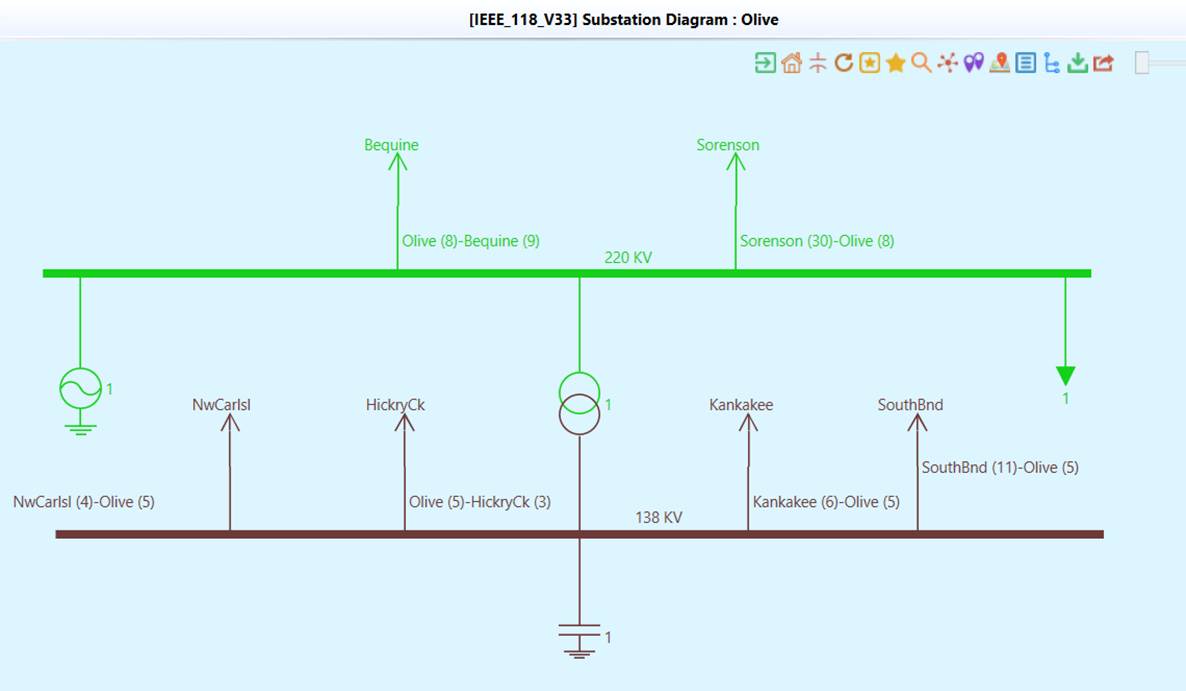
While this provides a good representation of neighboring bus connectivity, substations created from a single bus are far from being realistic. The Tool offers an option to aggregate buses that connect transformers into one substation. By doing that, the generated substation is more like a physical substation with multiple voltage levels and transformers. Stations are connected by lines. Neighborhood diagram will be less clustered as fewer substations are created.
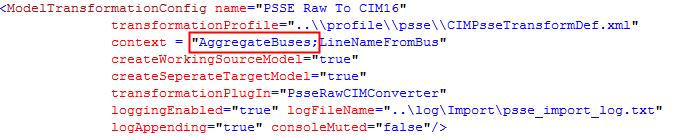
Users can select to aggregate bus during transformation by setting the context in configuration file.
Visualize PSS/E Model
Once a PSS/E model is converted to CIM, all the diagrams supported by the Tool are available through direct or indirect diagram links or context menus. Supported diagrams and the corresponding PSS/E classes are listed in the table below:
| PSS/E class | diagram |
| AREA | Boundary diagram |
| BUS | Equipment diagram |
| BRANCH | Equipment diagram |
| TRANSFORMER | Equipment diagram |
| LOAD | Equipment diagram |
| GENERATOR | Equipment diagram |
| DCLINE | Equipment diagram |
| VSCDCLINE | Equipment diagram |
| INDUCTIONMACHINE | Equipment diagram |
| SHUNT | Equipment diagram |
| SWITCHEDSHUNT | Equipment diagram |
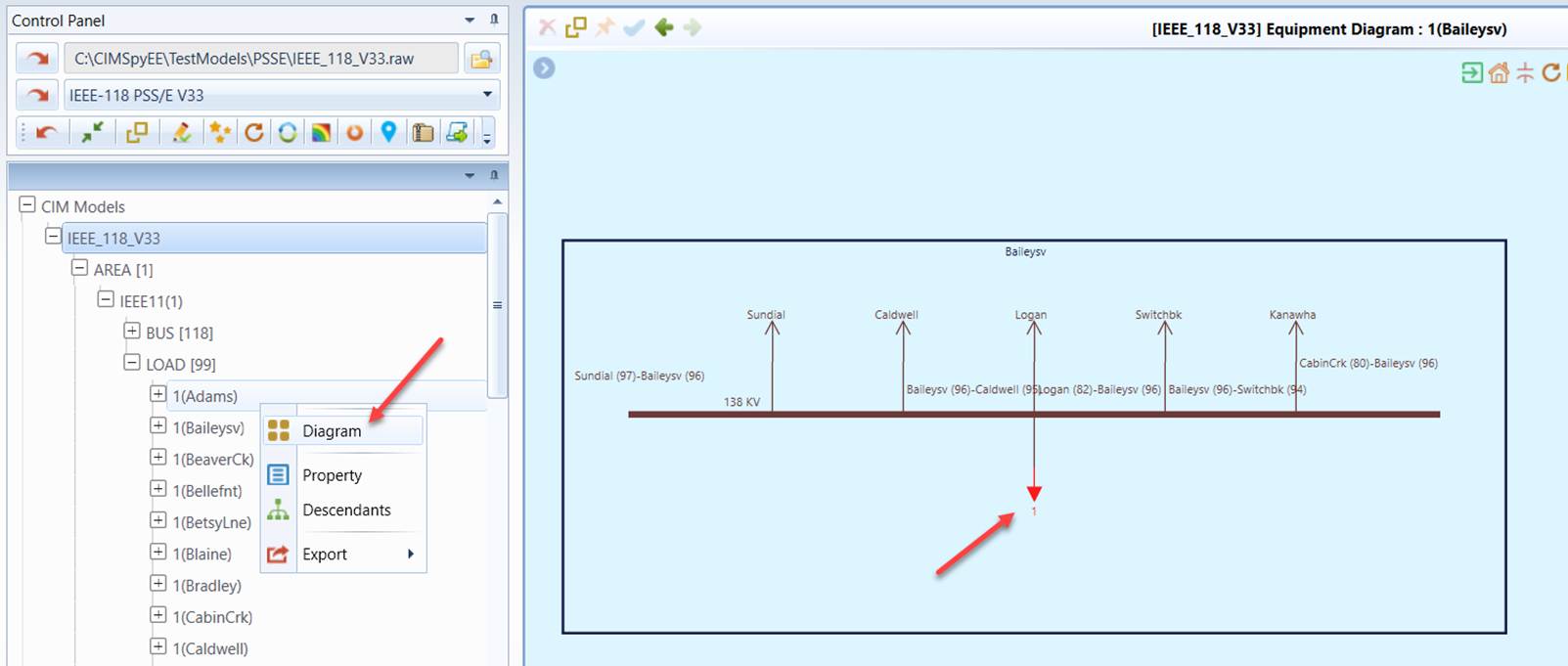
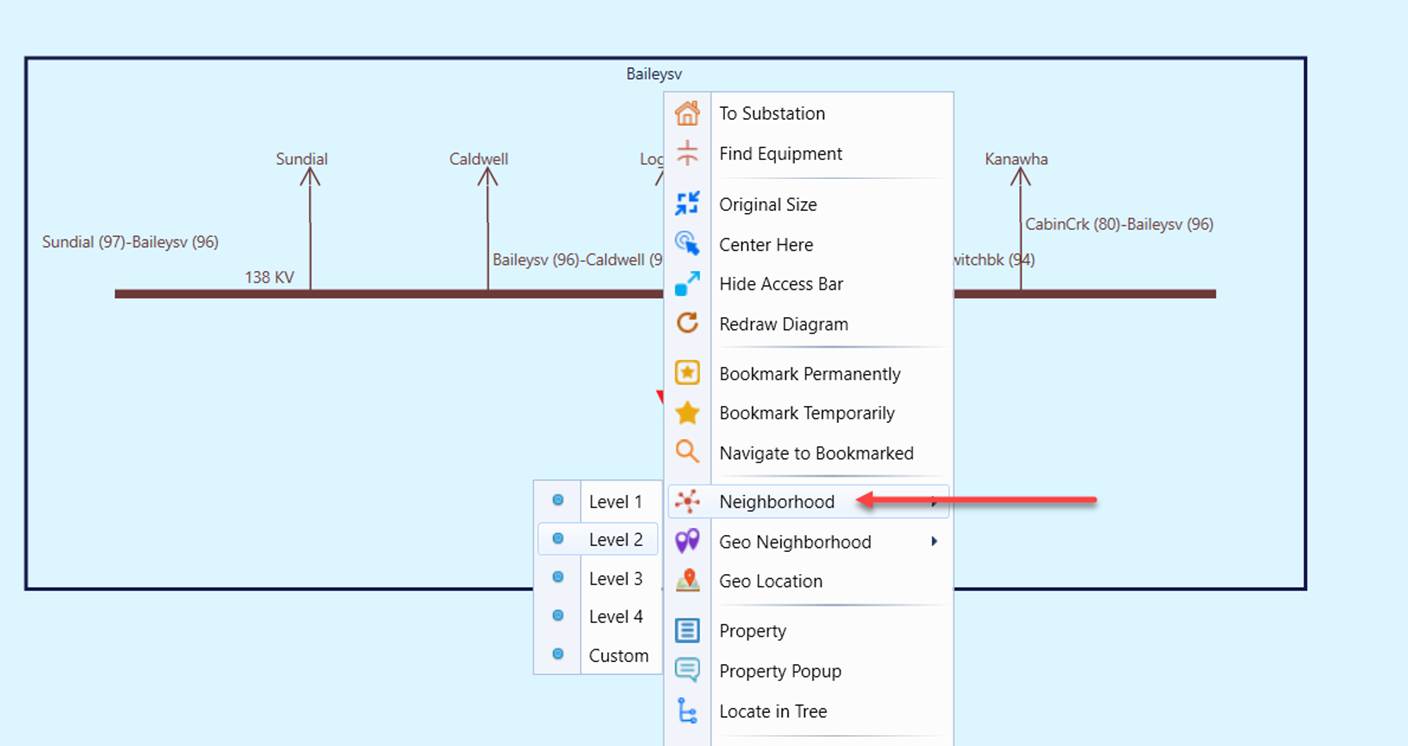
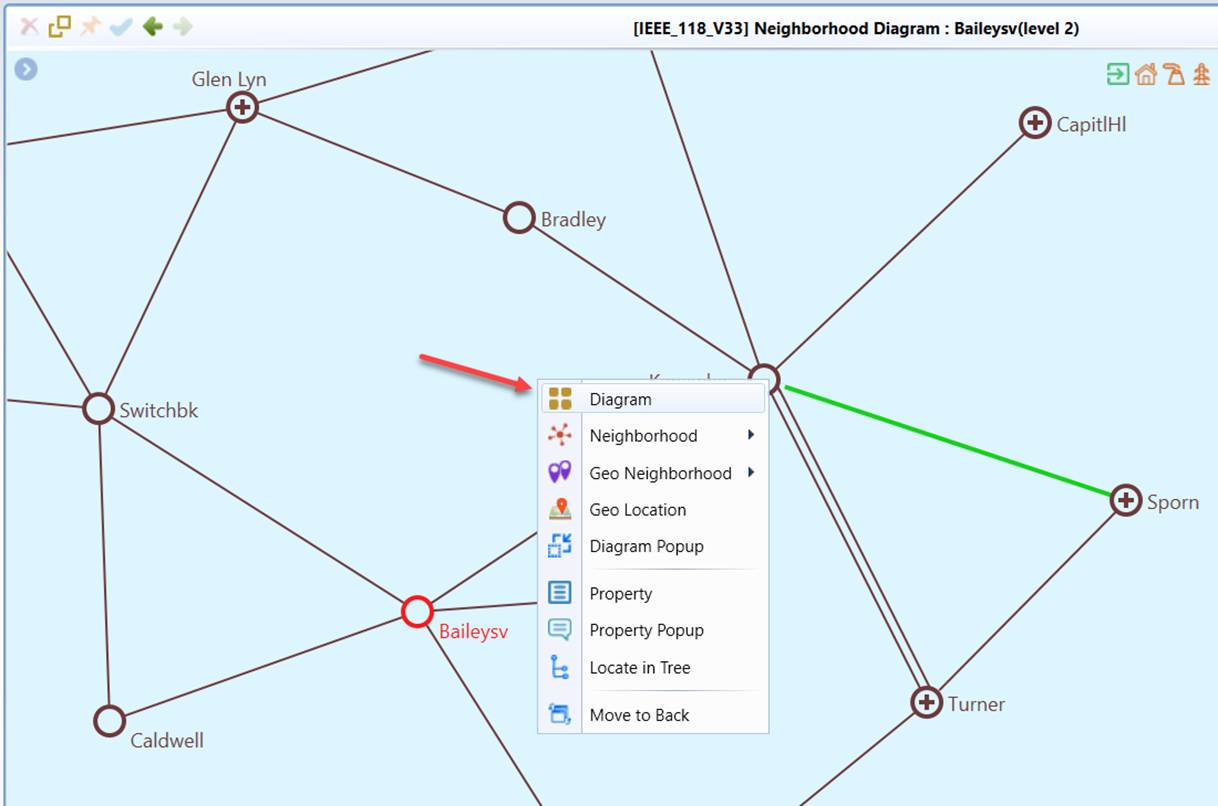
Although there is no direct link to call up substation diagram and neighborhood diagram, this can be achieved by calling from an equipment diagram, as demonstrated by a few clicks below.
- Right mouse click a LOAD, or any equipment from the navigation tree, and select “Diagram”. An equipment diagram will be displayed with the equipment highlighted.
- Right mouse click any blank space in the Substation Diagram, and select Neighborhood diagram from the context menu.
- Right mouse click a neighboring Substation to menu and select Diagram from the context menu to call the diagram of the selected neighboring substation.
Import Geo data into PSS/E
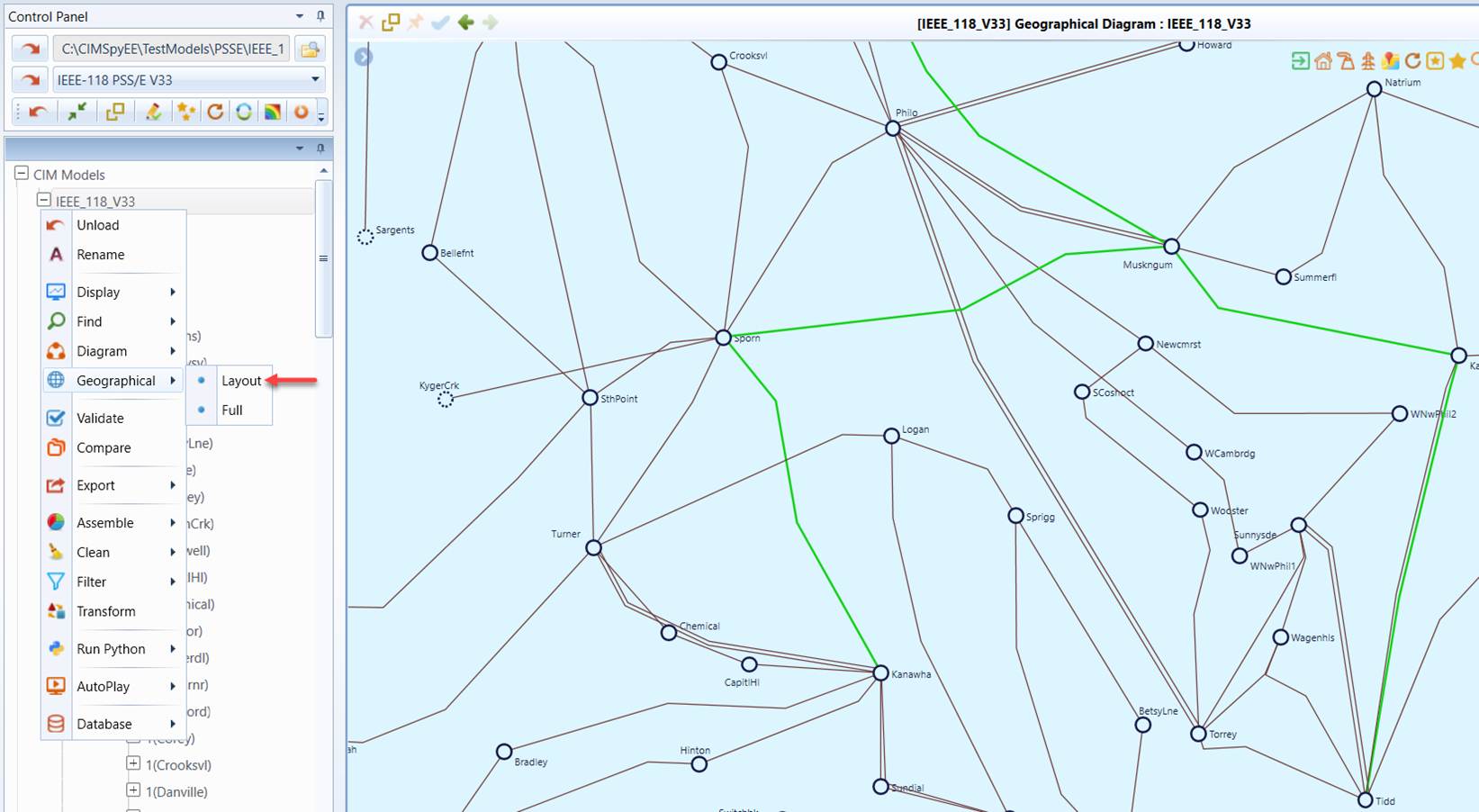
PSS/E Raw doesn’t contain the geographical information. The Tool enables users to import geographical information to enable geographical diagrams . To do that, users should define a PSS/E data source with “geoSource” specified in the configuration file and One-line auto-generation must be enabled for the applied PSS/E import configuration.

Geographical information is typically specified for Substation and ACLineSegments in CIM. Because PSS/E Raw doesn’t have the concept of Substation, the geographical information must be provided for each bus, even many of the buses share the same geographical information. During the bus aggregation, the formed Substation will inherit the geographical information from one of the buses aggregated within a Substation (typically at high-voltage level).
Limitations
PSS/E Raw is a foreign model for the Tool. Many CIM-specific features such as graphical model editing, diagram saving, and model assembling, etc., are not or not fully supported for the imported PSS/E raw data model. The menu items and icons that trigger these unsupported features shall be ignored. In the future, these menu items and icons will be disabled.