Saving a Schematic Diagram
The Tool enables users to save any of the auto-generated and adjusted schematic diagrams, including Region Diagrams, Neighborhood Diagrams, Substation Diagrams, and Equipment Diagrams, as extended Standard Diagrams. The main reason for saving an adjusted geographical diagram or geo-schematic diagram is for reuse or sharing, as described in the diagram sharing use case. The saved diagrams conform to IEC 61970-453, but include minimal CIM extensions essential to restore the full capabilities of the saved diagrams in the Tool. The saved schematic diagrams can be later exported as either extended standard diagram CIM/XML files or pure standard diagram CIM/XML files. This feature allows users to build some custom schematic graphical displays for reuse and sharing with other applications.
Saving Auto-generated and Adjusted Schematic Diagram
To save a schematic diagram auto-generated and adjusted
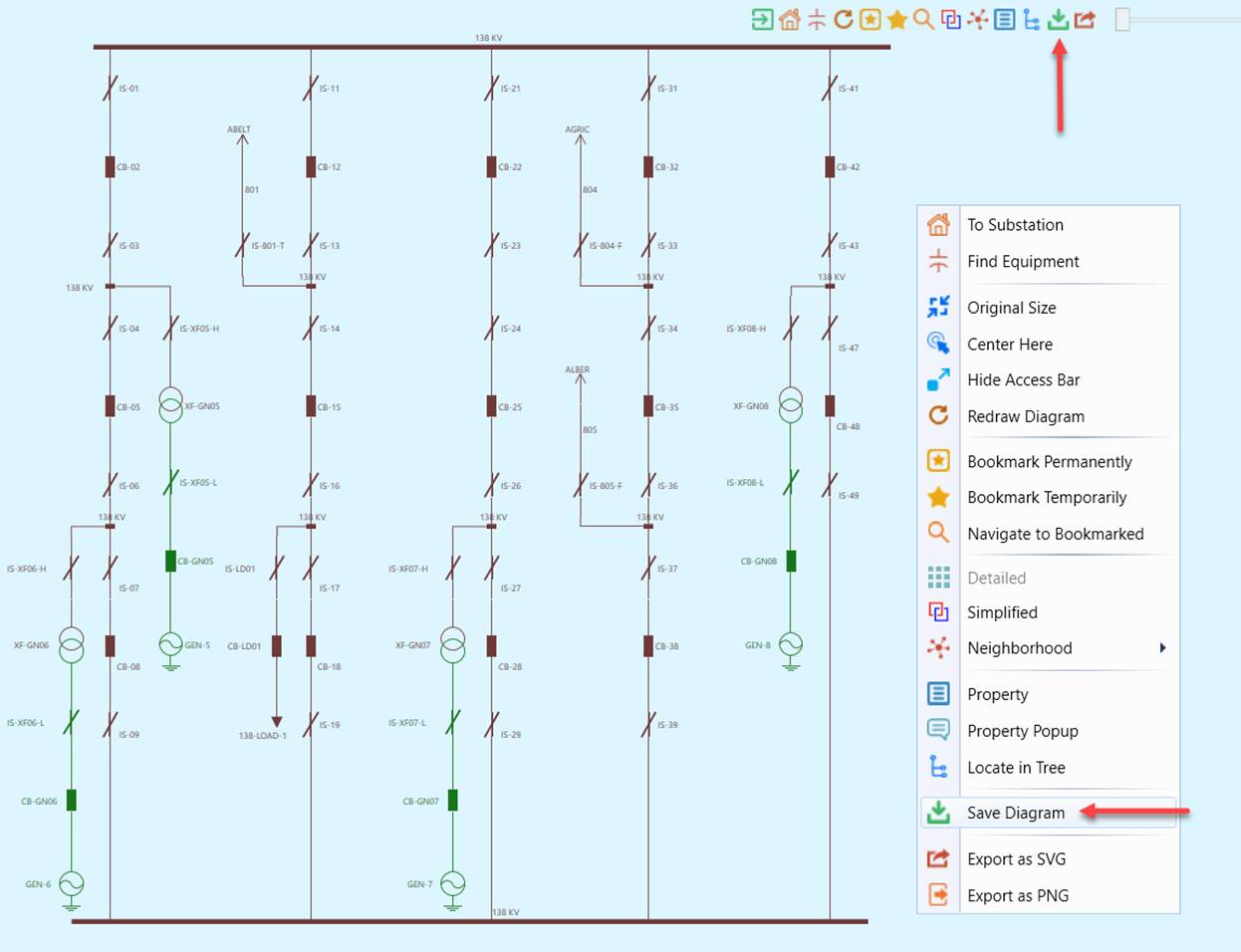
- Right-mouse-click any blank spot and select “Save Diagram” in the context menu, or click the corresponding Command Icon in the Quick Access Bar, as illustrated below.
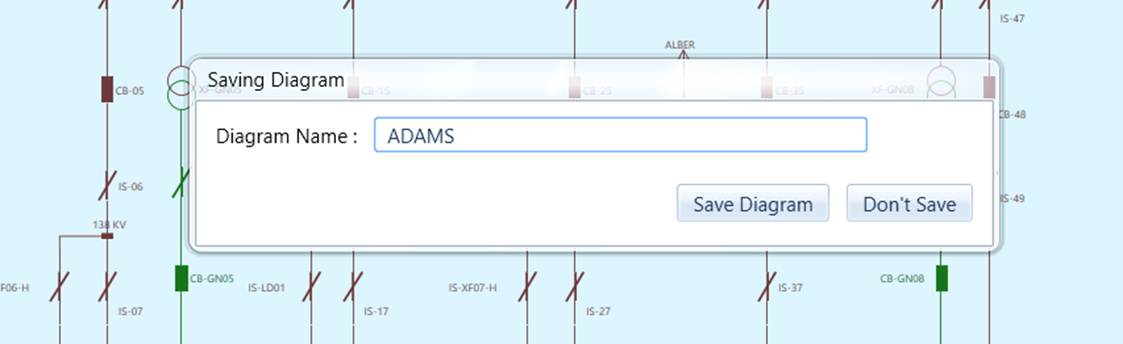
- An edit box, filled with a default name, will appear, prompting users to enter a name for the saved diagram. Click the “Save Diagram” button.
- Once the diagram is saved to the in-memory model, you will see a CIM Diagram object added at the bottom of the navigation tree. The saved diagram will be automatically displayed on the current model view. The saved Diagram is based on CIM Diagram Profile (CIM 16). Because this profile is not quite mature, a minimal set of CIM extensions are added. So you will see some properties highlighted in red. But the saved diagram is CIM16 – compliant, meaning consumable by foreign applications. Even your model version is below CIM 16, the diagram saving feature is still fully functional.
- Users can restore the saved diagram by clicking the corresponding tree item or via context menu (i.e. by clicking the Display Diagram menu item) associated with the saved Diagram object as illustrated below.
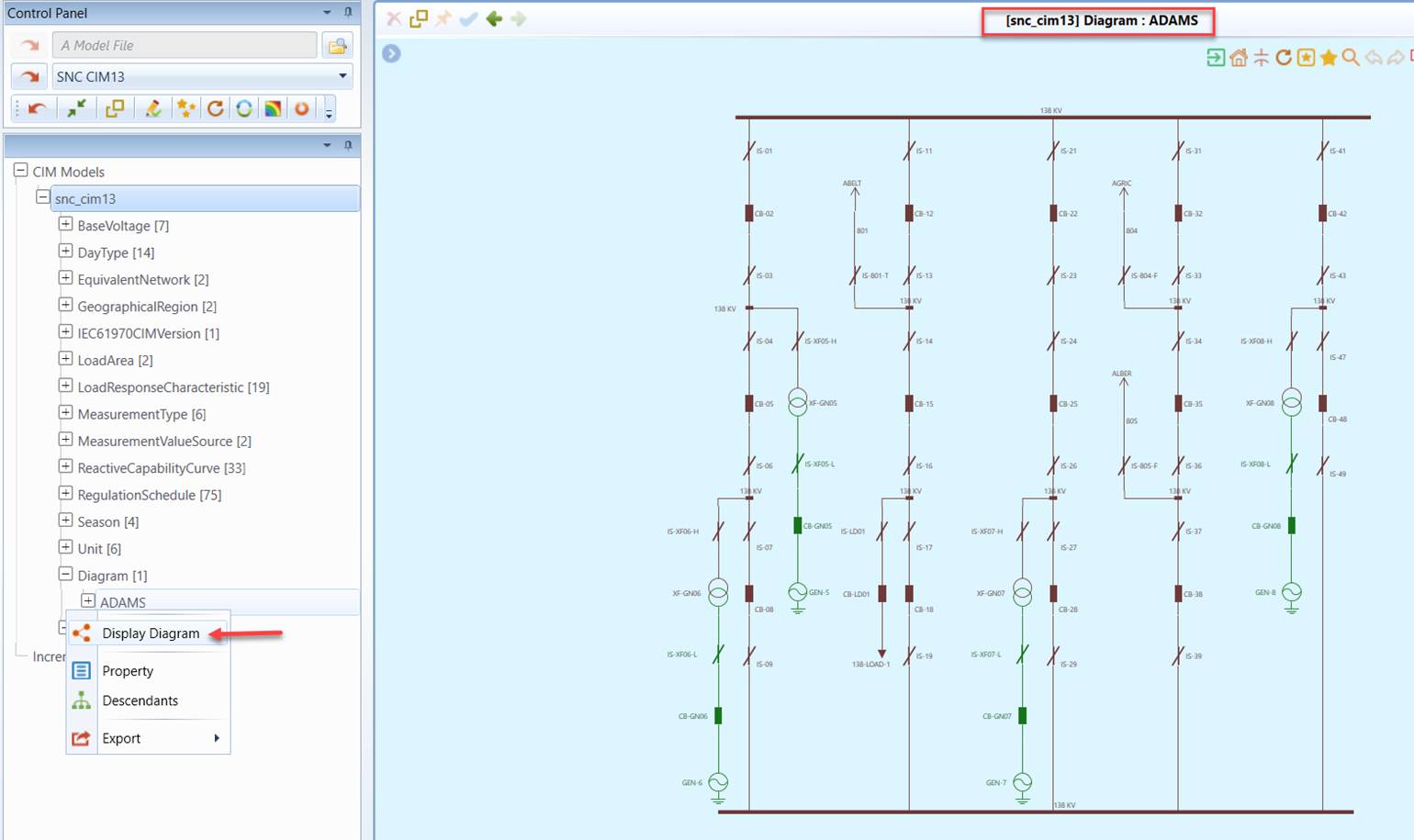
- Once the saved diagram is fully restored, it will be just like the original diagram visually and functionally, assuming the underlying model hasn’t changed since saving. Users can continue to adjust the restored diagram and save the adjusted diagram. The new saved diagram will replace the old one.
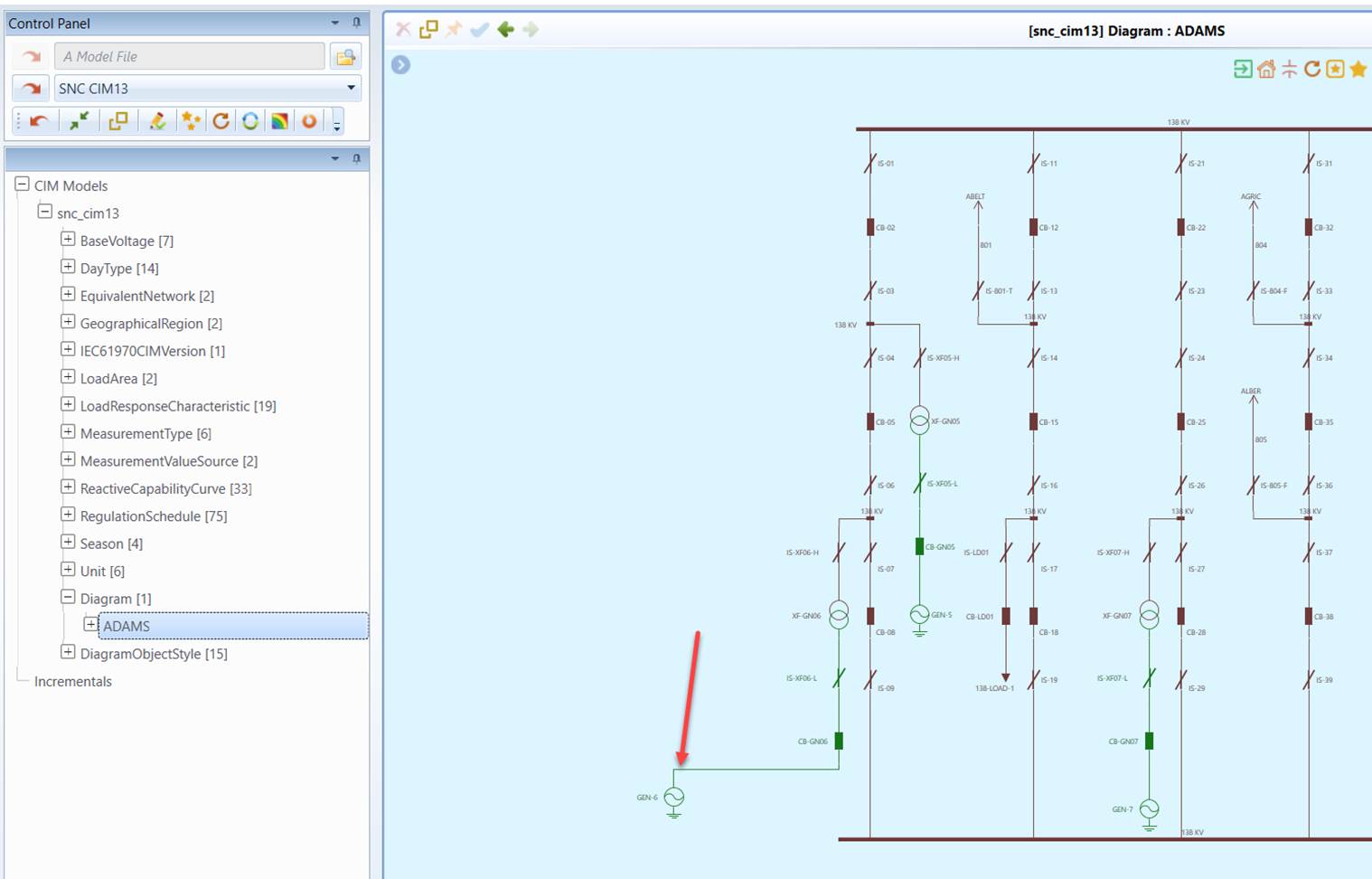
It is important to note that the diagram will be saved to the in-memory CIM model rather than a local file. To persist the saved diagram, users need either export the whole model or the diagram portion through the diagram export function.
Adapting to Model Changes
The saved diagram is a snapshot of the model presentation. However, the underlying model could be changed, for example, using the model editing function of the Tool. The underlying model could also be maintained in other modeling environments. When rendering any saved diagrams, the diagram rendering algorithm of the Tool checks the consistency between the saved diagram objects with the underlying model. If inconsistencies are detected, the diagram rendering algorithm will rectify the original saved diagram to adapt to the model change. Assuming we replaced SynchronousMachine GEN-7 with ShuntCompensator CP-7 in the above saved diagram. When restoring the previously saved Substation diagram, the diagram rendering engine detects this model change, alert users, and makes the corresponding changes in the rendered diagram, as illustrated below. Users need re-save the changed diagram to overwrite the old diagram objects in order to avoid the alert message.
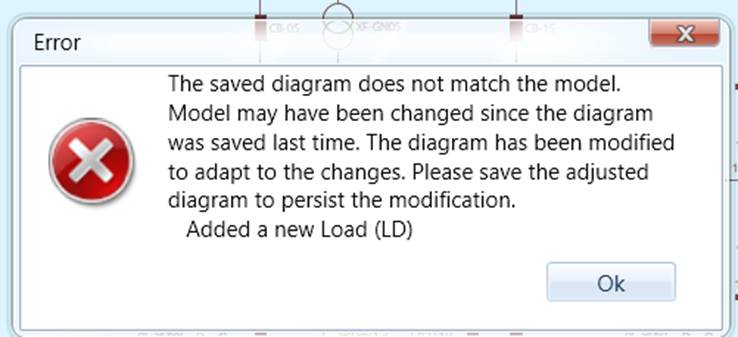
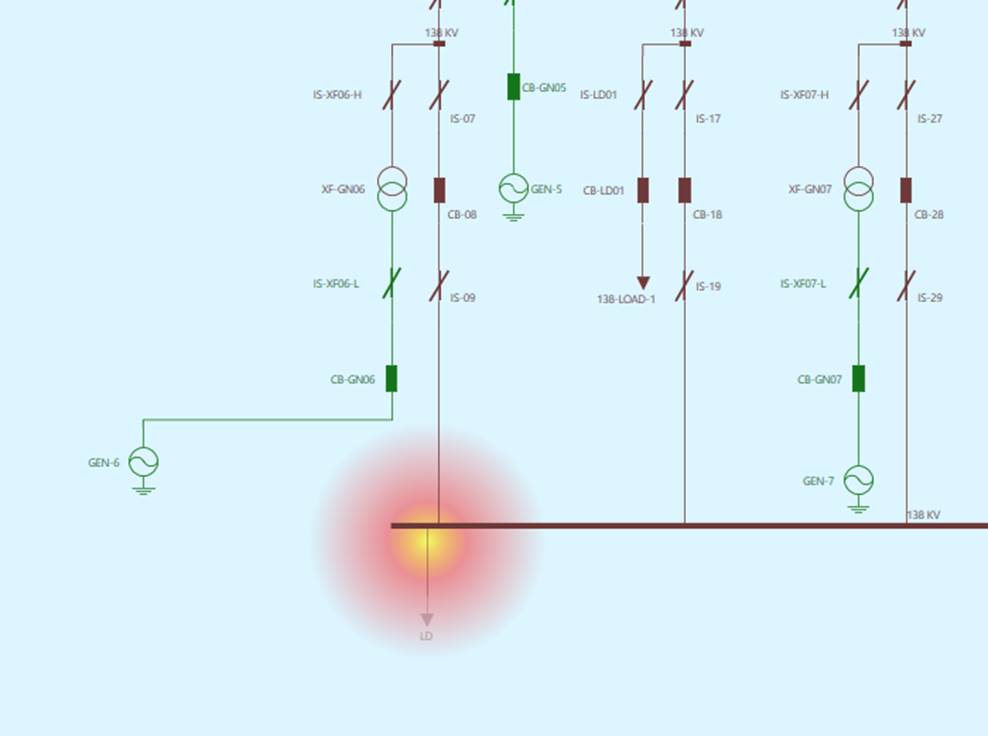
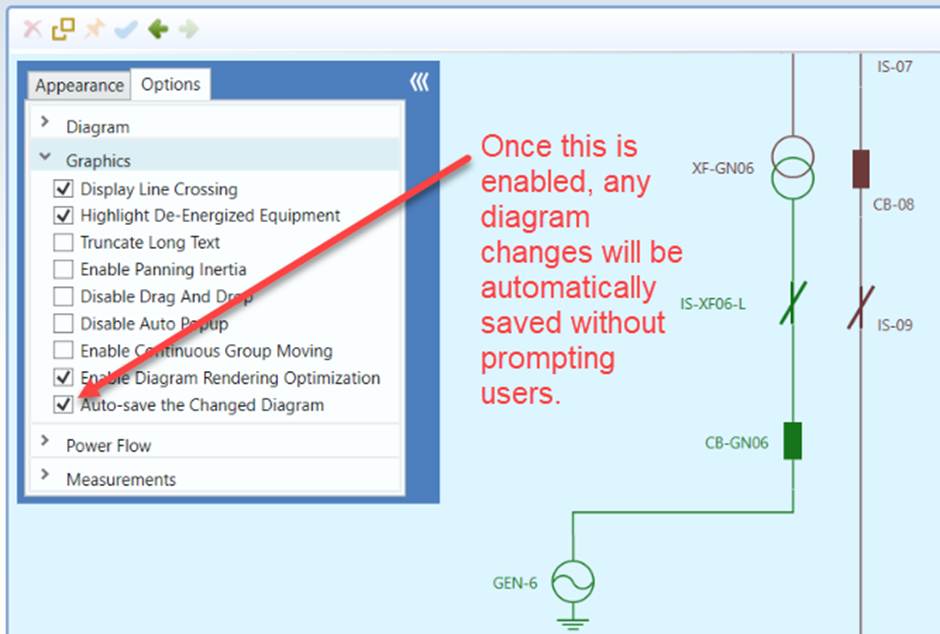
If users navigate away from a changed diagram without saving, the Tool will prompt users to save the changed diagram. However the message can be suppressed by checking “Auto-save the Changed Diagram”. In this case, the Tool will auto-save the changed diagram when users navigate away from a changed diagram without explicitly saving, as illustrated below. This is one-time setting.