Finding the Context Information
Once a CIM object is found, users may want to know the context information about the object to extend the model exploration. For example, users need know where a ConformLoad is physically located, what load area it belongs to, and how it is electrically connected in a Substation. Finding such information typically requires multiple navigations due to the lack of direct links, and sometimes is very difficult due to the large amount of information involved. The Tool helps users find such context information instantly by detecting the model hierarchies and displaying the object graphically in the context.
Detecting the Related Model Hierarchies
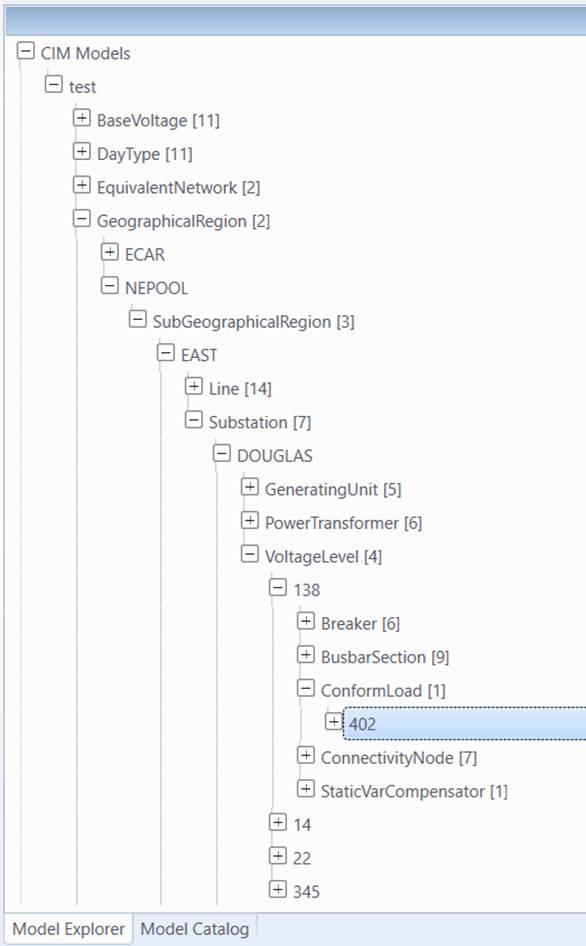
Model hierarchies are useful information for understanding an object in the related context. The Tool describes how an object is related to others using hierarchical navigation trees. Locating where the object is in these navigation trees is an important step. This will provide a good starting point for users to explore the related objects for better understating. The Tool is capable of detecting all of the model hierarchies related to a CIM object and displays them by automatically expanding the CIM navigation trees. This model exploration feature enables user to find the context information rapidly and precisely.
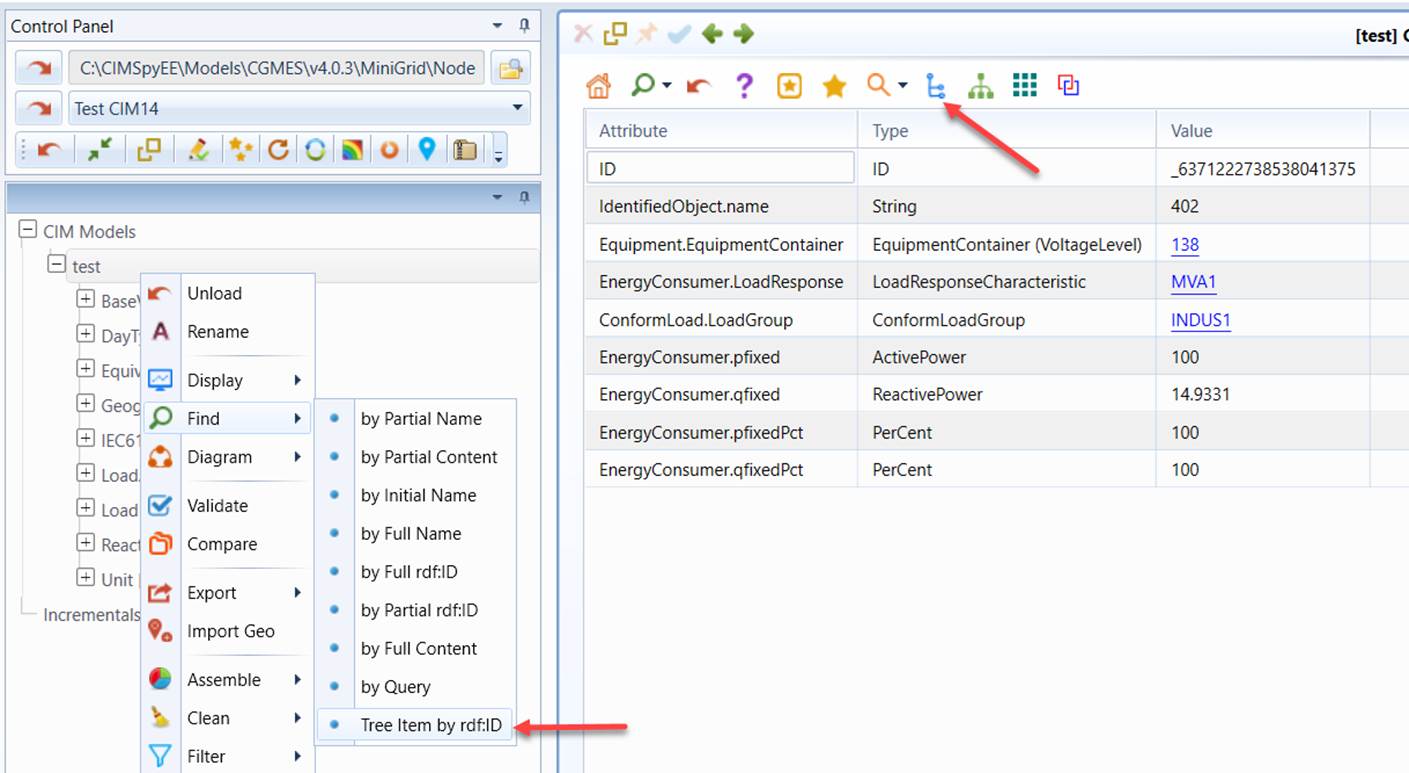
- Users can invoke the function through the context menu associated with the selected model or simply click the link under the rdf:ID in the object property display. In the former case, the object id must be provided.
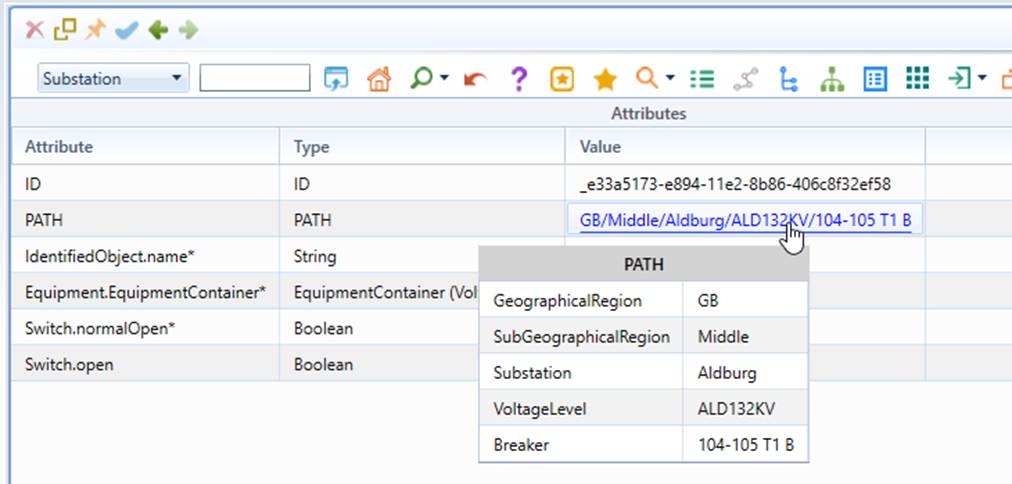
A more convenient way to invoke the auto-tree-expansion is to click a Path hyperlink.
Users can also invoke this function from any types of diagrams to display the selected modeling entity in the navigation tree from the context menu associated with modeling entity, as illustrated below.
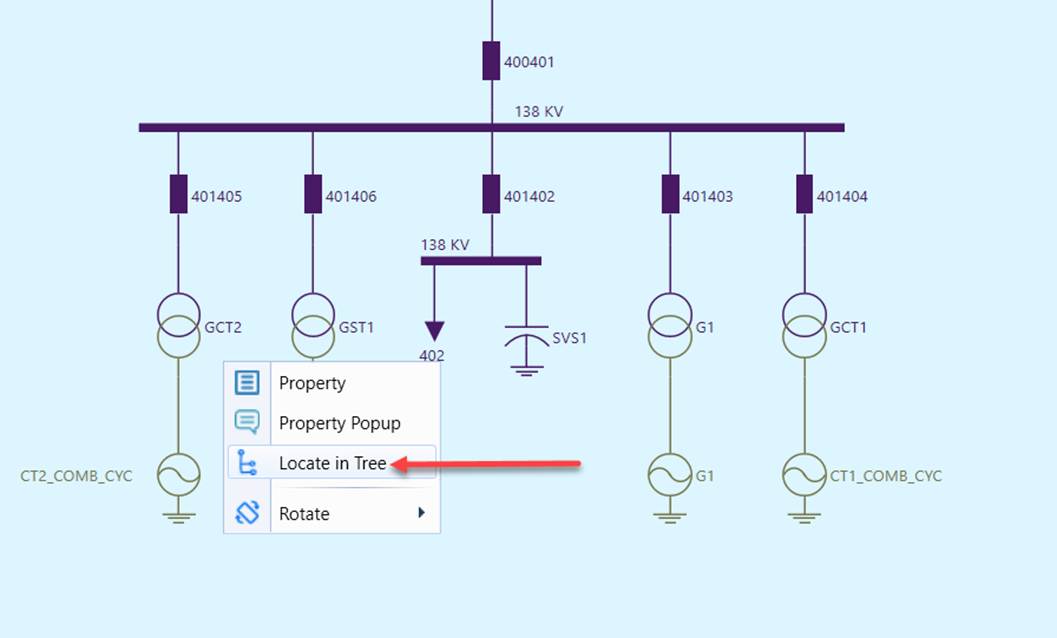
- The Model Explorer navigation tree will be automatically expanded, showing the selected model hierarchies related to the CIM object, which will be highlighted.
Displaying the Object Graphically in the Context
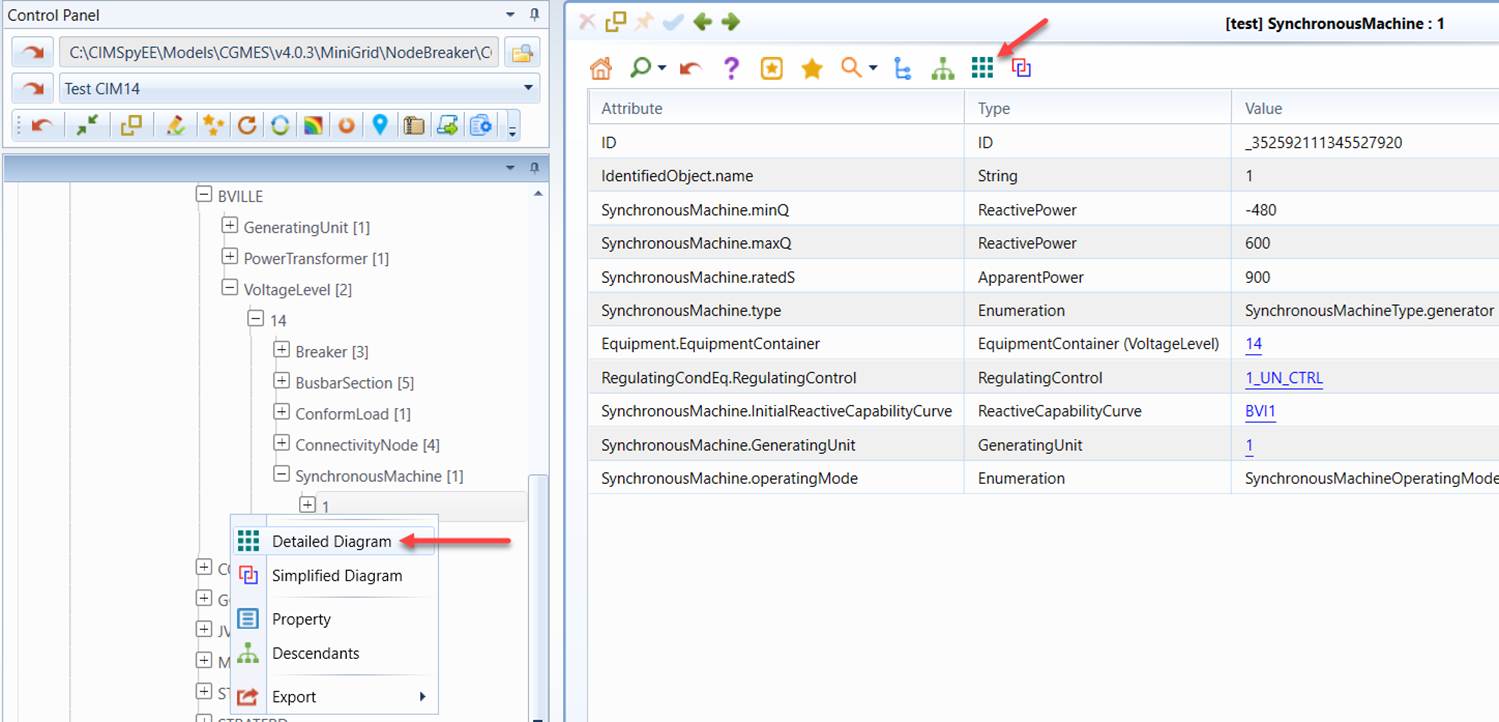
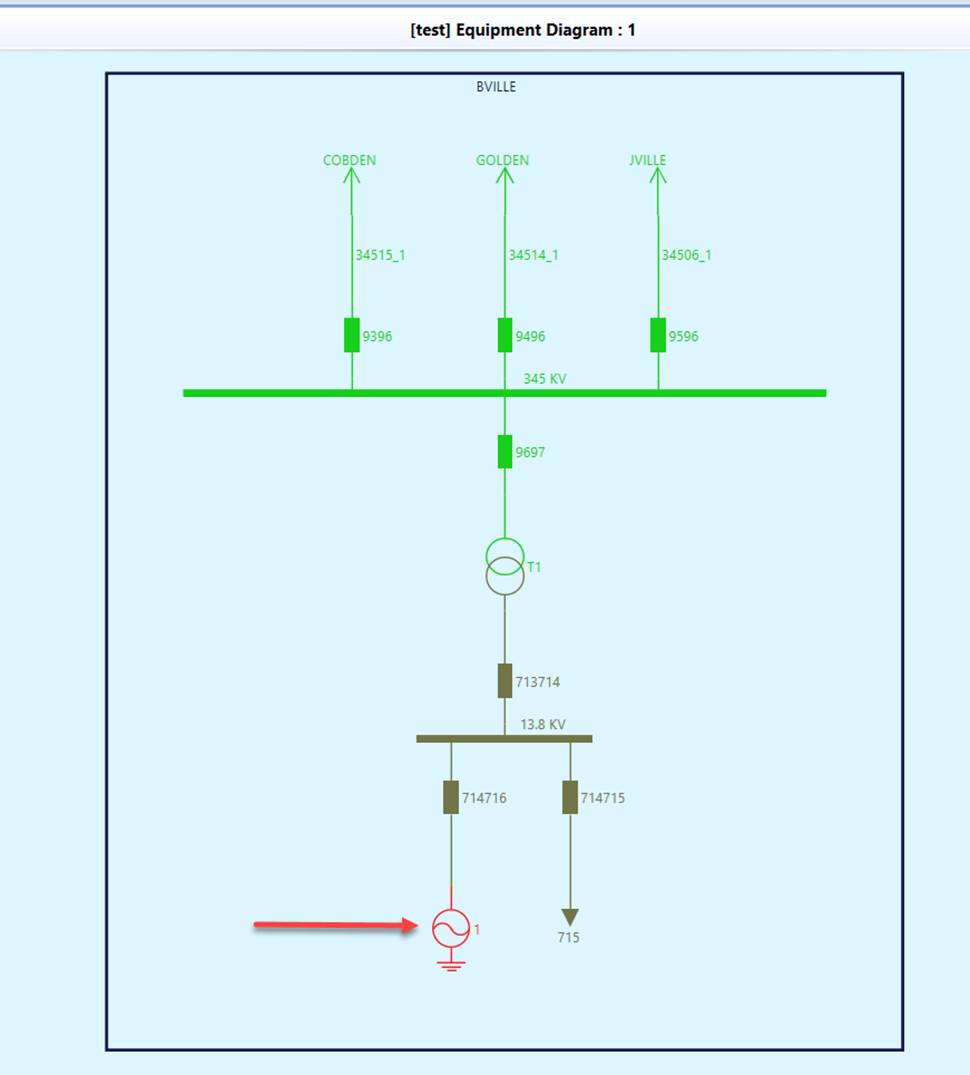
The Tool also allows users to visualize the context information graphically. For example, users may want to know how a SynchronousMacine is physically/electrically connected with other equipments in a Substation. The Tool is capable of generating a diagram to describe the network connectivity intuitively as illustrated in the following screenshot. For more detailed information about how to leverage this feature, see Equipment Diagram.