Consistency Checking
This process checks the consistence between two models to be assembled prior to actual assembling. Consistency checking is not a required process, but highly recommended. It ensures that the model to be assembled is consistent with the base model. For example, the external references in the model to be assembled can be actually found in the base model. This process can be invoked through the context menu associated with the model to be assembled. The outcome of this process is a checking report listing all of the detected inconsistence with links to the related objects in the model to be assembled. The Tool stores the latest checking results, which can be displayed though the model context menu.
- Load all of the models into the Tool. If the related models are packaged as a compressed ZIP file, you can load the whole package. See Importing Zipped CIM/XML Files for detail.
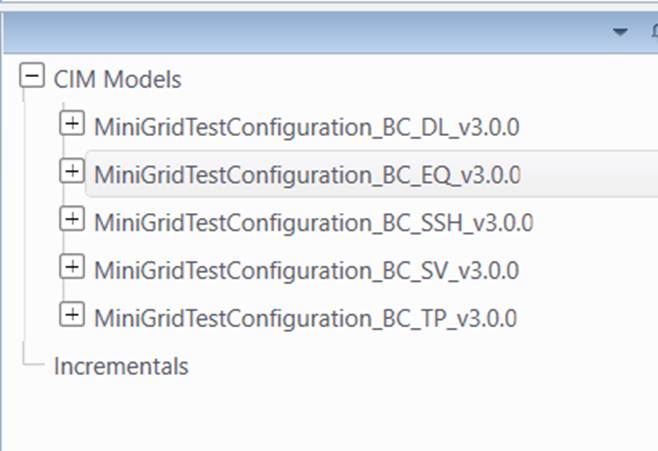
- Determine the base reference model. Base reference model is normally used as a staging model, which all of other models will be assembled into.
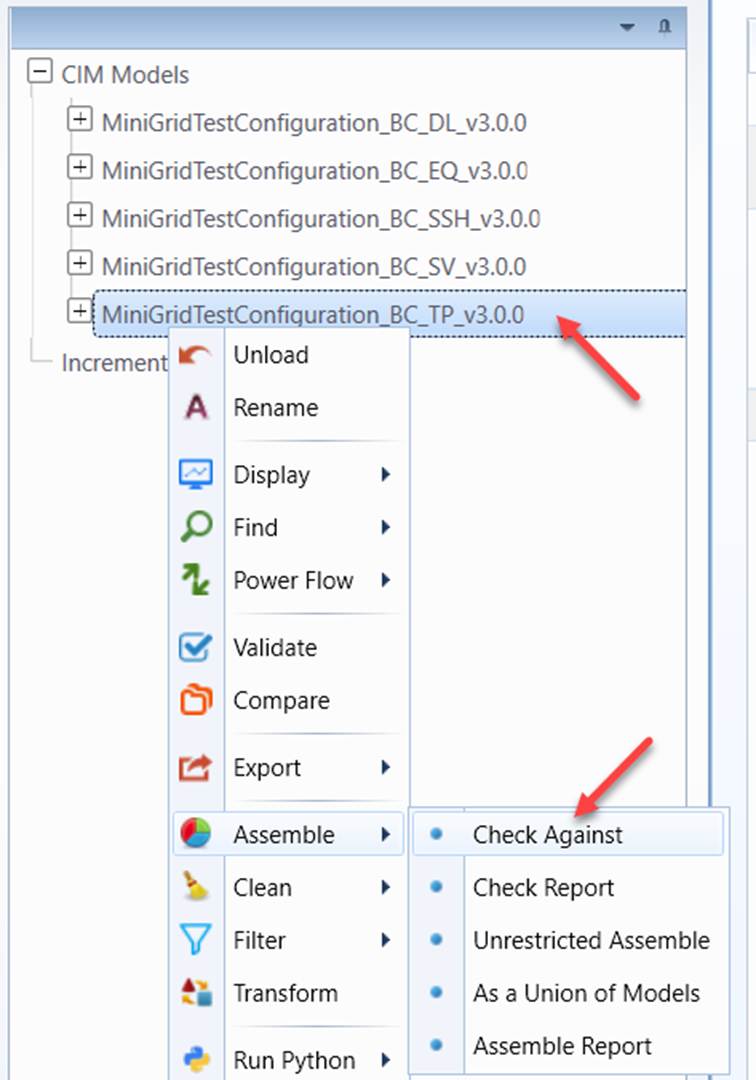
- Once the base model is determined, right-click the tree item associated with the model that you want to assemble into base model. Select Assemble->Check Against to initiate the consistency checking.
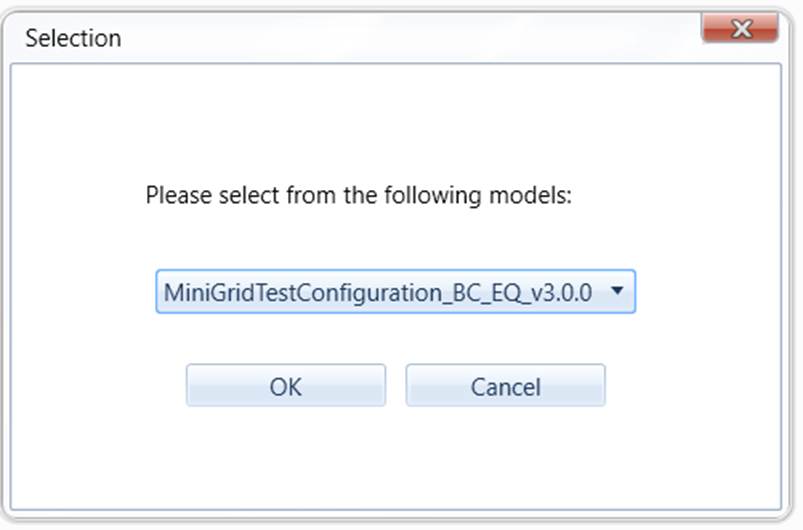
- Select the base model you want to check against from the dropdown list
- If inconsistencies are detected, users will be presented a report listing all of the inconsistencies detected. This report will also be called up later from the context menu (i.e. Assemble→Check Report) associated with tree item of this particular model.
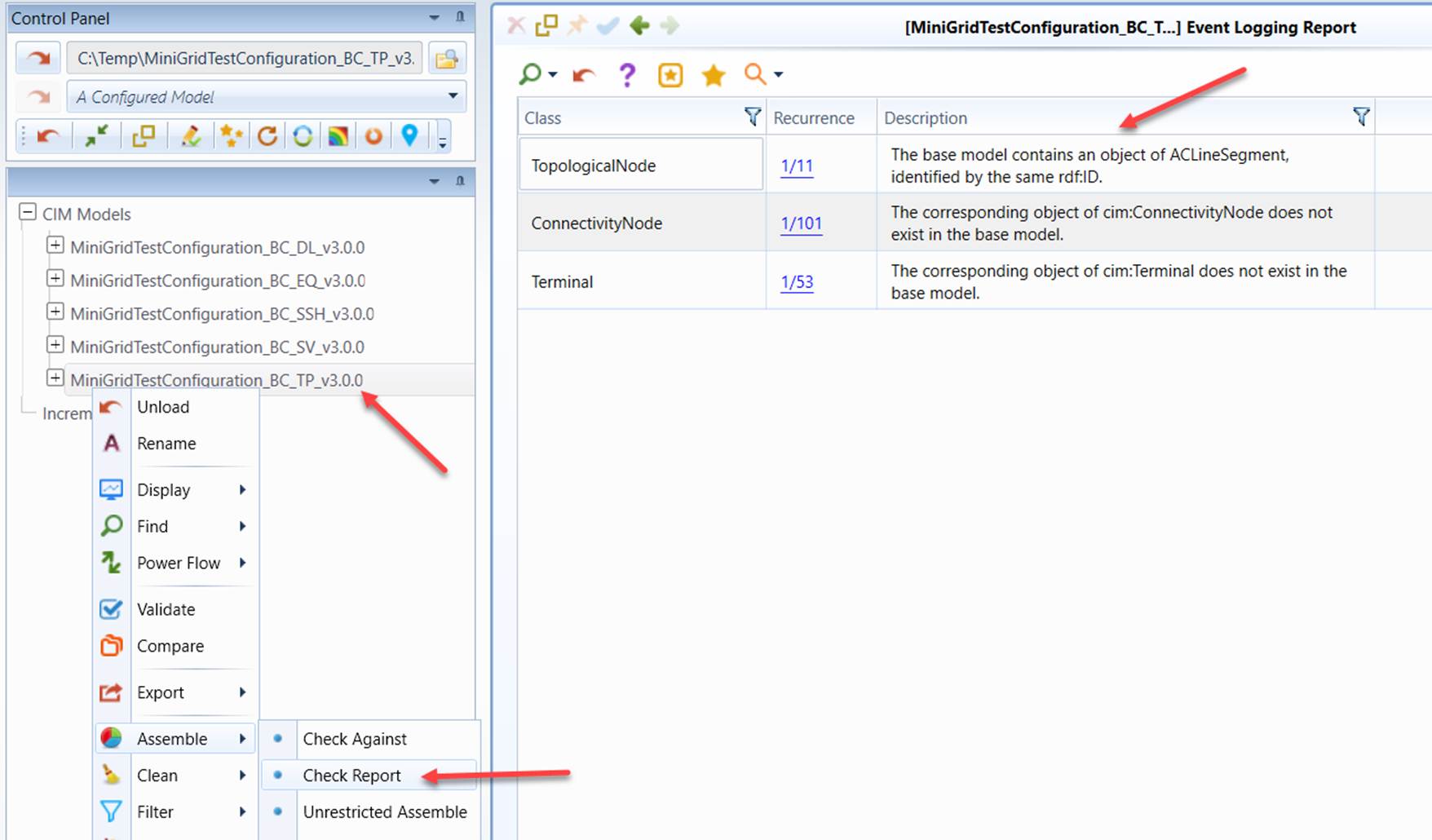
Alternatively, the same report can also be called from the Access Toolbar in the model summary display, as illustrated below.
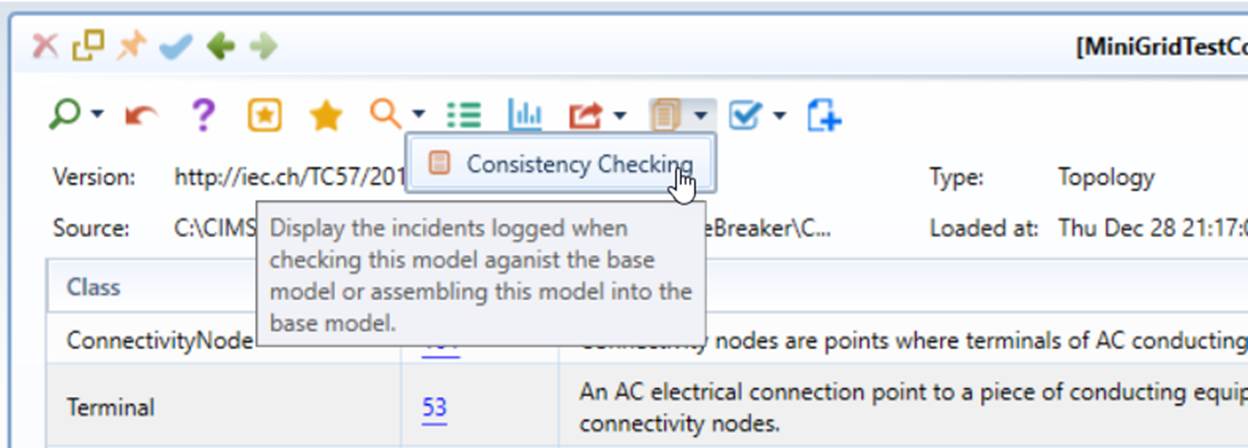
- Click the hyperlinks to inspect the related instances in more detail.