Exploration of Model Hierarchies
The Tool organizes the loaded models into various hierarchies in support of model browsing and many other data engineering tasks. Built as a data-driven tool, the Tool transforms the domain model into a hierarchical presentation, forming navigation trees to facilitate model browsing. Because of this data driven design philosophy, the navigation trees can be auto-generated for any versions of CIM, standard or extended.
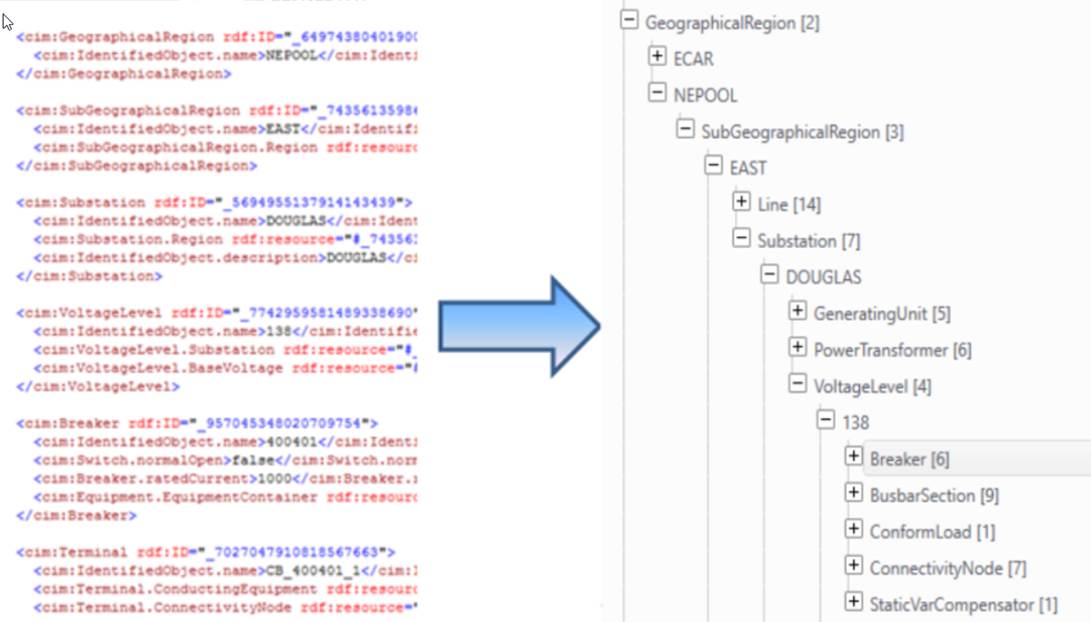
The navigation trees provide an overview of the loaded modeled and enable users to quickly navigate down to the modeling entities of interest. Many tree items are associated with a context menu which can be invoked through a right-button mouse click on the selected tree items. For example, all of the tasks specific to a loaded model can be invoked through a context menu associated with the root of the model tree, referred to as Model Tree Item.
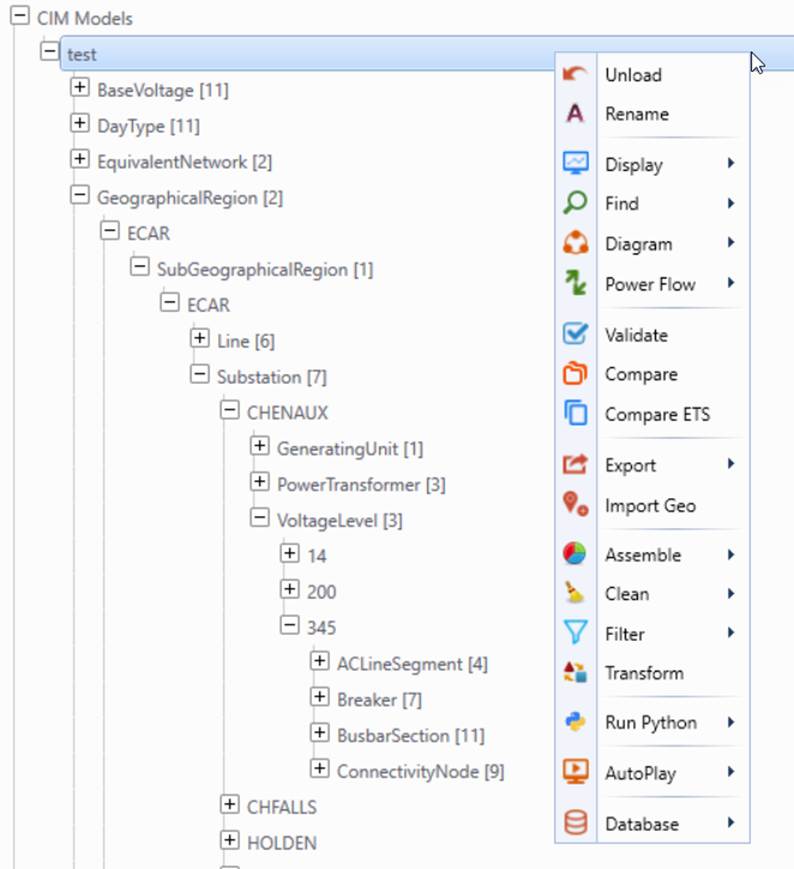
More specifically, the Tool provides two navigation trees on a tabbed panel as illustrated:
- Model Explorer: This navigation tree is automatically created based on the dynamic discovery of the model structure. It organizes all of the CIM objects into various model hierarchies. CIM objects that contain no references to other objects are represented as tree roots. Those that reference to the same parent objects are grouped by type as child tree items, and so on. This tree provides the main hierarchical navigation mechanism..
- Model Catalog: This navigation tree lists all of the discovered CIM classes in alphabetical order. At the top, it groups the CIM objects by type, but allows you to navigate down to the referencing objects. This navigation tree should not be used as main navigation mechanism, because there may be thousands of tree items under some category tree node.
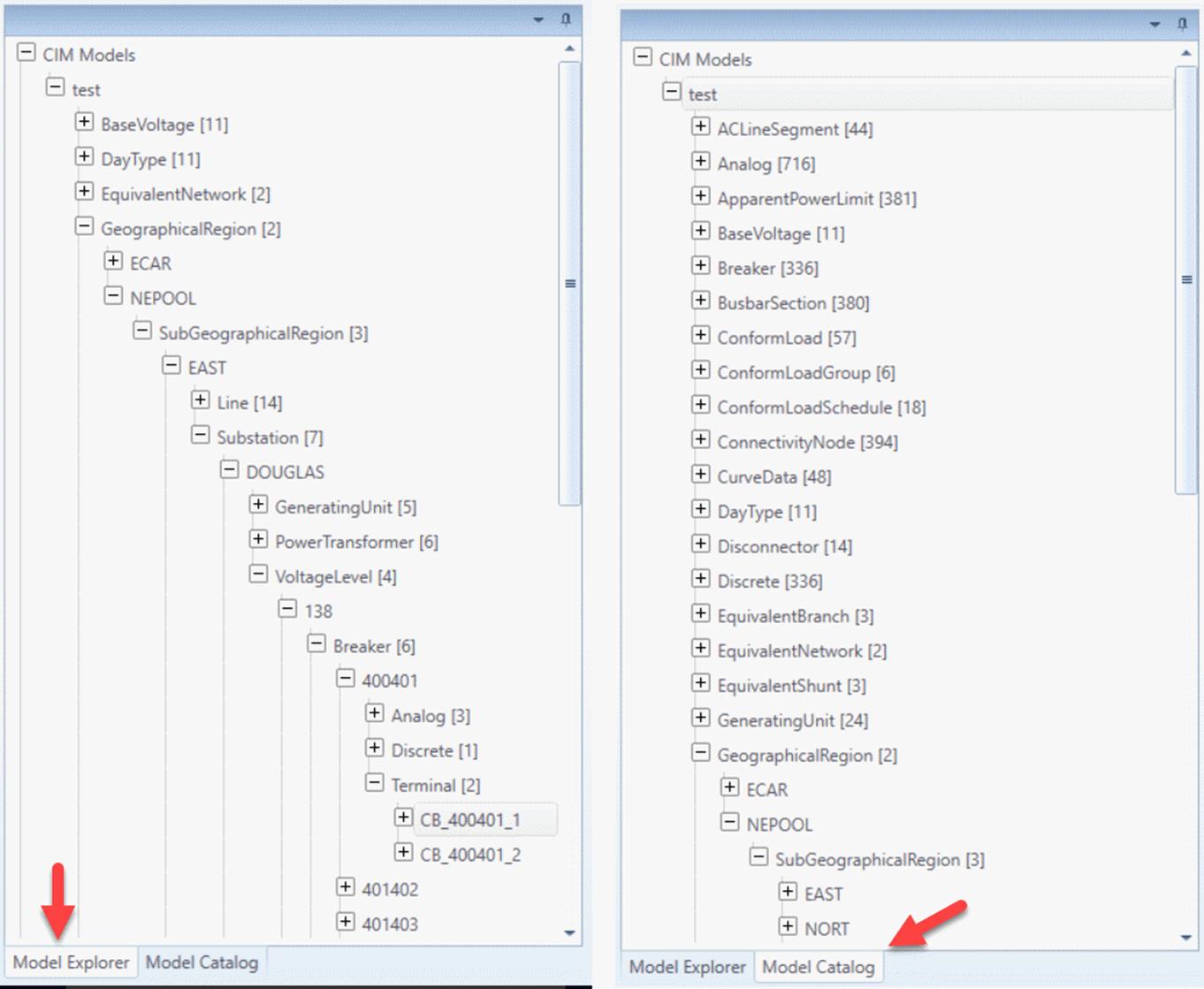
Typical use cases involve the following steps:
- User selects a model hierarchy from Model Explorer or Model Catalog navigation tree. For example, in order to find a Breaker in a Substation, user may select the following model containership hierarchy: GeographialRegion→SubGeographicalRegion→Substation→VoltageLeve→Breaker.
- Expand the selected model hierarchy in the selected navigation tree till the tree item associated with the target modeling entity is located.
- Left-mouse click the identified tree item to call the default display of the tree item or right-mouse click to invoke a context menu associated with this tree item to perform other tasks. The called display will be shown in the Active Model View.
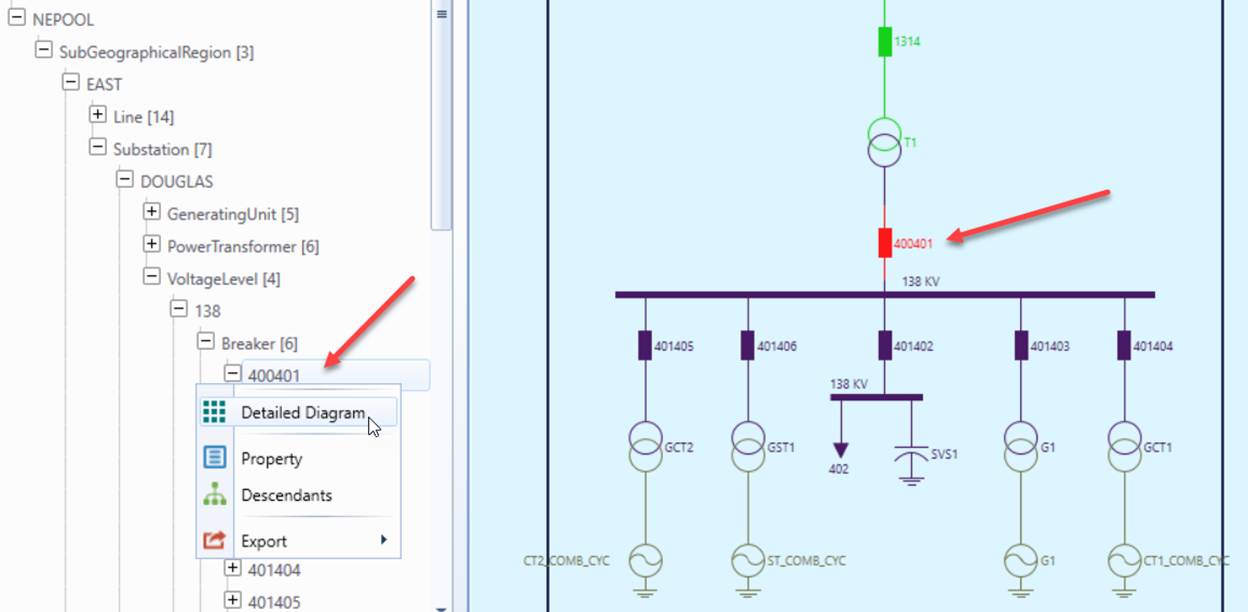
To help users track the navigation of model hierarchy, the Tool highlights the latest visited or searched tree node selected with left/right mouse or through automated tree expansion, as illustrated above. However, it is important to note that the view display may not be always synchronized with the tree node selection. This is because that tree navigation is not the only way to display views. A view can be invoked from another view, for example.
By leveraging cutting-edge UI virtualization technologies, the Tool enables users to expand a tree item with thousands of tree nodes within a second. The following shows some results for conducted performance tests:
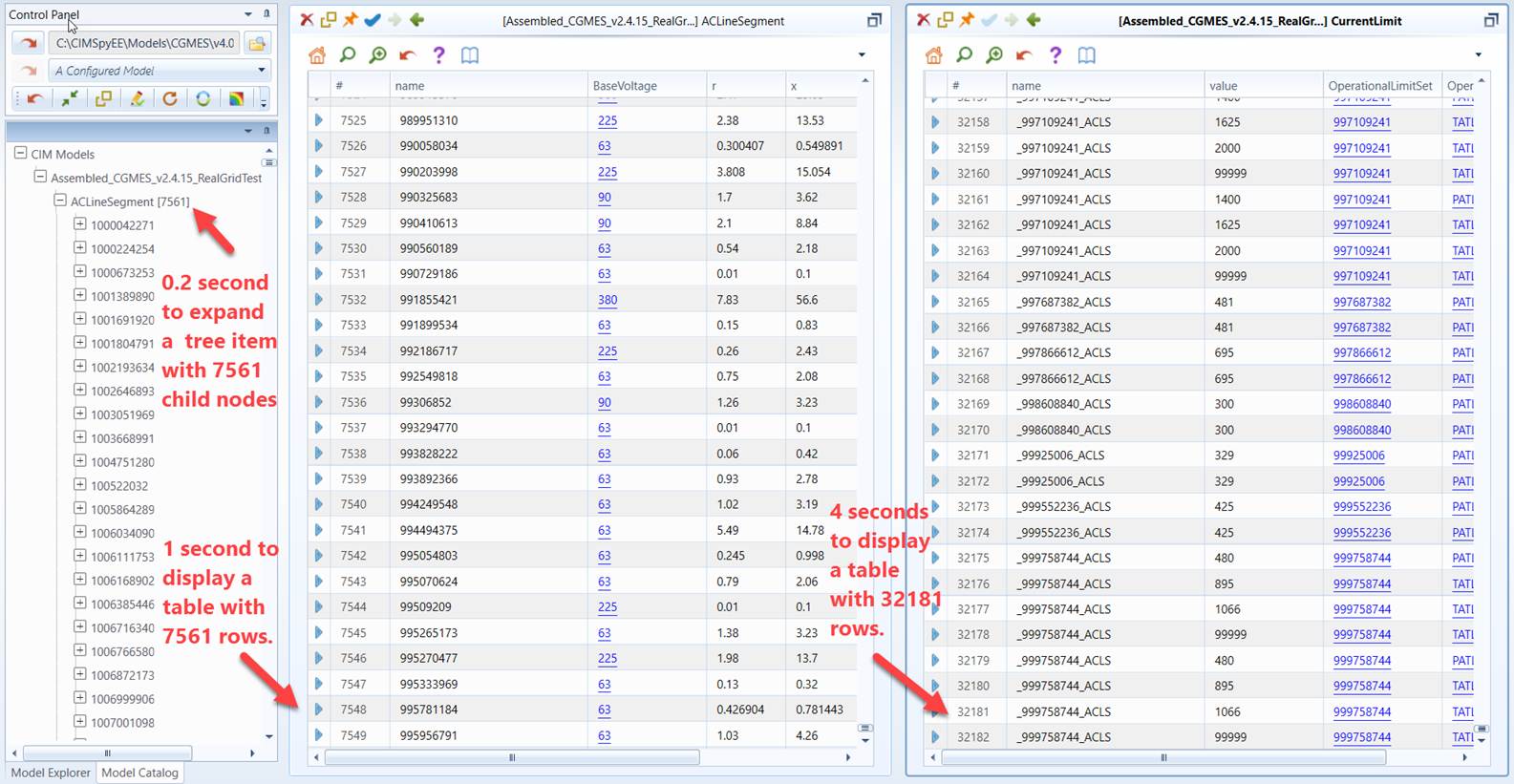
Note
the above testing was conducted on a laptop with Inter i7/2.70 GHZ CPU and 16 GB RAM.
Tips
Users can automatically collapse an expanded tree by simply clicking a command icon as illustrated below.
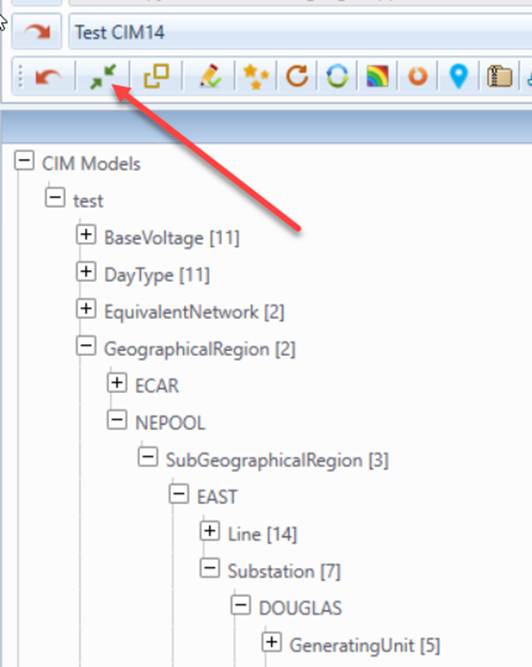
.