Editing Objects
Object editing is primarily performed in Form Displays, thought Tabular Displays also support object editing. There are two types of Form Displays.
- Single-Object Form: Used for displaying and editing a single object.
- Composite Form: Used for displaying and editing an object along with its associated objects within a single form.
We will begin with the Single-Object Form, as most editing activities in a Single-Object Form also apply to the Composite Form Display. Understanding Single-Object Form editing provides a foundation for working with the more complex Composite Form Display.
Object Editing in a Single-Object Form
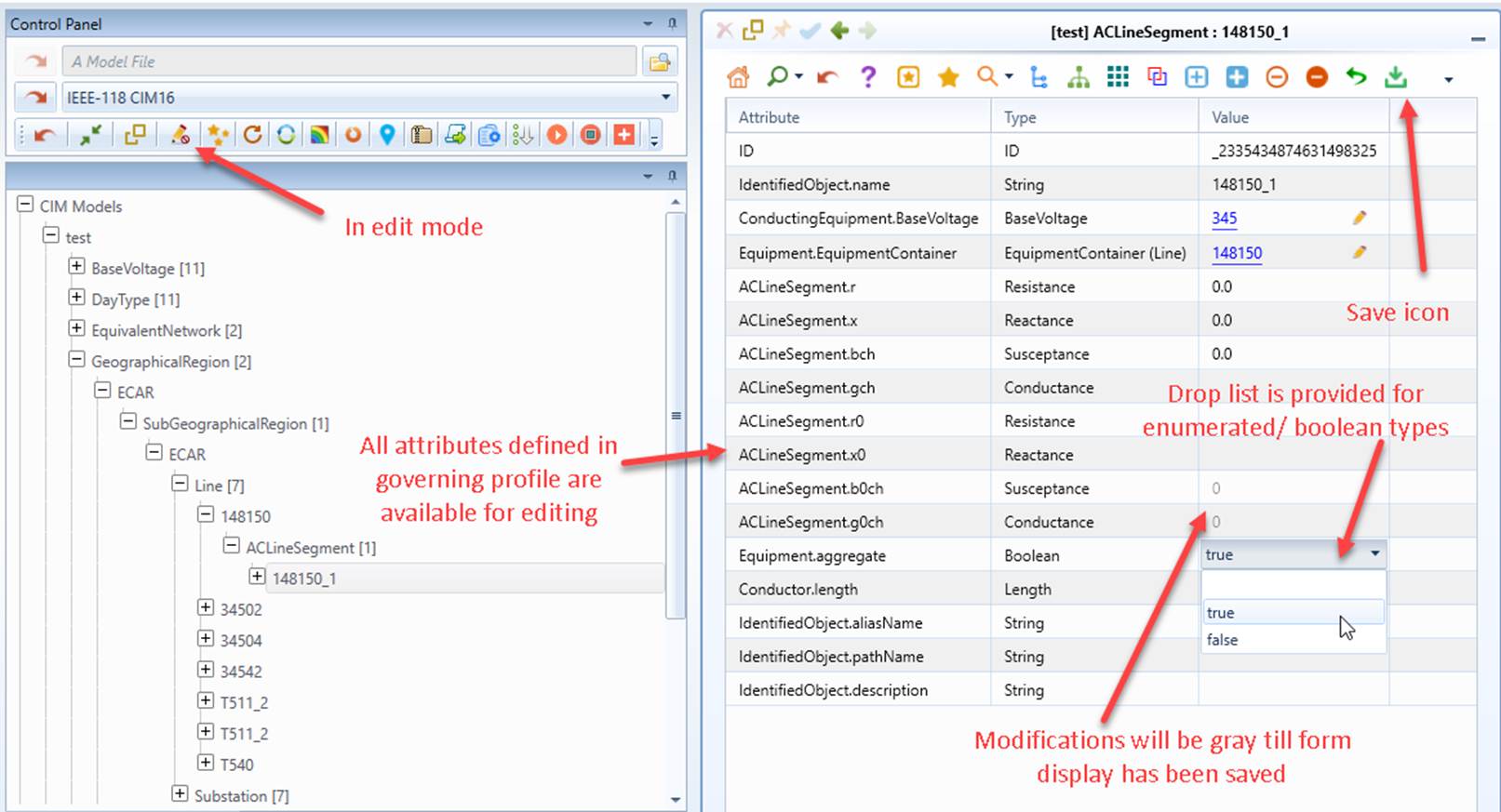
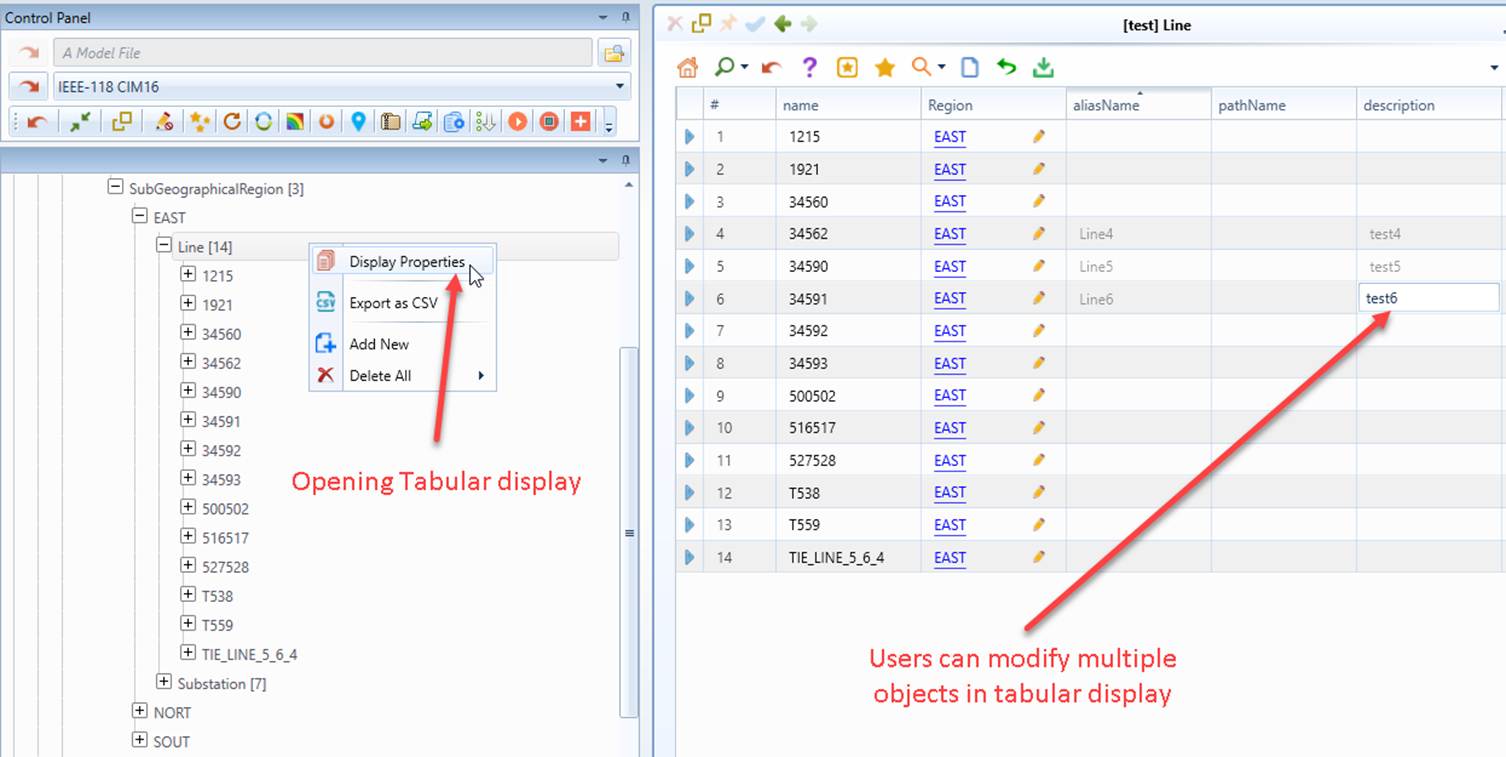
The Tool enables users to modify a newly added object or an existing objects in the Edit Mode as illustrated in the following screenshot. Once the Edit Mode is enabled, all of the attributes defined in the profile will be available for editing, even those not instantiated in the loaded model. If the attribute is of enumerated or Boolean type, a drop list will be provided. Model editing is supported for both form and tabular display as illustrated below. Any model changes will be gray. Once editing is completed, users should click the save icon to save the model changes. The save icon will be auto-enabled once any changes are made in the displays. If users try to navigate to other displays without saving the model changes, users may or may not be prompted to save the model changes, depending on the setting of the configuration described below. In the former case, the model changes will be auto-saved.
The association can be set through an association selection wizard. This wizard can be triggered from icon  as illustrated below.
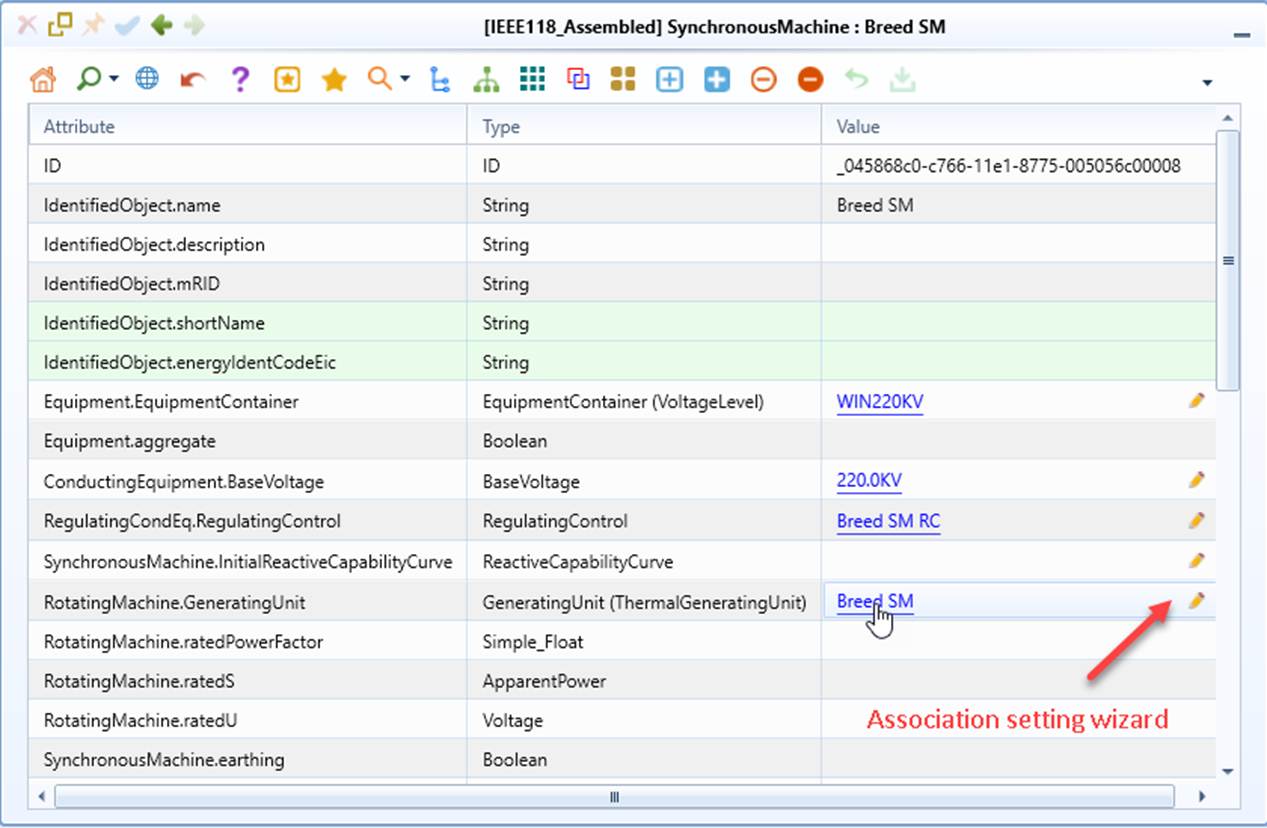
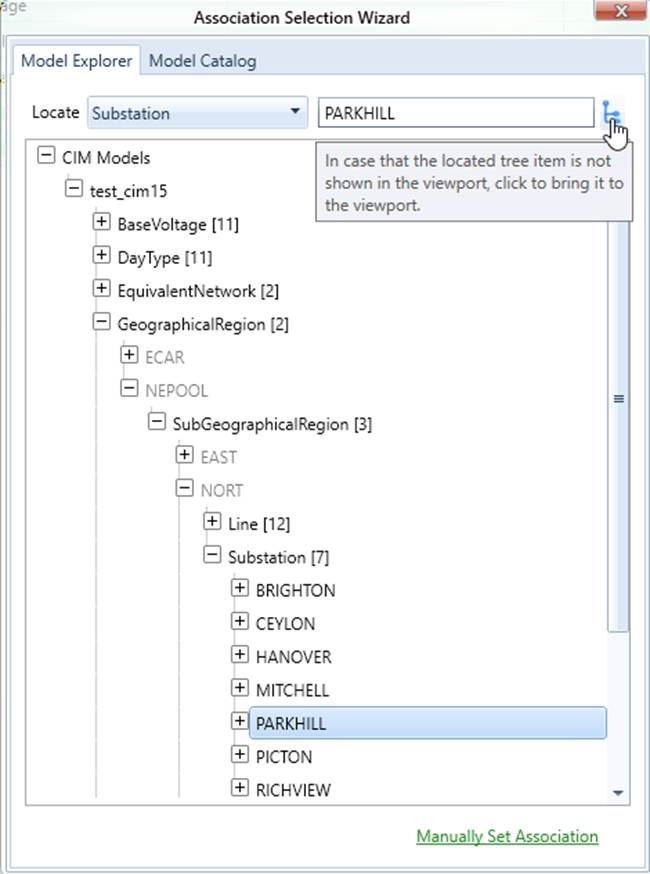
When the icon is clicked, an association selection wizard will appear. It supports the following mechanisms for selecting the associated object from the model:
- The navigation tree is initially expanded to locate the object being edited, as the associated object is normally near the object being edited.
- Searching for an object instantly in the model hierarchy with a provided hint (partial name). This is the quickest approach to set the association. After users select a class and enter a partial name, a hint list will be auto-popped. Once an item is selected, the navigation tree will be auto-expanded with the discovered object highlighted. Users then set the association by clicking the discovered object. If users can’t provide the hint for the searched object, they can also search for the related container, such as Substation, and then search for the associated object in the auto-expanded tree. Note: this object search wizard restricts the searched classes. The class dropdown in Model Explorer lists only associated classes and the frequently-searched classes, while the class dropdown in Model Explorer lists only associated classes. Additionally, a command icon is provided to bring the discovered tree item into the viewport if it is not viewable after the tree is initially auto-expanded.
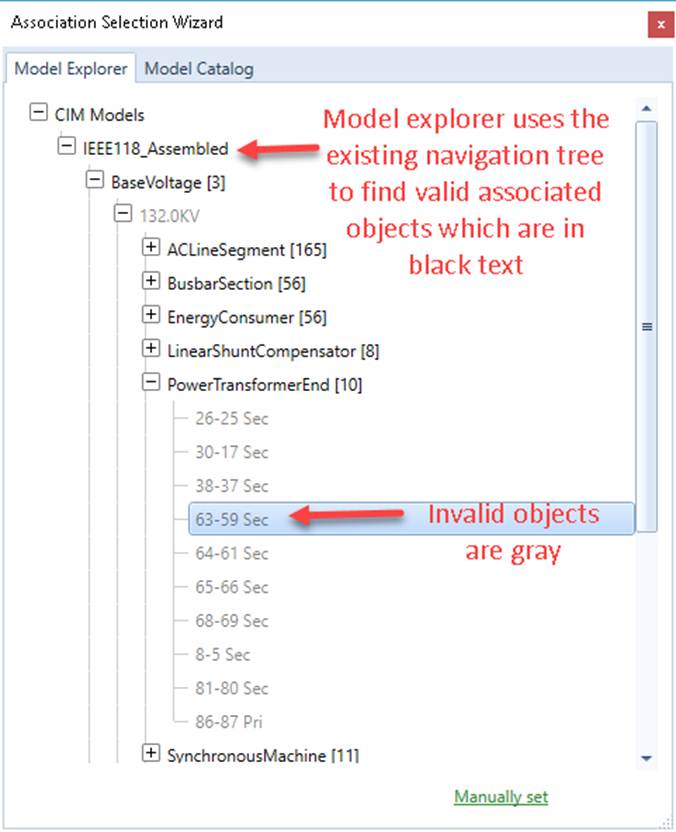
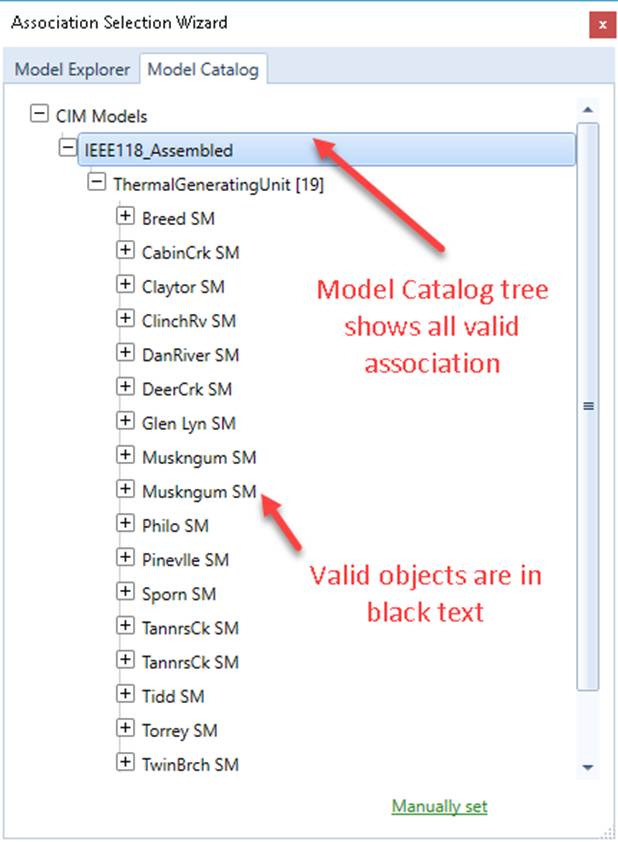
- Expanding the navigation trees to select the object: Manual tree expansion is only needed when users fail to provide a hint. The Model Explorer tree in the association selection wizard takes snapshot of the existing Model Explorer tree in the Tool, while the Model Catalog tree lists only the valid categories. Note only valid objects (in black text) are allowed to be selected.
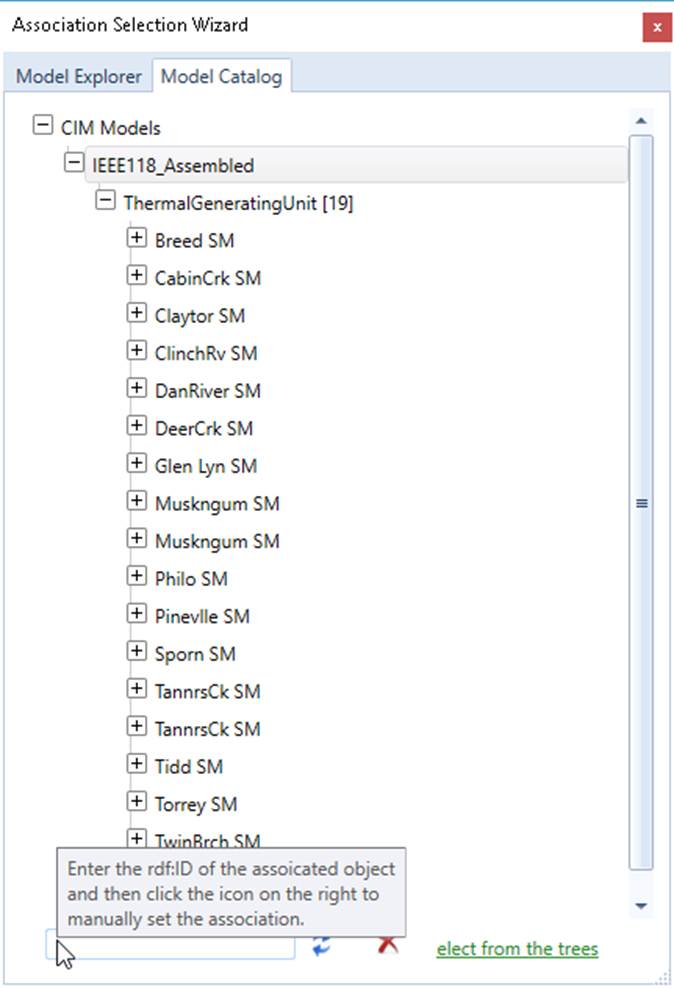
- Manually entering the rdf:ID of the associated object. Users can also manually enter the rdf:ID of the associated object. But, whenever possible, users are highly recommended to use the object search wizard and navigation trees to select the associated object. Manual entry is only applied to exceptional cases, for example, when the associated object is in another partial model. If the associated object is in the same model, it is recommended that users use copy (Ctrl-C) the rdf:ID of the associated object from the Form Display and then paste (Ctrl-V) it in the association selection wizard.
Object Editing in a Composite Form
A Composite Form is a structured form designed to present and edit complex, interrelated objects in a single, integrated view. Composite Form is fully editable, as illustrated below. This section describes features special for Composite Form.
A convenient way to add a new object is through the association tree in the Composite Form. Users can right-click on a parent object and add valid child objects directly from the context menu, as illustrated below.
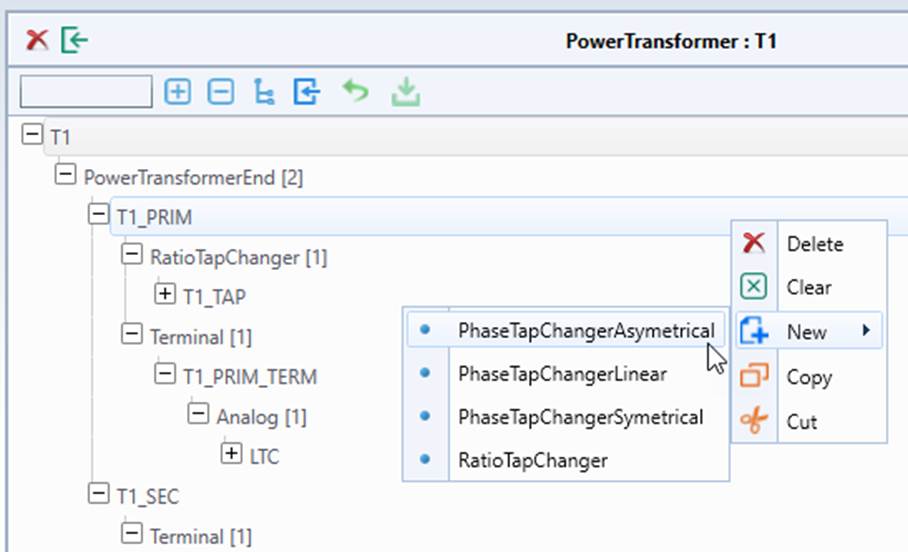
This capability is enabled by leveraging containment information inferred from the model and defined in the model hierarchy metadata (e.g., ..\config\constraint\DefaultConstraint.xml). Based on these containment rules, the system dynamically determines which child object types are permitted and presents only valid options in the context menu, ensuring consistency with the model structure. Once a child object is added, its associations are automatically assigned, facilitating data entry.
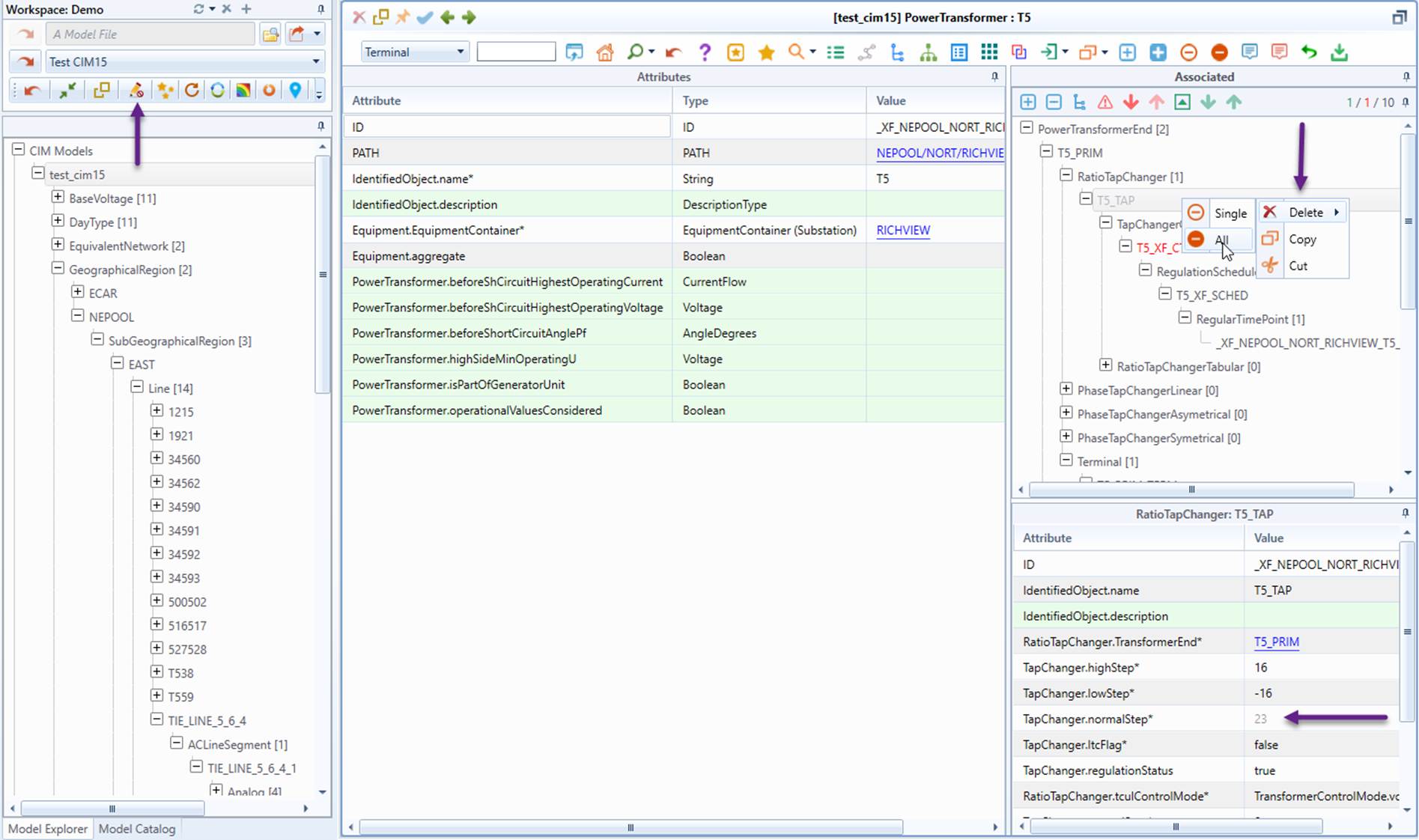
In a Composite Form, users can also delete an existing associated object. This is achieved from the context menu as illustrated below.
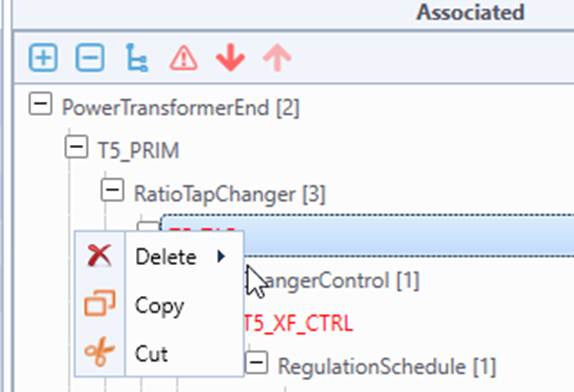
Cascade deletion is supported for the associated objects. When a parent object is deleted, its descendant objects can also be deleted. Another key editing features of the Composite Form is deep-copy support. Users can copy a sub-tree of an associated object and paste it into an appropriate location within the navigation tree, either in the same Composite Form or in a different Composite Form. This feature enhances efficiency and consistency in model editing by reducing repetitive data entry, thus facilitating model editing.
Note:
- When copying or deleting an object in the navigation tree, you must choose between "Single" or "All":
- Single – Only the selected object is copied or deleted, leaving its descendant objects intact.
- All – The selected object along with all its descendant objects (i.e., the entire sub-tree) are copied or deleted.
These options provides flexibility in managing hierarchical data, allowing users to modify individual objects or entire structures based on their needs. The All option is for supporting deep-copy and cascade deletion. However, it is important to note that deep-copy and cascade deletion are primarily intended for hierarchical data sets, such as an OperationalLimit containing a set of ApparentPowerLimits. If the targeted data set is not purely hierarchical, these operations must be used with caution. For example, when a data set is deep-copied, the associations of the copied objects are updated within the context of the associated data sets. However, users must manually update the corresponding associations outside of this context. As an example, if a ConformLoad is deep-copied within the context of a Substation, users may need to manually update the ConformLoad.LoadGroup association to reference the appropriate ConformLoadGroup, which exists outside the Substation context. Another important consideration is choosing the appropriate context in which to perform this operation. The goal is to minimize the need for manual updates.
- If the underling ViewModel is inferred, attribute includeDeclaredChildOnly should be set to true to properly support cascading deletion and deep-copy. Otherwise, unexpected objects will be deleted or copied. By adding this restriction, we ensure that data set is deleted or copied in an expected way. In other words, deep-copy and cascading deletion must be meta-data driven.
- Changing association properties in an associated object may result in a position change or complete loss of the associated object in the navigation tree. This occurs because the navigation tree is dynamically generated based on the associations between objects. Possible Effects of Changing Association Properties include:
- Position change – If an object's association is modified, it may move to a different location in the navigation tree to reflect its new relationship.
- Loss of object in navigation tree – If an association is removed or reassigned in a way that no longer fits the current tree structure, the object may disappear from the navigation tree. However, it remains in the model and can be located through searches or alternative views.
To prevent confusion, users should review association changes carefully to ensure that objects remain properly structured within the navigation tree.
- Refer to Composite Form for instructions on how to locate model changes in the navigation tree of the associated objects.
Data Entry Validation 
The Tool provides Data Entry Validation, ensuring that user input is accurate, consistent, and compliant with predefined rules before being saved to the model. Refer to Data Entry Validation for more details.
Saving Model Changes
When users edit objects in the Form Display, the changes made are not immediately saved to the model. These are referred to as pending model changes.
To indicate pending changes:
- The relevant object node in the navigation tree is grayed out.
- Fields with unsaved modifications are also grayed out to distinguish them from saved data.
This approach allows users to review and confirm changes before committing them to the model, ensuring greater control over data integrity and reducing the risk of unintended modifications.
All model changes made in the Form can be saved together, either explicitly or automatically. Before the pending changes are saved to the model, users have the option to undo these changes explicitly. Undo of the committed model changes, however, is currently not supported.
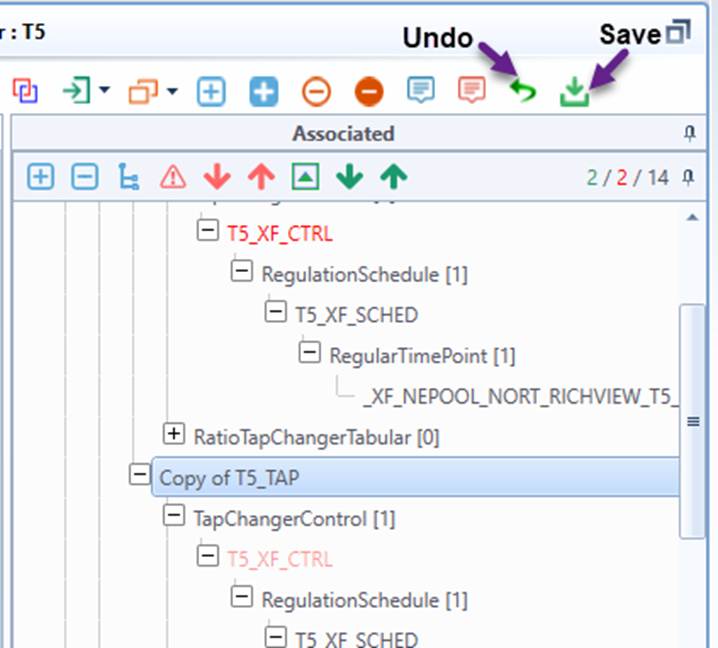
Two options are supported for saving model changes to the model:
- Explicit Saving – Users can manually save pending model changes at any time, regardless of whether Automatic Saving mode is enabled or not.
- Automatic Saving – When enabled, pending changes are saved automatically without requiring manual intervention when navigating away. If disabled, users will be prompted to confirm saving model changes before leaving the form.
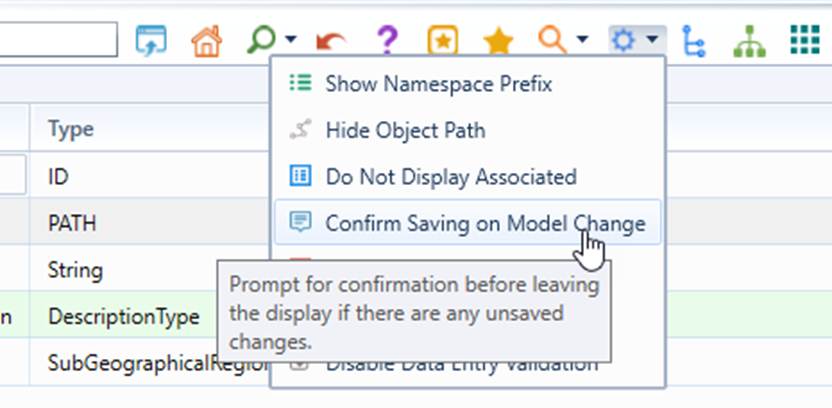
Automatic Saving is the default behavior. However, users can disable it as illustrated below. Any changes to this setting are persistent and will be retained until manually modified again.