Extending MQL through Scripting
Model Query Language (MQL) provides a structured mechanism for querying and manipulating loaded models. It has some basic built-in functions. There are certainly cases where users want to build special functions to handle more sophisticated use cases. The Tool provides Python scripting support to enable users to create their own special functions. More specifically, the Tool enables users to plug-in scripting functions and embed them in the query strings to accomplish special tasks.
In this article, we will use an example to show users how Python scripting support can be leveraged to author custom MQL functions.
Hands-on
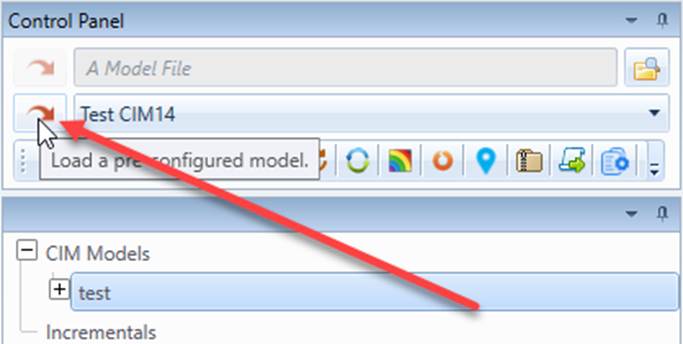
- Load the “Test CIM 14” sample model that comes with the Tool from the data source dropdown list, as illustrated.
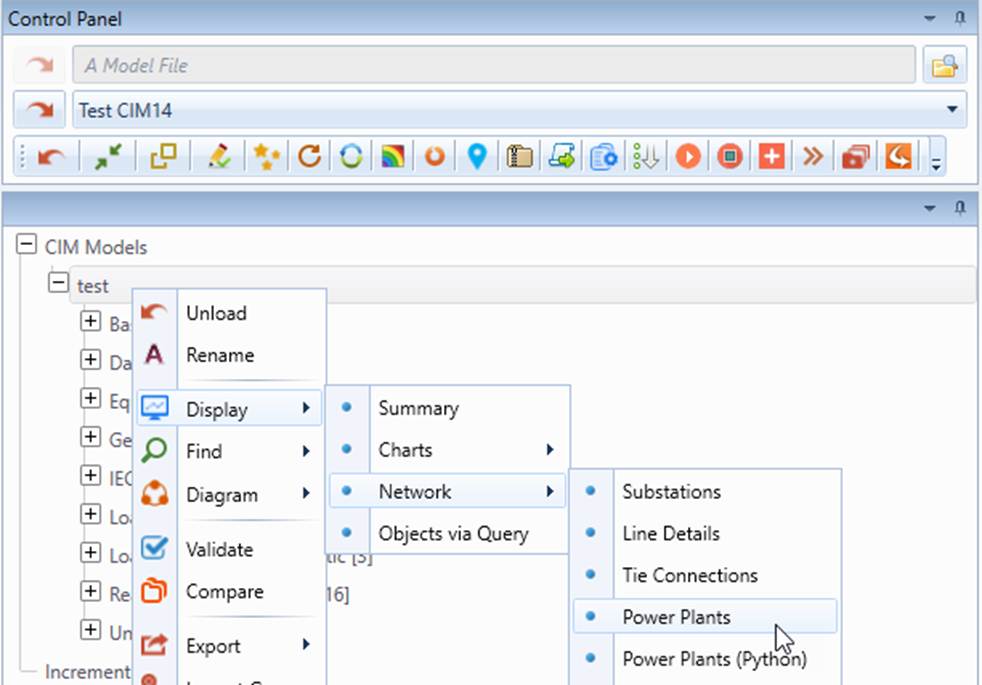
- Call a custom report, titled ‘Power Plants’ via the context menu associated with the loaded model, i.e. Display→Network→Power Plants, as illustrated.
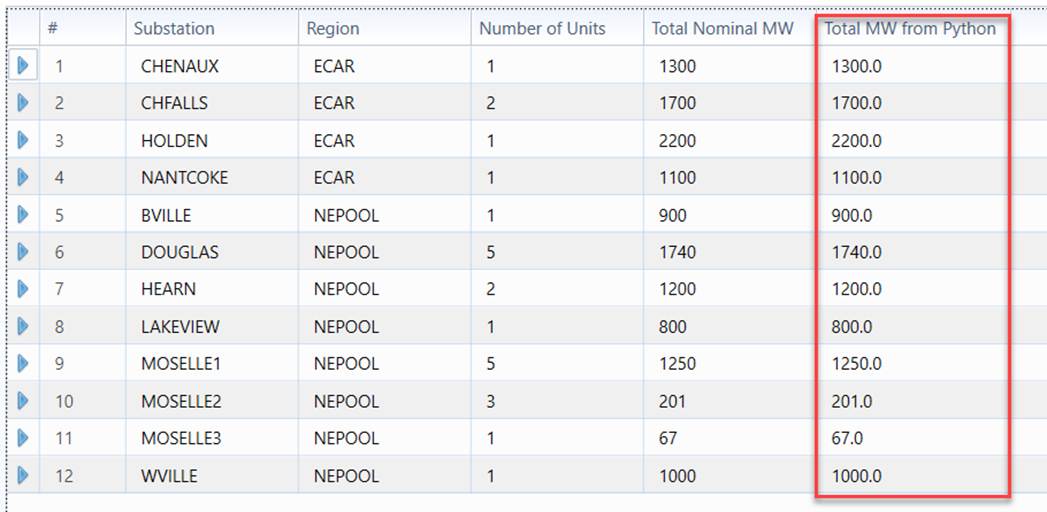
- The displayed report shall contain a column created from Python script, as highlighted below.
Code Analysis
The defined sample custom report, which can be found at \CIMSpy\config\view\Network.xml, has an extended MQL function, as highlighted below.

Note:
- The module file path doesn’t need to be specified if the module file is under the default scripting folder according to convention. Otherwise the full file path must be specified, for example:
definition``=``"[$SubstationUnits->%..\scripting\MQLExtension::GetTotalOf(cim:SynchronousMachine.ratedS)] - The extended MQL property function passes a user-defined parameter, i.e. ‘
cim:SynchronousMachine.ratedS’to the script function.
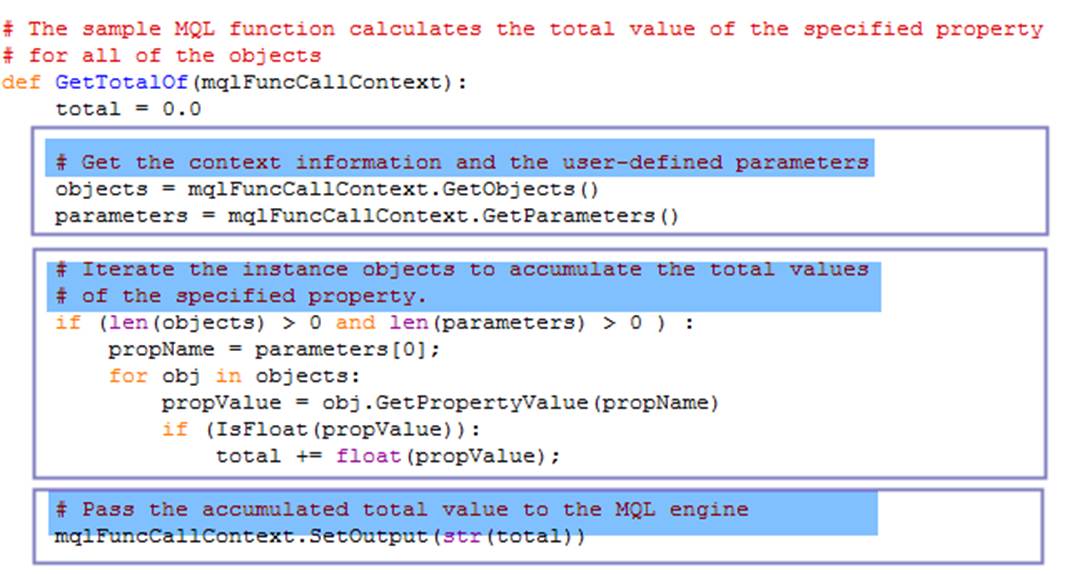
In the above example, the highlighted custom MQL function is defined to calculate the total nominal MW generation for an identified power plant. The script function, defined at \CIMSpy\scripting\MQLExtension.py, is described below.
How Does It Work?
When the MQL engine executes the plug-in property function, it will prepare an MQLFuncCallContext object and pass the information to the triggered script function. Once the execution is completed, it will extract the output if any from the same MQLFuncCallContext object as the evaluated value. The exposed APIs of the MQLFuncCallContext object are summarized below:
Class
MQLFuncCallContext
Description
Class MQLFuncCallContext defines a context object used to exchange information between MQL engine and custom property function scripted in Python.
Function
Details
Description
GetParameters
Syntax
GetParameters()
The function returns a sequence of user-defined parameters.
Returns
StringVector
The returned string vector includes all of the user-defined function parameters in the exactly same sequence.
Parameters
none
AddMessage
Syntax
AddMessage(msg)
The function stores a new message, which will be prompted to users in the UI in the same sequence as it is stored.
Returns
none
Parameters
msg: string
String message to be presented to users
GetObjects
Syntax
GetObjects()
The function returns a collection of objects that the MQL engine is processing before hitting the custom plug-in property function.
Returns
ObjectVector
A collection of objects that the MQL engine is processing before hitting the custom plug-in property function.
Parameters
none
SetOutput
Syntax
SetOutput (output)
The function stores the output string to the context object to be carried over to the MQL engine.
Returns
none
Parameters
output: str
Evaluated property value to be carried over to the MQL engine
Debugging & Logging
It is important to note that if there are syntax or run-time errors detected when running the MQL-based function with Python scripts embedded, the error messages are not displayed to the users in the UI. This is because MQL evaluation is executed in a muted mode.
Users can enable the error/message logging by setting attribute loggingEnabled to ‘true’ in the ScriptingConfig element of the CustomConfig.xml, as shown below. When this flag is set to ‘true’, the errors encountered and script-generated messages will be saved in a log file specified by attribute loggingFile. Attribute maxDisplayedMsgs specifies the max number of errors/messages. If attribute maxDisplayedMsgs is 0 (default), all of the errors/messages will be displayed in the server prompt session and logged in the log file. Otherwise, only the first maxDisplayedMsgs will be displayed and logged. For example, only the first 10 errors will be displayed and logged (if enabled) according to the following configuration. Note: the errors/messages will be logged in appending mode until the server is shut down. Then a new logging session will started, overwriting the previous logged messages.
